
Run a Conflict Check
In this article
Before your firm takes on a new client or matter, you need to know whether the new work conflicts with your existing clients and matters. A conflict check searches your firm’s records in bilabl for parties that may create a conflict of interest. You enter subjects, which are the names and details to check. Each record that matches a subject is a hit. You then decide on each hit, and you flag a hit that may be a conflict.
With conflict check, you can:
- Search many types of bilabl records in one step, instead of checking each list by hand.
- Decide on each hit and add a note, which gives your firm a clear record of how each possible conflict was handled.
- Send a possible conflict to a user with the Waive permission, who decides whether your firm can proceed.
- Keep a numbered report of each check, and save it as a PDF to the client or matter.
The search covers contacts and clients, business relations, matters, tasks, billing statements, transactions, timesheet records, expense records, calendar events, and intakes. You can also include your firm’s SharePoint or Google Drive documents.
Conflict check is available to every firm. If your firm uses Compliance status, you can also start a check from a client or matter and record the result on the Conflict check status of that client or matter.
This article explains who can use conflict checks and what each outcome means. It also explains how to run a check, review the results, complete the check by generating the report, deciding a conflict yourself, or sending a waiver request, decide a waiver request, save the report as PDF, and record the result on the Conflict check status. For how your administrator sets up conflict check, see Set Up Conflict Check.
Conflict check permissions
Your firm’s administrator chooses who can run conflict checks and who can decide waiver requests. For the setup, see Set Up Conflict Check.
- Administrators and Managers can always run conflict checks. They can start a check from a client, a matter, or the Quick Add menu. Their checks search all of your firm’s records, and they can see every check.
- Owners of a client or matter can run conflict checks if your administrator allows it. They can start a check only from the Conflict check badge of a client or matter they own. Their checks search only the records they can access in bilabl, and they see only the checks on the clients and matters they own. To search all of your firm’s records, ask an Administrator or a Manager to run the check.
- Selected users are users your administrator chooses. They can start a check from a client, a matter, or the Quick Add menu. Their checks search all of your firm’s records, but they see only the checks and reports within their access in bilabl.
- Users with the Waive permission decide waiver requests. A waiver request is a check with a possible conflict that a user without this permission sends for a decision. The user who decides selects Waive or Mark as conflict. Waiving a conflict means your firm accepts the conflict and proceeds with the work, usually after the parties give informed consent. Under Who can decide waiver requests, your administrator gives the Waive permission to users with the Administrator or Manager role, to Selected users, or to both.
For example, Emily is the Owner of the client ABC Bakery Company, and your administrator allows Owners to run conflict checks. Emily can run a conflict check on ABC Bakery Company. Emily has no access to the client Green Valley Farms. Her check does not find matches in Green Valley Farms, and she cannot see the checks on Green Valley Farms. If Emily finds a possible conflict, she cannot decide it herself, because she does not hold the Waive permission. She sends the check to Daniel, a Manager who holds the Waive permission, and Daniel decides.
For how user roles and entity permissions work, see Permission Overview.
Conflict check outcomes
Each conflict check has an outcome, and each outcome gives the check a result: Passed, Failed, or Not determined. bilabl sets the outcome from your decisions on the hits.
Run a conflict check
You can start a conflict check from the Quick Add menu, or from a client or matter. Both ways use the same Search scope, which lists the records to search. By default, all bilabl records are selected, but SharePoint documents and Google Drive documents are not. Select them if you also want to search your firm’s documents. These sources work only if your firm has connected SharePoint or Google Drive to bilabl. bilabl searches records of every status, including closed matters, archived clients, and lost intakes.
A conflict check compares your subjects with names, aliases, email addresses, phone numbers, addresses, and notes. It does not check fields such as industry, practice area, or category.
Run a check from the Quick Add menu
Only users with the Administrator or Manager role, and Selected users, can run a check from the Quick Add menu. Use the Quick Add menu when the party you want to check is not in bilabl yet. This check does not belong to a client or matter. You can save its report to a client or matter later, but you cannot record its result on the Conflict check status. To record a result there, start the check from the client or matter.
To run a check from the Quick Add menu:
- In the top bar, select Add to open the Quick Add menu, then select Conflict check.
- Under Subjects, enter each name, alias, email address, or phone number to check, and press Enter after each one.
- Under Search scope, keep the selected records or change them for this check.
- Select Run conflict check.
Next, review the results (see Review the results).
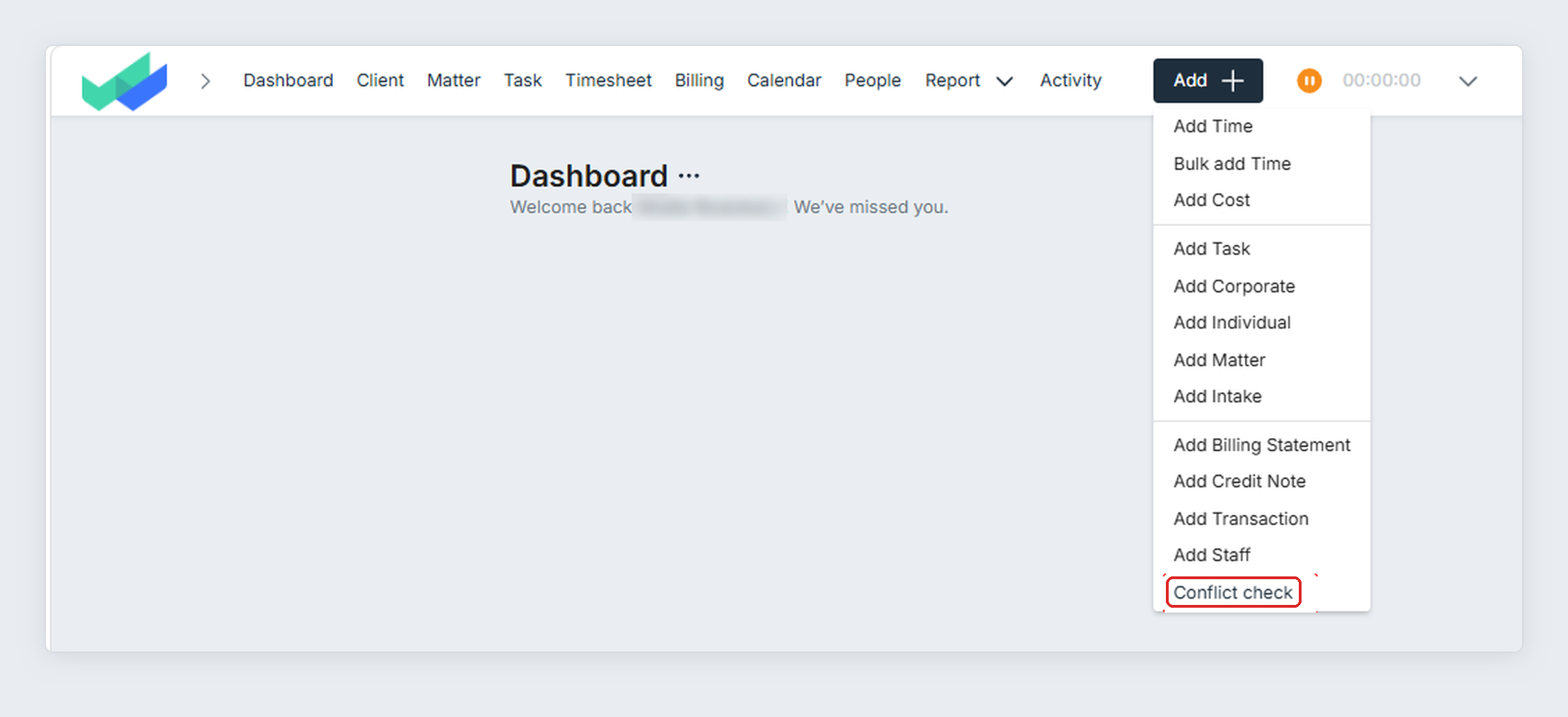
Run a check from a client or matter
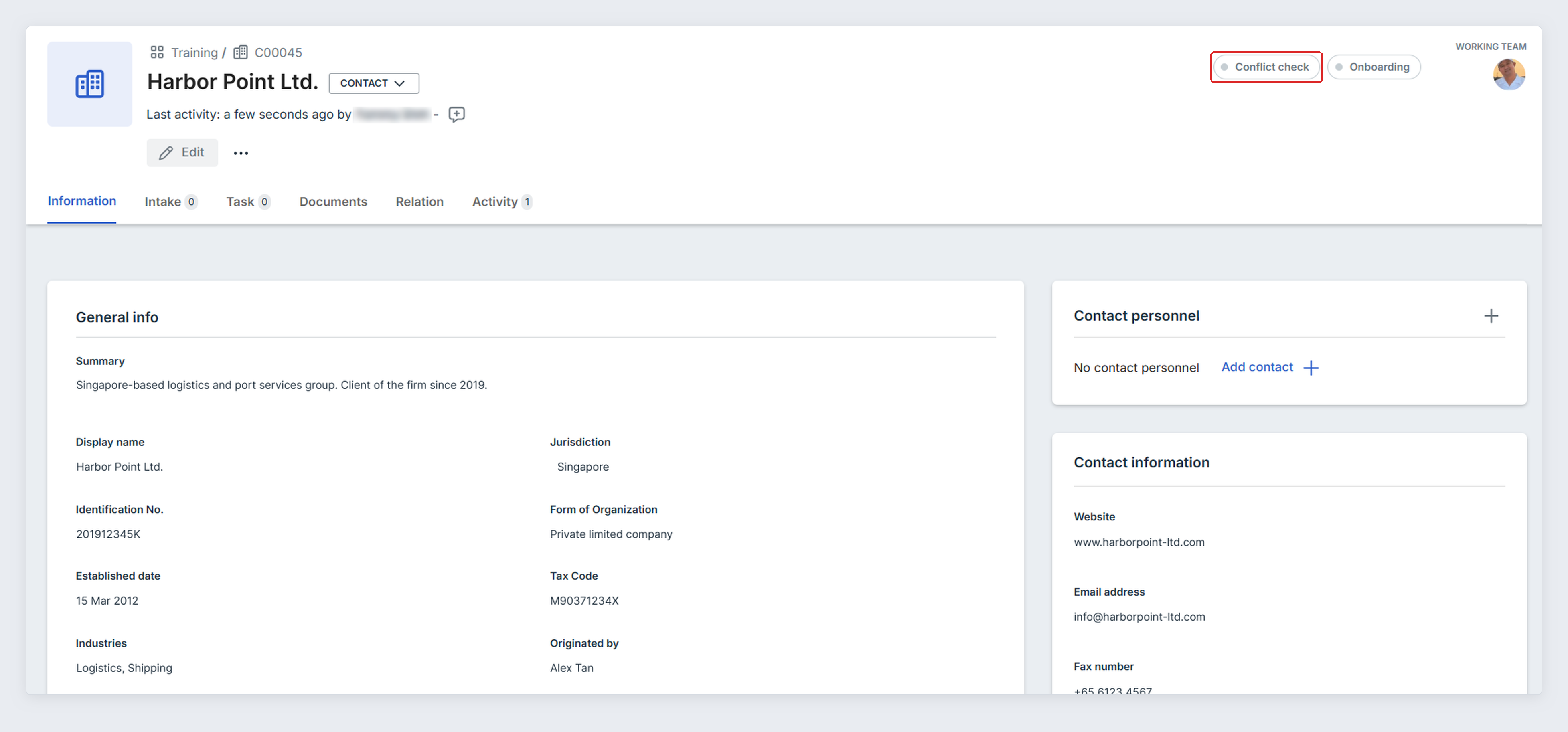
If your firm uses Compliance status, clients show a Conflict check badge in the top-right corner of the page. Matters show the badge only if your firm also records the conflict check on matters. Selecting the badge opens the Conflict check status, which has a checklist of steps. One of these steps is the conflict check step. Start a check from this badge when the check belongs to a client or matter that is already in bilabl. For more about Compliance status, see Compliance status
If the conflict check step shows Review results, a check on this client or matter is not finished. Select Review results to continue that check, or select Open to see it, for example while it waits for a waiver decision.
To run a check from a client or matter:
- Open the client or matter, then select the Conflict check badge in the top-right corner of the page.
- In the Checklist that opens, find the step that shows Run conflict check, then select Run conflict check. Your firm sets the name of this step.
- Review the Subjects. bilabl adds them for you. From a client, bilabl adds the client name, short name, email address, phone number, address, and contact personnel. From a matter, bilabl adds the matter name and the client name. To remove a subject, select the x on it. To add a subject, type it and press Enter.
- Under Search scope, keep the selected records or change them for this check.
- Select Run conflict check.
The results open in a window on the client or matter page. Next, review the results (see Review the results)
Review the results
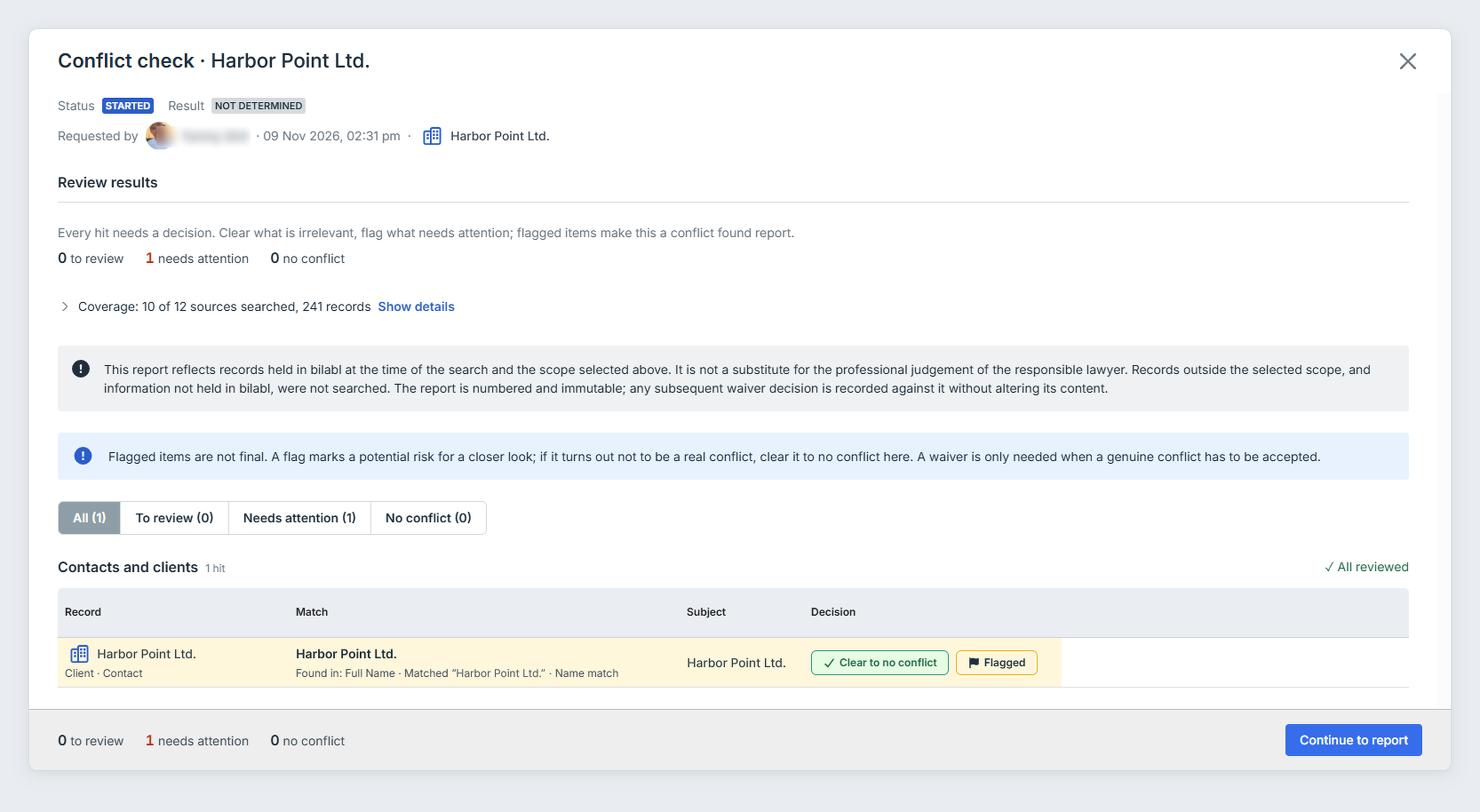
Check each hit and decide whether it is a conflict. bilabl groups the hits by record type, such as Contacts and clients or Matters. Each hit shows the fields that matched, such as a name or an email address.
If the check finds no hits, select Continue to report, then generate the report (see Generate a no-conflict report).
To review the results:
- For each hit, decide whether it is a conflict:
- If it is not a conflict, select No conflict.
- If it may be a conflict, select Needs attention. This flags the hit.
- To mark all remaining hits in a group as not a conflict, select Mark all as no conflict on that group. Hits you have already flagged stay flagged.
- If you started the check from a client or matter, that client or matter also appears as a hit. Select No conflict for it.
- When every hit has a decision, select Continue to report.
To change a decision, select Undo, or select Clear to no conflict on a flagged hit.
Complete the conflict check
After you select Continue to report, what you do next depends on your review:
- No hit is flagged: You generate the report yourself (see Generate a no-conflict report).
- At least one hit is flagged, and you hold the Waive permission: You decide the outcome yourself (see Decide a conflict yourself).
- At least one hit is flagged, and you do not hold the Waive permission: You send the check to a user with the Waive permission, who decides the outcome (see Send a waiver request).
If another user sent you a check to decide, see Decide a waiver request.
Generate a no-conflict report
When no hit is flagged, you generate the report.
To generate the report:
- Under Report note, explain why you made these decisions.
- Select Generate report.
The check is complete, with the outcome No conflict found.
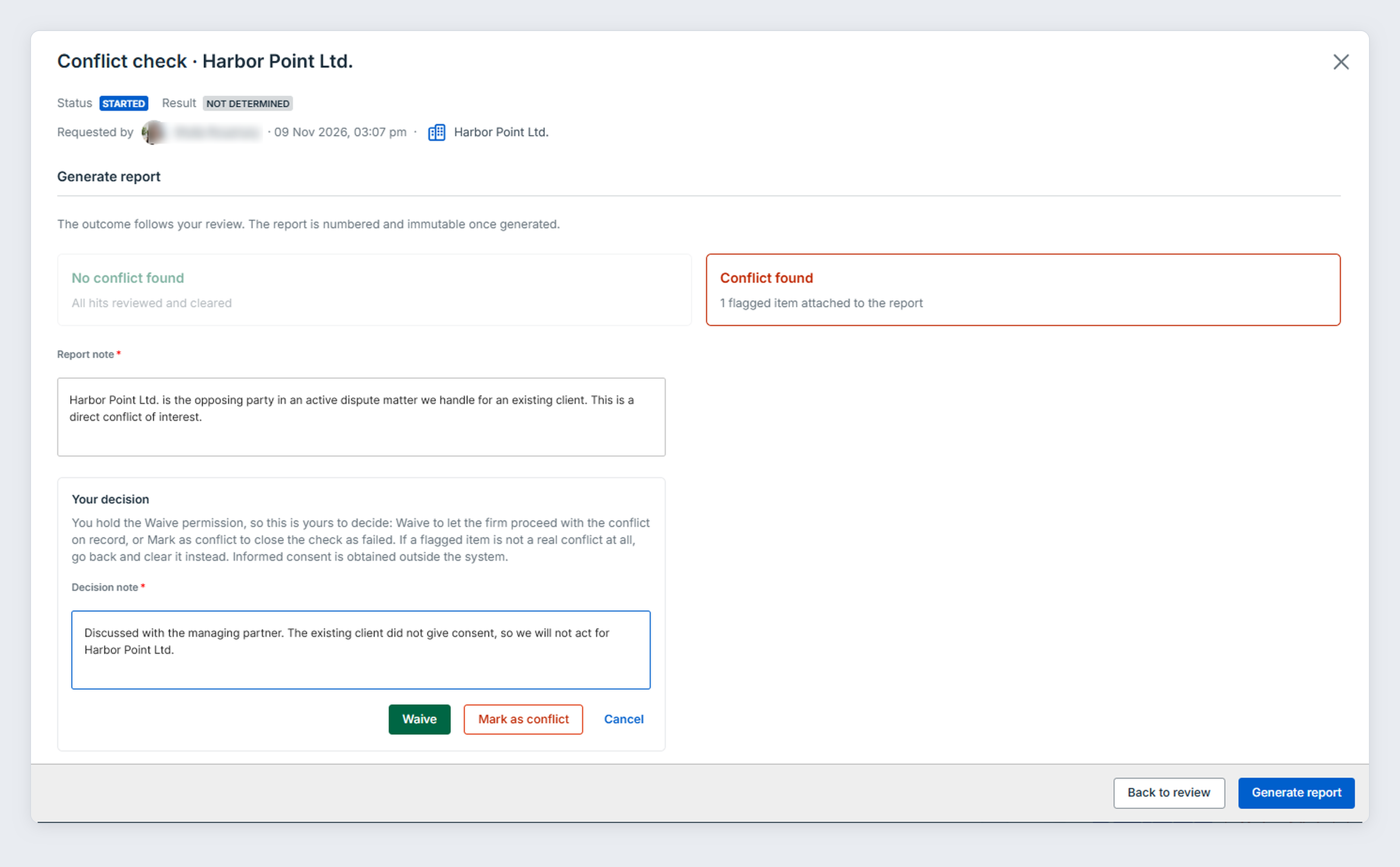
Decide a conflict yourself
When at least one hit is flagged and you hold the Waive permission, you decide the outcome.
To decide the outcome and generate the report:
- Under Report note, explain your review, for example which flagged hits are the conflict and why.
- Under Your decision, select Make a decision.
- Under Decision note, explain your decision, for example the date the parties gave informed consent. Your firm gets this consent outside bilabl.
- Select Waive to accept the conflict, or select Mark as conflict to confirm the conflict. Until you generate the report, you can select Undo to change your decision.
- Select Generate report.
The check is complete, with the outcome Conflict found, waived or Conflict confirmed.
Send a waiver request
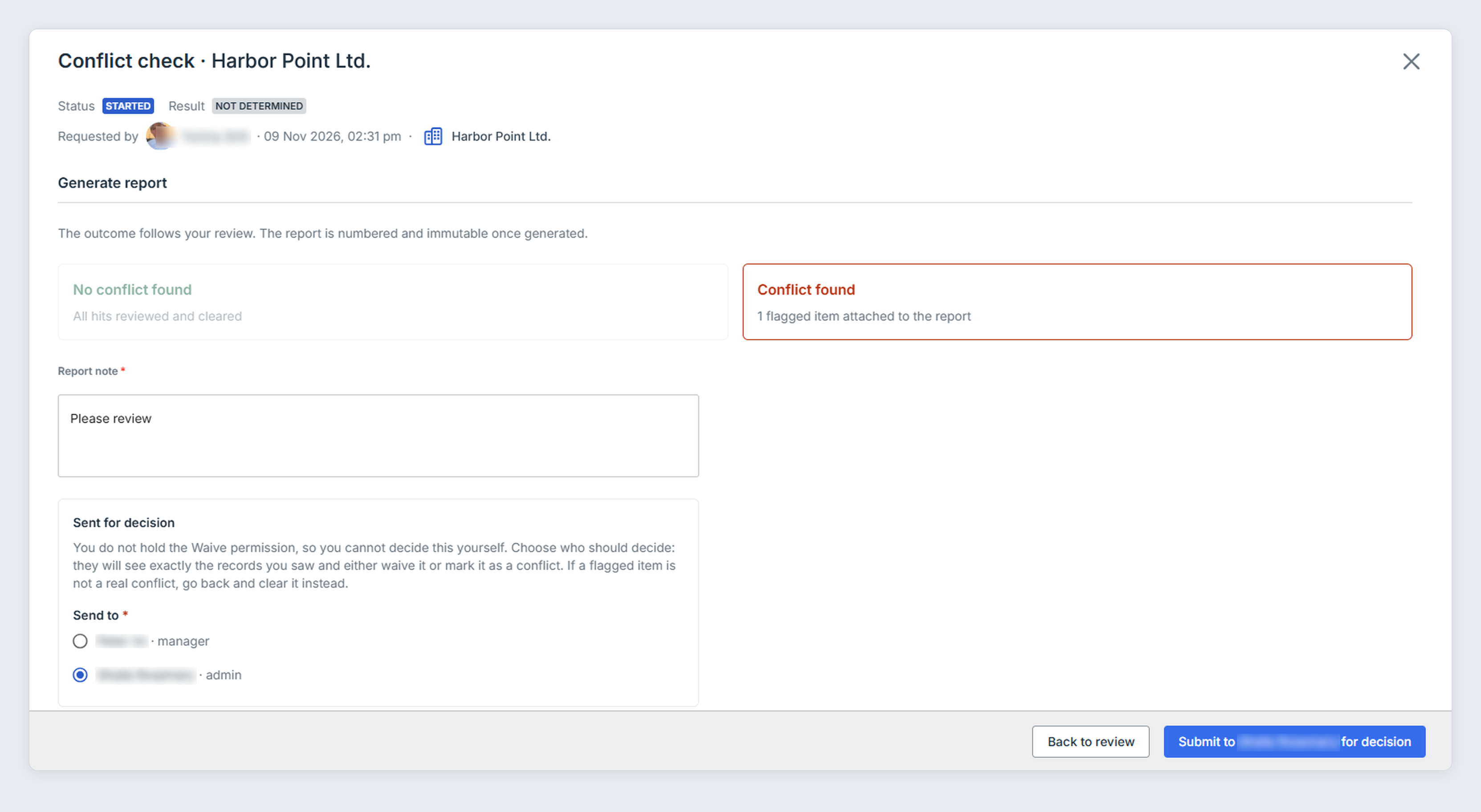
When at least one hit is flagged and you do not hold the Waive permission, you send the check to a user who holds the Waive permission. That user decides the outcome.
To send the check for a decision:
- Under Report note, explain your review, for example which flagged hits are the conflict and why.
- Under Send to, bilabl selects the first user in the list. Search for and select the user who decides.
- Select Submit to [name] for decision.
The check now shows the status Pending. Its outcome is Conflict found and its result is Not determined until that user decides. bilabl creates the report only after that user decides. While the check is Pending, you cannot change your review or your note. The user you chose gets a notification.
To change your review, select Withdraw request and re-review, then select Withdraw. The check goes back to review, and your decisions on each hit stay the same. When you send the check again, select the user who decides again in step 2.
Decide a waiver request
When another user sends you a check, you decide it. You need the Waive permission to decide a waiver request (see Conflict check permissions). In this article, the user who sent the check is called the checker. You see the same records that the checker reviewed, with the checker’s decision on each hit.
To decide a waiver request:
- Select the bell icon, then select Conflict check #[number] in the notification. You can also select Add > Conflict check > Waiver requests, then select Review request on the check.
- Read the Note from the checker, then review the flagged hits. You can change the checker’s decision on any hit.
- Under Decision note, explain your decision.
- Select Waive to accept the conflict, or select Mark as conflict to confirm the conflict.
You do not need to generate the report. After you decide, you or the checker can save the report (see Save the report as PDF). If the check was started from a client or matter, you or the checker can also record the result (see Record the result on the Conflict check status).
Save the report as PDF
After a check is complete, you can save its report as a PDF to a folder of a client or matter.
To save the report as PDF:
- Open the completed check. For a check started from a client or matter, select the Conflict check badge, then select Open on the conflict check step. For a check started from the Quick Add menu, select Add > Conflict check > View conflict checks, then select the check.
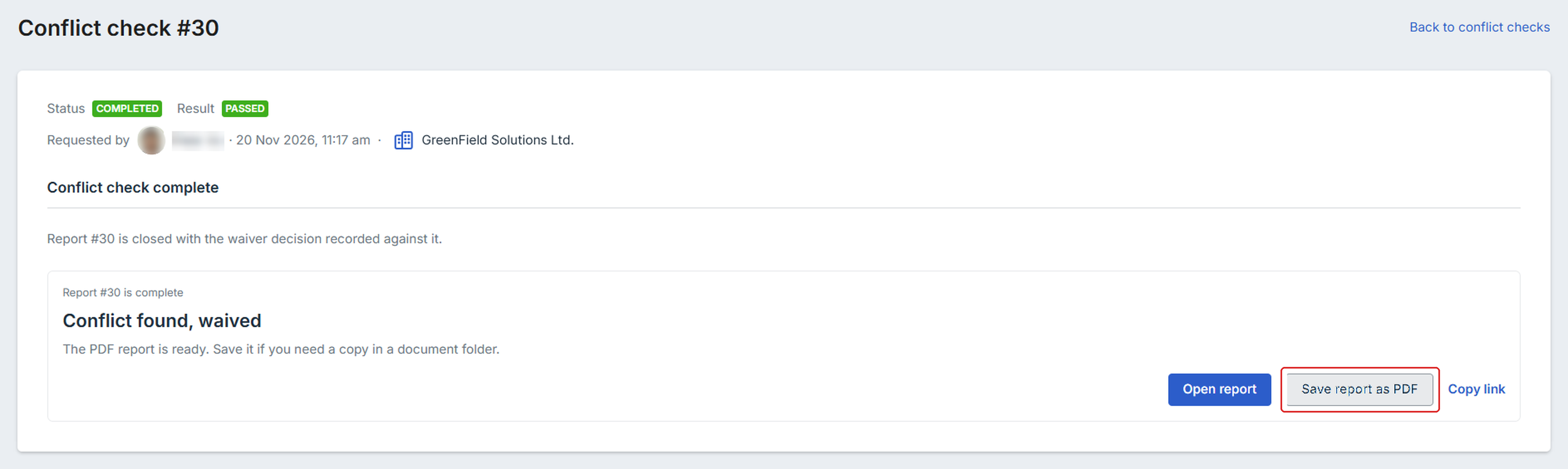
- Select Save report as PDF.
- Under Save to, search for the client or matter, then select it.
- Under Folder, select the folder.
- Select Save here.
To read the report without saving it, select Open report.
To share the check with another user, select Copy link. The link opens the check in bilabl. The other user can open it only if they can see the check (see Conflict check permissions).
Record the result on the Conflict check status
If your firm uses Compliance status, record the result of a completed conflict check on the Conflict check status of the client or matter. Running a check does not update the status. You must record the result. The step then shows the result and a link to the report.
You can record the result only of a check that was started from that client or matter. The user who ran the check and the user who decided it can both record the result.
If you ran the check from the client or matter and generated the report yourself, select Record on Conflict check status on the completed check. bilabl records the result that matches the outcome. Otherwise, follow these steps.
To record the result:
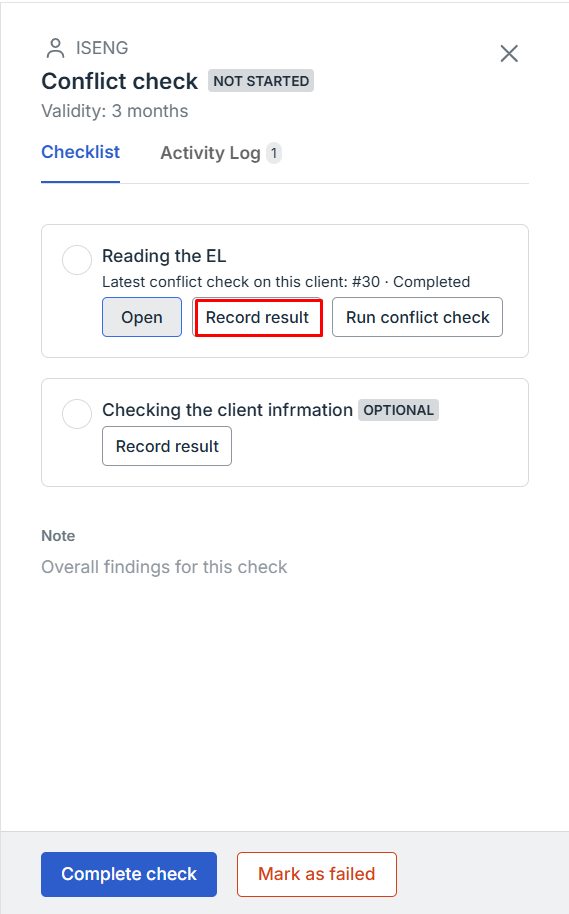
- Open the client or matter, then select the Conflict check badge.
- On the conflict check step, select Record result, or select Change if a result is already recorded. Evidence shows the report.
- Next to Outcome, select the result of the check: Passed or Failed. Select the result that matches the report outcome (see Conflict check outcomes). For example, select Passed for Conflict found, waived. If you select a different result, enter a Reason for a different result. The reason appears on the step.
- Select Confirm.
Recording the result does not complete the compliance check on the Conflict check status. To complete the compliance check, or to run a conflict check again later, see Record a Compliance Check.
Troubleshooting


