
Compliance status
In this article
Compliance status is an add-on that helps your firm manage and track compliance checks for clients and matters. Your team performs each check using the process or tools your firm has chosen, while bilabl gives you a central place to record the result, track its current status, and keep a history of what was done.
With Compliance status, you can:
- Track the current status of compliance checks: Quickly see which checks have been completed, are still in progress, or need attention.
- Keep compliance work organised: Keep compliance information connected to the relevant client or matter instead of tracking it separately.
- Keep a clear history: See what was recorded, who completed each step, and when it was done.
- Stay on top of renewals: See when a check is approaching its expiry date and needs to be renewed.
The video below walks you through compliance status in bilabl.
How compliance status works
Compliance status is an add-on that your firm administrator can turn on and configure to match your firm's compliance processes.
Your administrator turns on the add-on, then enables and configures the checks your firm uses. Each check contains a checklist of steps that your team completes and records in bilabl, and the compliance status of a check reflects how far it has progressed through that checklist. bilabl provides three compliance checks:
Conflict check
Conflict check is used to track the result of your firm's conflict-check process. Your team can perform the check using the process or tools your firm has chosen, then record the result in bilabl.
The Conflict check is enabled by default and its name cannot be changed.
Depending on your firm's configuration, a Conflict check can be recorded for the client and for each matter.
AML/KYC
AML/KYC can be turned on or off by an administrator and can be renamed and customized to match your firm's process.
Use it to track client identity and screening results. Administrators can also customize its validity period and checklist.
Onboarding
Onboarding can be turned on or off by an administrator and can be renamed and customized to match your firm's process.
Use it to track requirements that need to be completed before work begins for a new client, such as a signed engagement letter or complete billing details.
Because AML/KYC and Onboarding apply to the client, a matter inherits these two statuses from its client and records only its own conflict check. This keeps each client-level check in one place.
This guide uses the default names for each check.
For information about configuring compliance checks, see Set up compliance status.
Understand compliance statuses
Each compliance badge shows the current status of a check.
Compliance status views
You can view compliance status from the Clients or Matters table, or from an individual client or matter.
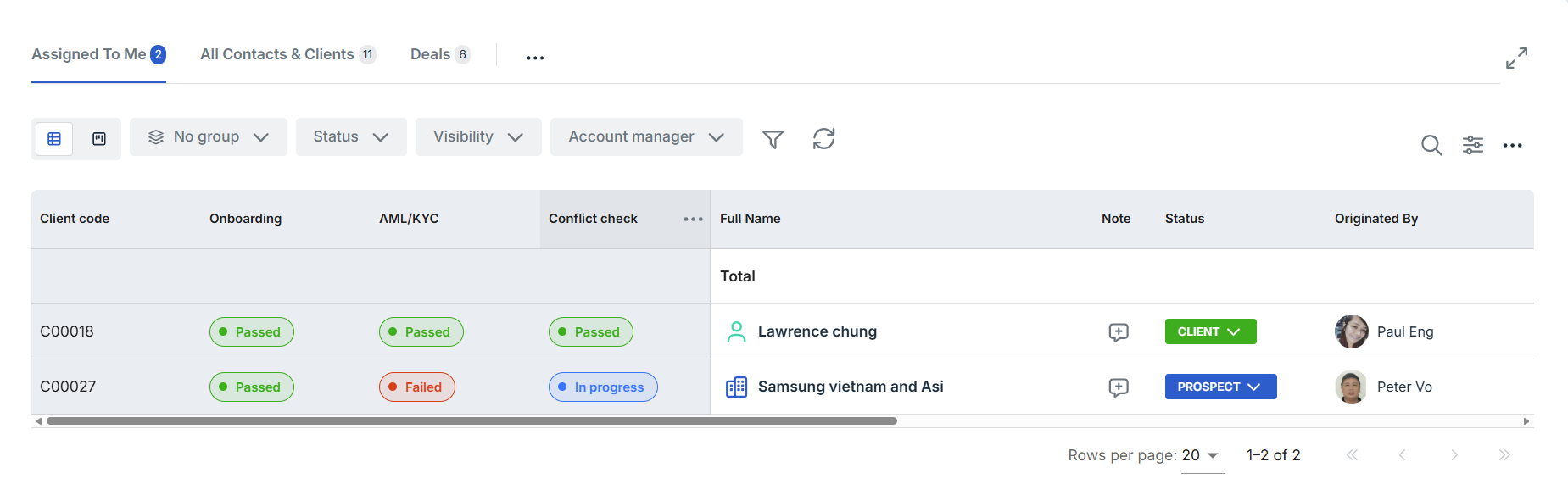
View across your Clients or Matters table
To review compliance across multiple clients or matters at once:
- Go to the Clients or Matters table.
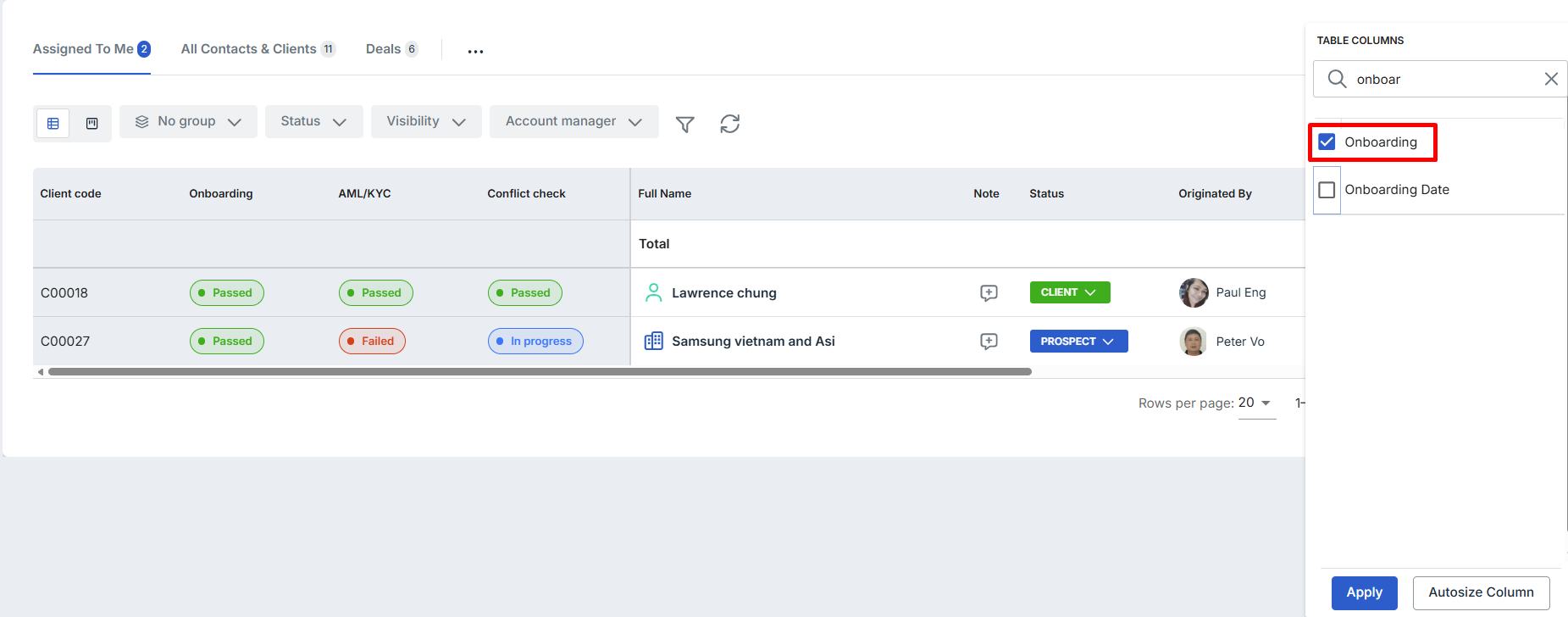
- Select Table settings.
- Add Conflict check, AML / KYC, and Onboarding from the table's column options.
Each row then shows the available compliance status for that client or matter.
View on a single client or matter
Open a client or matter, then look at the compliance badges in the top-right corner of the record.
A client shows the compliance checks configured for your firm.
For a matter, the Conflict check is the matter-specific compliance check. Whether it is available for a matter depends on your firm's configuration.
AML/KYC and Onboarding are client-level checks. When viewing them from a matter, they show the client's compliance status for reference rather than separate matter-level checks.
Hover over a badge to see an overview of the check. If the check is not yet complete, the overview shows how far it has progressed, for example which step it is on (2 of 4). If it is complete, it shows the outcome, who recorded it, when, and the validity period.

View the check details
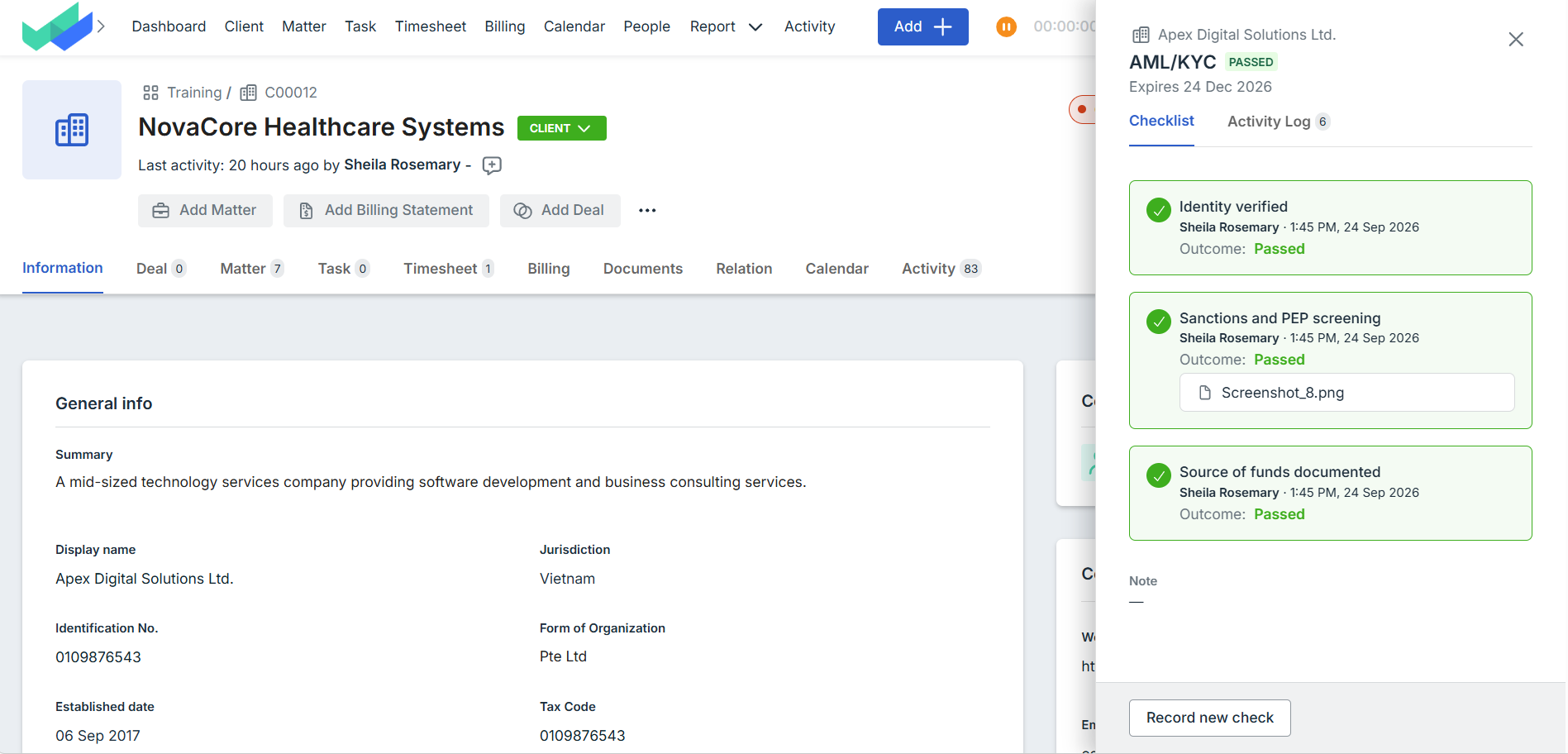
Select the status of a check (for example, Passed, Failed.) to open its side panel. From the side panel, you can view the checklist and activity history, and if you have the required permission, you can record or update the check. For information about completing a check, see Complete a compliance check.
From the side panel, you can view the checklist and activity history. If you have the required permission, you can also record or update the check.
For information about completing a check, see Record a compliance check.
Monitor compliance status
Once compliance checks have been recorded, you can monitor their current status and validity from the client or the matter. This helps your team identify checks that are approaching expiry, review expired checks, and keep compliance records up to date.
Check validity and expiry
For checks with a validity period, your administrator can set the validity period to Never expire, 3 months, 6 months, 12 months, 24 months, 36 months, or 60 months.
bilabl shows Expiring soon during the last 30 days before the expiry date and Expired after the expiry date.
bilabl also reminds the client owner 30 days before the expiry date and again on the expiry date.

Renew a check
You can record a new check at any time to create a new compliance record, regardless of its current status. This is most common when a check is Expired, but you can also record a new check for one that is already Passed, Failed, or Waived.
The new check follows the validity period configured for that compliance check. The previous check remains available in the activity history, so your team can refer to the previous record when needed.
To renew a check, see Record a compliance check.
Export compliance status
You can export your clients' compliance status from the Clients list, for example to track upcoming renewals in a spreadsheet.
- Go to the Clients list.
- Make sure the Conflict check, AML/KYC, and Onboarding columns are added. If they are not, select View settings and add them.
- Select More actions (the three-dot menu), then select Export.
The export includes the compliance status and expiry date for each client. For checks set to Never expires, the expiry date is left blank.
Who can view and update compliance status
Your ability to view and update compliance checks depends on your role and the permissions configured for your firm.
You can see a compliance badge when you have permission to open the related client or matter. If you cannot access the client or matter, you cannot see its compliance status.
The users who can record steps, complete, fail, or waive a check are determined by the permissions configured by your administrator. Administrators can allow access based on user roles, record ownership, or selected users.
Only administrators can turn on the Compliance status add-on and configure the compliance checks
For more information about access and roles, see User Role and Entity Permission.


