Set Up Conflict Check
In this article
A conflict check searches your firm's records in bilabl for parties that may create a conflict of interest. As an administrator, you choose who can run conflict checks and who can decide waiver requests. If your firm uses Compliance status, you can also let users run a conflict check from the Conflict check status of a client or matter.
Only users with the Administrator role can change these settings, and the settings apply to your whole firm.
This article explains how to set conflict check permissions and how to set up the conflict check step. For how users run a check, see Run a Conflict Check.
Set conflict check permissions
For what each option allows, see Conflict check permissions in Run a Conflict Check
If your firm uses Compliance status, these settings also apply to the Conflict check status of each client or matter. Users who can run conflict checks can also complete the compliance check there. Users who can decide waiver requests can also waive it.
To set conflict check permissions:
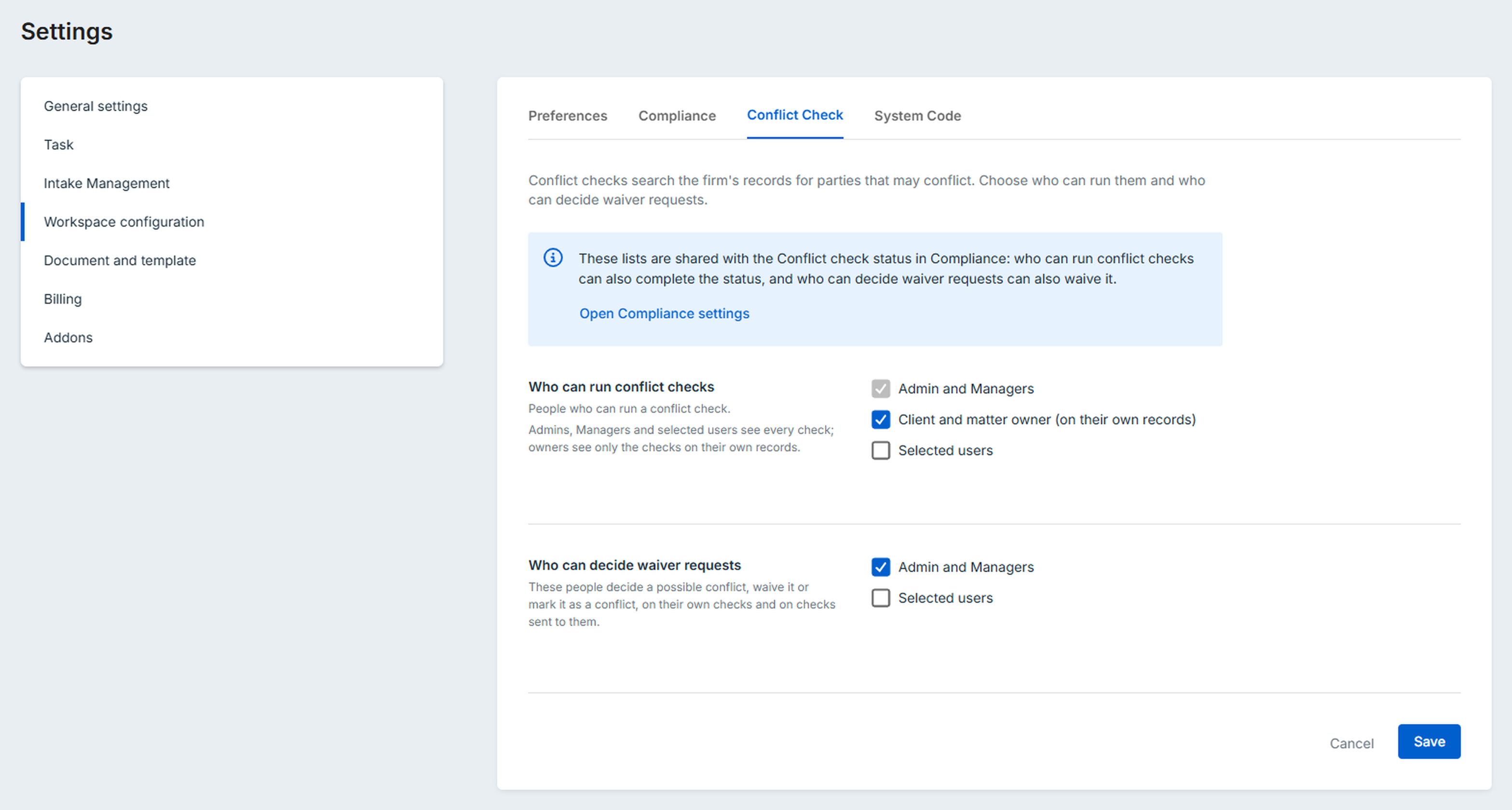
- Select the gear icon (System Settings), then go to Workspace configuration > Conflict Check.
- Under Who can run conflict checks, select Client and matter owner (on their own records), Selected users, or both. Admin and Managers is always selected. If you select Client and matter owner (on their own records), your firm also needs Compliance status, and the conflict check step must run in bilabl (see Set up the conflict check step). Otherwise, Owners cannot start a check.
- Under Who can decide waiver requests, select Admin and Managers, Selected users, or both. The users you choose here hold the Waive permission.
- In each section where you selected Selected users, type a name under Select a user, then select the user. Repeat for each user.
- Select Save
Set up the conflict check step
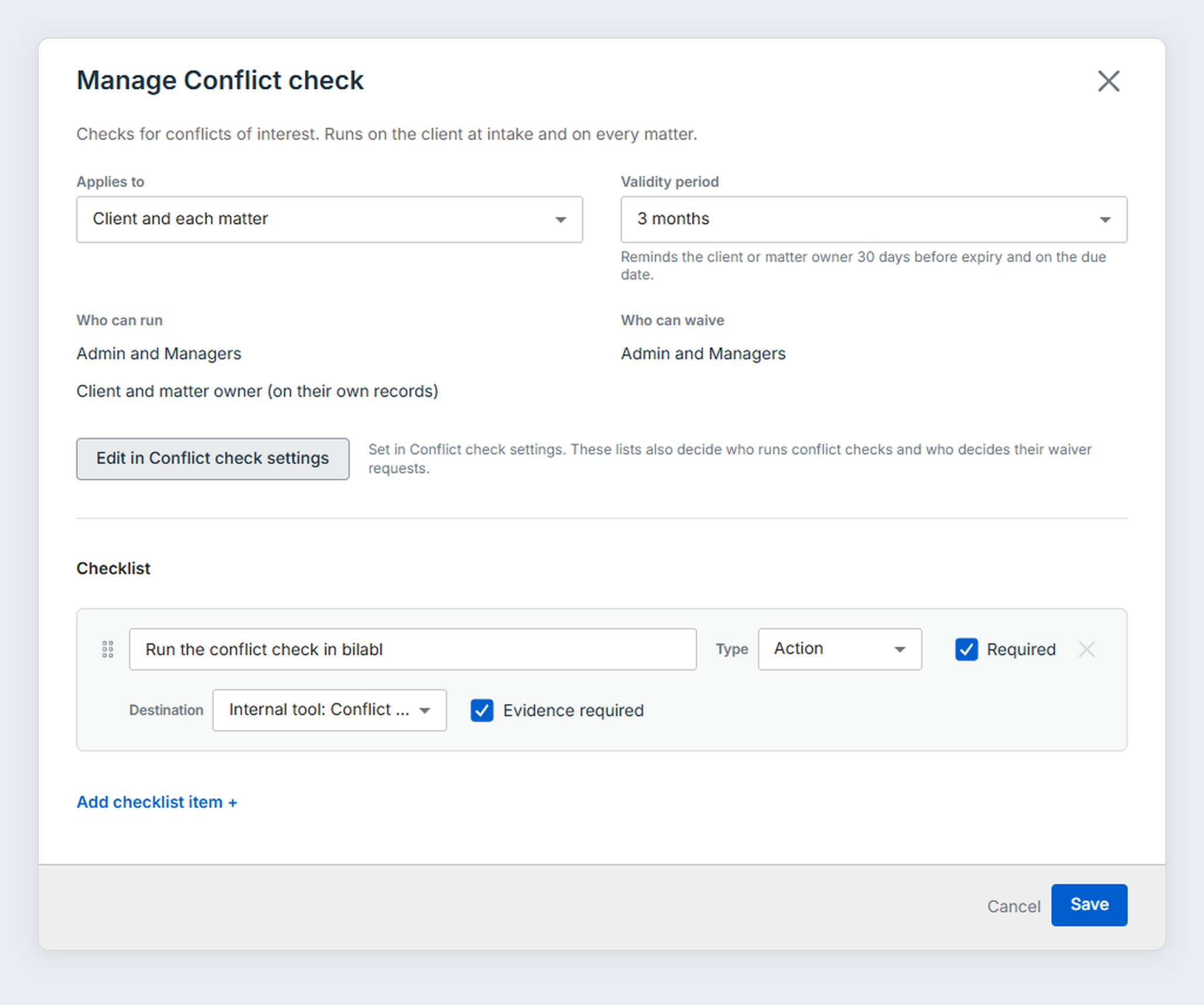
If your firm uses Compliance status, the conflict check step on the Conflict check status can run a conflict check in bilabl. After you set up the step, it shows Run conflict check. Users can then run a check from the step and record its result there.
To set up the conflict check step:
- Select the gear icon (System Settings), then go to Workspace configuration > Compliance.
- On the Conflict check card, check that the switch is on, then select Manage. When the switch is off, Manage is not available.
- Under Checklist, find the step for the conflict check, or select Add checklist item to add one. Each checklist item appears as a step on the Conflict check status. For how to add and edit checklist items, see Set Up Compliance Status.
- Set Type to Action, then set Destination to Internal tool: Conflict check. This destination is available only on the Conflict check checklist. With any other destination, the step does not show Run conflict check.
- Select Save