
Permission Overview
In this article
In bilabl, users in the same firm often see different clients and matters, and can do different things on them. This depends on two things:
- User role: Your user role applies across your whole firm. It decides which clients and matters you can see, and what you can do on them without an entity permission.
- Entity permission: An entity is a client or a matter. Your entity permission applies to one specific client or matter, and decides what you can see and do there. There are two entity permissions: Owner and Assistant. You get one when you create a client, or when an Owner, a Manager, or an Administrator assigns you to a client or matter.
This article explains how the two work together and what to do when you cannot see or do something.
Access rules
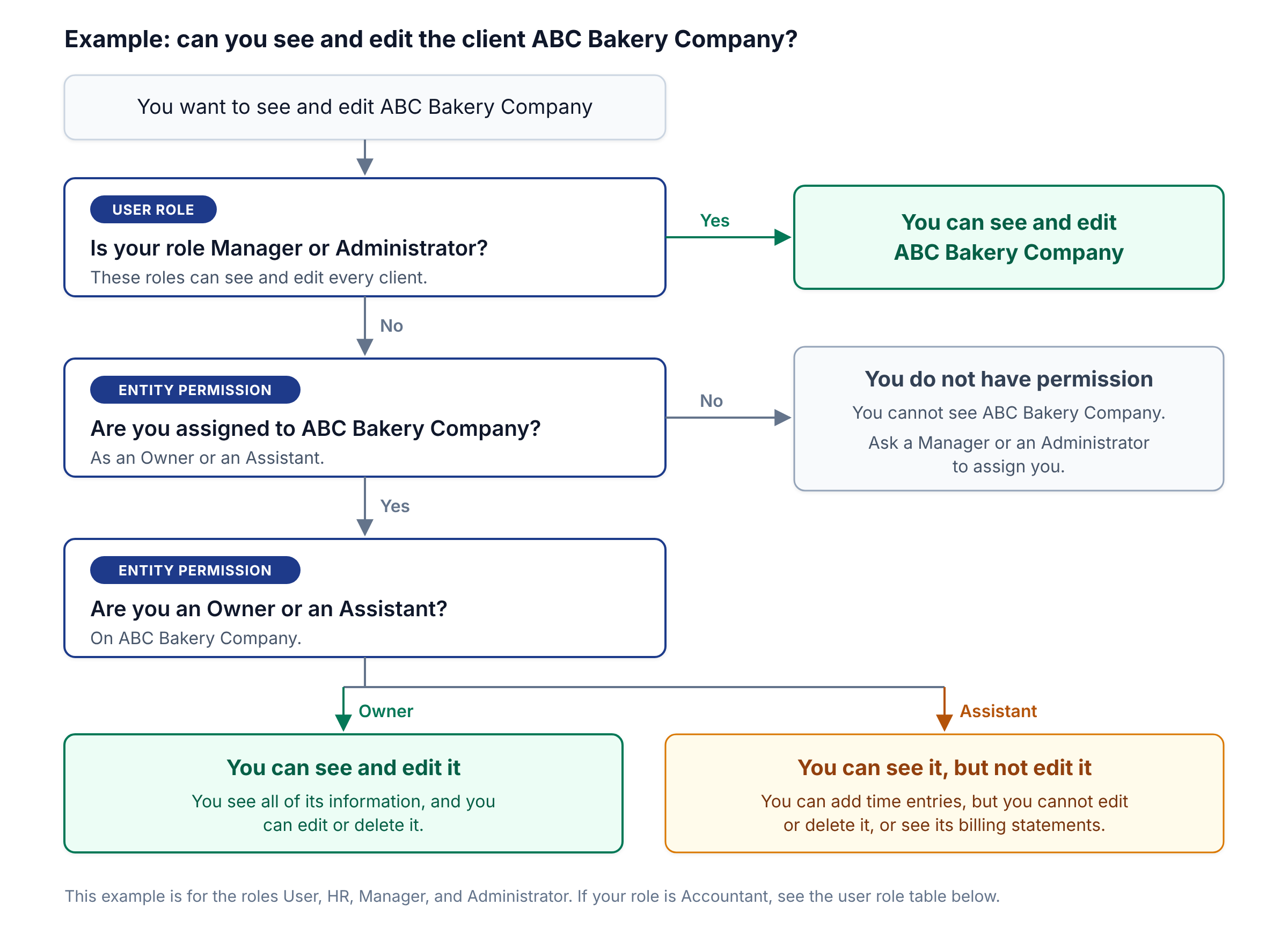
For each action, bilabl checks both your user role and your entity permission on that client or matter. If either one allows the action, you can do it. You do not need both.
For example:
- Michael's role is Manager. Because of his role, he can see every client and matter in the firm, and edit or delete them, without being assigned to them.
- Daniel's role is User. His role does not give him access to clients and matters, so he sees a client or matter only after an Owner, a Manager, or an Administrator assigns him to it. What he can do there depends on his entity permission:
- As an Owner, he sees all of its information, and he can edit or delete it.
- As an Assistant, he can work on it, for example add timesheets. He cannot edit or delete it, and he does not see its billing statements and payments.
The flowchart below shows how bilabl decides for one example: seeing and editing the client ABC Bakery Company.
If you lead a team, you also get the permissions of your team members, see Team Leader Permissions.
Use role summary
If your role is User or HR, you can also see the general information of some clients that are not assigned to you (see Access to general information only). For the full list of actions by role, see User Role.
Entity permission summary
A permission on a client also applies to all of its matters. An Owner, a Manager, or an Administrator can give you a different permission on one matter. For details and the steps to assign users, see Entity Permission.
Access to general information only
If your role is User or HR, there are two cases where you can see a client that is not assigned to you, but only its general information. General information means the client's Information and Relation tabs, and nothing else:
- Through a relation. You are assigned to a client, and that client has a relation with another client. You can see the general information of the other client. For example, Sarah is an Assistant on ABC Bakery Company, which has a relation with its parent company, ABC Holdings. She can see the Information and Relation tabs of ABC Holdings.
- Through a matter. You are assigned to a matter, but not to its client. You can see the general information of the client. For example, Sarah is an Assistant on the matter Commercial Lease Review, but she is not assigned to ABC Bakery Company. She can see the Information and Relation tabs of ABC Bakery Company.
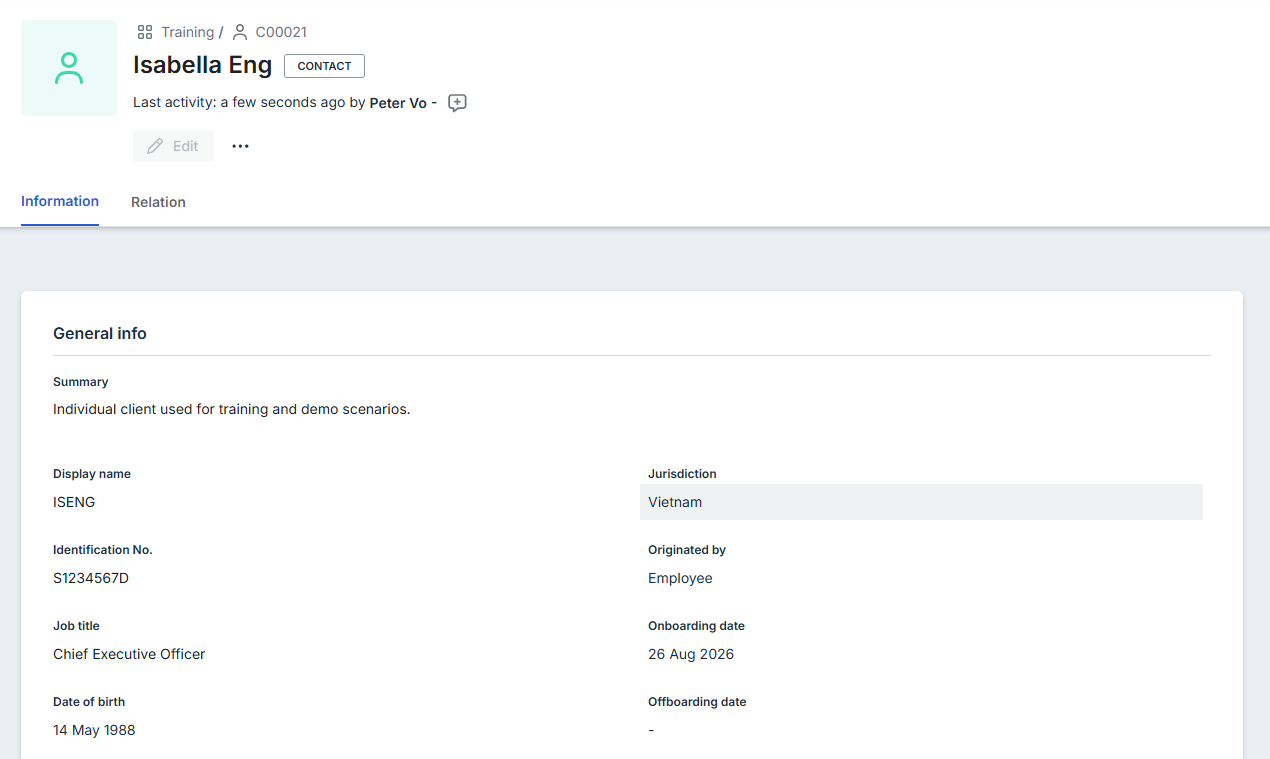
To see the rest of the client, you need to be assigned to the client as an Owner or an Assistant.
Limits that apply to everyone
bilabl blocks some actions for everyone, including Administrators:
Troubleshooting
In most cases, ask the Owner of the client or matter, a Manager, or an Administrator to give you the permission you need.


