This release brings a new conflict check, Statement of Account, Voice note, Billing exports by matter and task, and more work you can do with AI Connect, along with improvements to Intakes, Documents, Billing Email Delivery, the Dashboard, and table views.
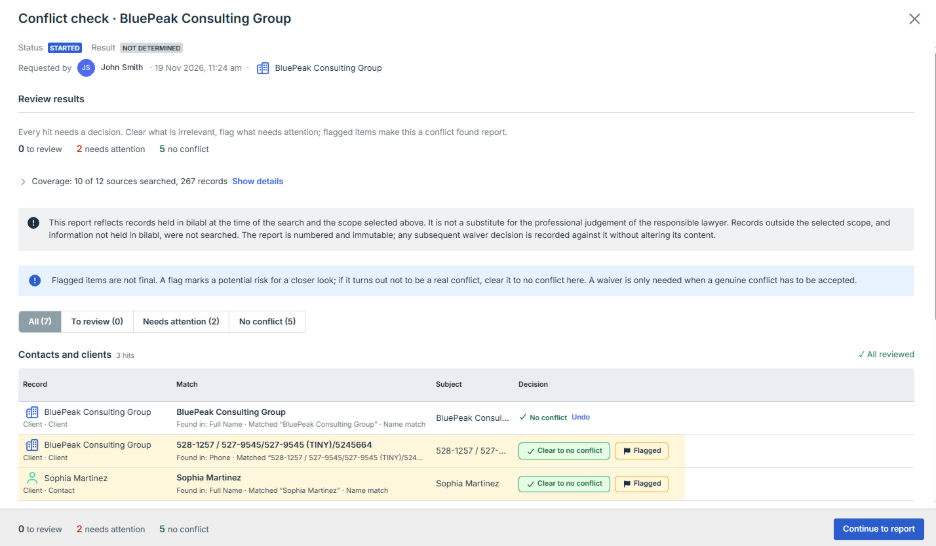
New conflict check: control who runs checks and records every waiver decision
Before you take on a new client or matter, you need to know if it conflicts with your current or past work and be able to show how each decision was made.
Send a waiver request: when a check finds a possible conflict that you cannot waive yourself, send a waiver request to a user who can. They are notified, waive it or confirm it as a conflict, and the decision is added to the report.
Choose who can run checks: your administrator can let selected users, or the owners of a Client or Matter, run checks, and choose who decides waivers.
See which Clients and Matters are cleared: with Compliance status, the result of each check is recorded on the Client or Matter, so you can see which ones have passed and which still need a check.
Statement of Account: give each client one clear statement of their balances
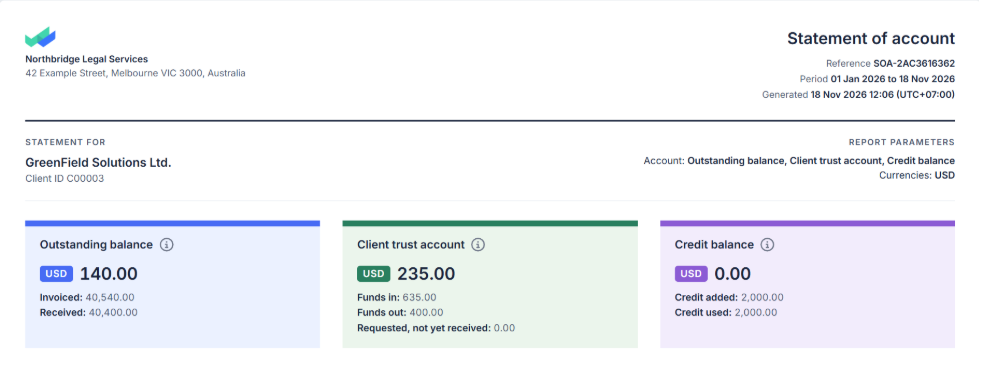
When a client asks for their balance, the answer is spread across Billing Statements, payments, deposits, and credit notes. Statement of Account puts it in one document that you can send to the client.
See the full position in one place: the Outstanding balance, Client trust account, and Credit balance for the period you choose, in each currency.
Track deposits you have asked for: see how much the client was asked to deposit, how much was received, and how much is still to come.
Send a file your client can check: export to PDF or Excel, with wording written for the client and a reference number they can quote.
Voice note: speak a quick note and get it as text automatically
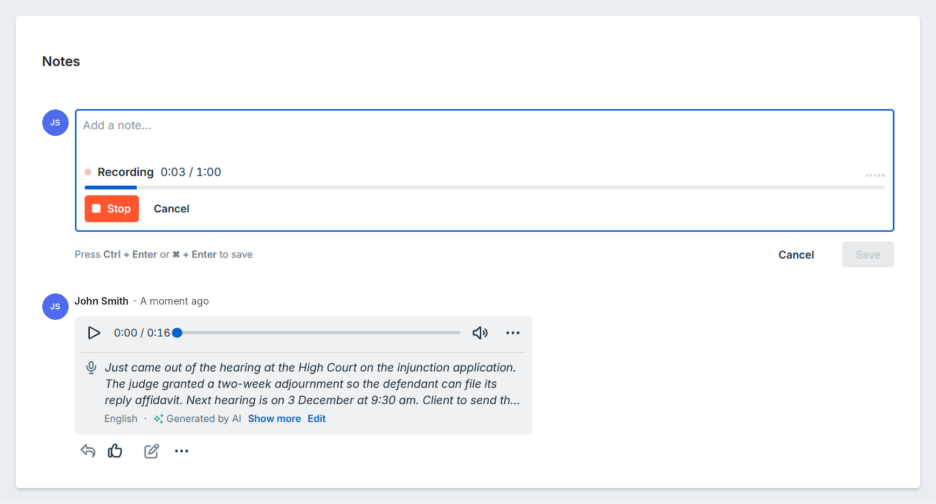
When you are on the move and want to note something quickly, typing takes time. With Voice note, you say it instead, and bilabl writes it out as text for you.
Get an automatic transcript: bilabl turns each recording into text under the note and detects the language, so your team can read it at a glance instead of listening.
Correct the text if needed: the author of the note can edit the transcript, and the note shows whether the text was created by AI or edited by a person.
Voice note is available as an add-on for firms on the PRO plan or higher.
Report revenue by matter and task from your Billing export
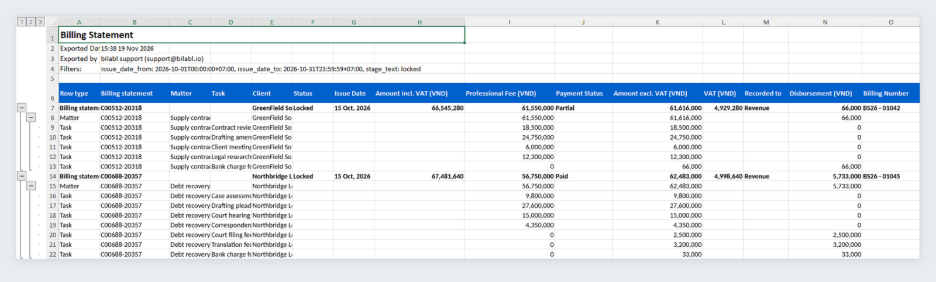
Many firms describe each service in the task lines of a Billing Statement, such as a one-off service or a monthly fee. To report revenue by service, you need the amount for each matter and task.
See each Matter and Task under its Billing Statement: when you export the Billing table to Excel, you can list the Matters under each Billing Statement, and the Tasks, discounts, and extra charges under each Matter.
Show only the level you need: rows are grouped in Excel, so you can close the groups to see one row per Billing Statement, or open them to see each Task.
Filter and still see where each line belongs: every row shows its Billing Statement number and Matter name.
Ask your AI assistant to record costs, draft billing, and update your calendar
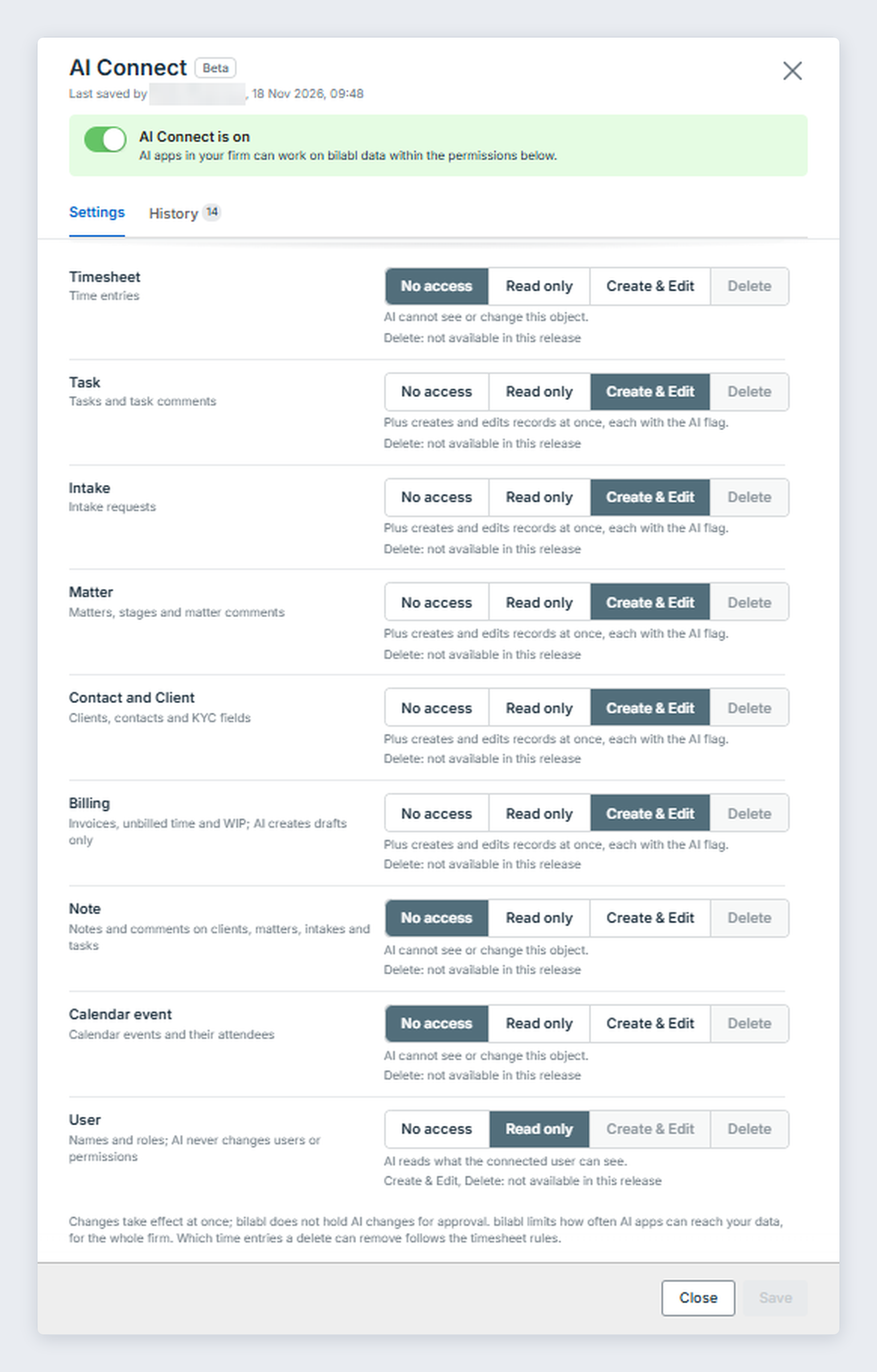
Your day is not only time for records and tasks: there are also costs to log, meetings to schedule, notes for the team, and bills to prepare. AI Connect, which links bilabl to the AI assistant your firm already uses, such as Claude, now covers this work too.
Start billing from a conversation: ask your AI assistant to create a draft Billing Statement. It stays a draft until you review and issue it in bilabl.
Record costs with your time: create and update Costs on a Matter in the same conversation where you record your time.
Keep notes and the calendar up to date: add notes and task comments and create or update Calendar events linked to a Client, Matter, Intake, or Task.
Run a conflict check by asking: start a conflict check and read the results without opening bilabl.
Intake: if your firm uses Deals, they are now called Intakes everywhere in bilabl, including exports, emails, and AI Connect. Your records, saved views, and links stay the same.
Intake table: see when each Intake was won in the new Won date column, and which Matters were opened from it.
Documents: move files to another folder by dragging them, or with Move to... in the file menu. This works in bilabl documents, SharePoint, and Google Drive.
Billing Email Delivery: the Client's email address is filled in the To field for you automatically.
Dashboard: make a row of Dashboard cards (widgets) taller or shorter to see more of a list or chart.
Table views: picking columns in View settings now takes fewer clicks. Tick a column and it appears on the table, without selecting Apply. The list is split into Shown and Hidden, so you can tell at a glance what the table displays and Show all or Hide all changes every column in one click. Columns that must stay on the table are marked Always shown.
We're here to help.
If you have any inquiries about our products or features, please do not hesitate to contact our support team at support@bilabl.io.
Thank you for choosing bilabl.
Subscribe to newsletter
Subscribe to receive the latest blog posts to your inbox every week.
Thank you! Your submission has been received!
Oops! Something went wrong while submitting the form.
By subscribing you agree to with our Privacy Policy.