
Statement of Account
In this article
The statement of account is a bilabl report that shows the financial position between your firm and one client. The statement lists all billing statements, payments, deposits, and credit notes for that client in the period that you choose. From these records, bilabl shows the amounts in three accounts:
- Outstanding balance: The amount the client owes your firm.
- Client trust account: The client's own money that your firm holds, such as a retainer.
- Credit balance: Credit from credit notes that the client has not used yet.
With the statement of account, you can:
- See the full financial position with a client in one document, instead of checking several screens.
- Export a PDF or Excel file that the client can check against their own records.
- See balances in every currency the client uses.
This article explains what a statement of account shows, how to generate one, how to change the report parameters, how to read the statement, and how to export it.
Who can generate a statement of account depends on the user's role:
- Any client: users with the Administrator, Manager, or Accountant role.
- Only clients where they have the Owner permission: users with the User or HR role. The Assistant permission does not give access. Being assigned to one of the client's matters does not give access either.
There is no separate permission for Client trust account. Every user who can generate a statement of account can see all three accounts. For how roles and permissions work, see Permission Overview.
Accounts and records in a statement of account
A statement of account shows:
- Billing statements in issued (green) status
 , and issued billing statements that were later archived (gray)
 .
- Credit notes your firm has issued.
- Payments, deposits, and credit notes applied to these billing statements.
A statement of account does not show:
- Draft billing statements.
- Deleted records.
Each billing statement appears in one account, depending on its Payment recorded to field:
- Billing statements where Payment recorded to is Revenue appear in Outstanding balance.
- Billing statements where Payment recorded to is Client fund appear in Client trust account. These billing statements ask the client to deposit money, such as a retainer.
A credit note always appears in Credit balance.
Client fund on the billing form, Deduct from client funds on the payment form, and Funds held for you in the exported file all refer to the Client trust account.
Money in one account never reduces the balance of another account. Each account has its own balance. Money moves from one account to another only when a user in your firm records the movement. For example, to pay a billing statement from the Client trust account, the user adds a payment to the billing statement and selects Deduct from client funds as the source. To see how a movement appears in the tables, see Read a statement of account.
A billing statement or credit note appears in the period that contains its issue date. A payment, a deposit, or the use of a credit note appears in the period that contains its transaction date.
The statement of account does not show which billing statements are overdue. To check overdue billing statements, use the Accounts Receivable Aging report.
All amounts include tax. To see tax details, open the billing statement. The billing statement is the tax document for its charges
Generate a statement of account
You can start from the Report menu or from a client's page.
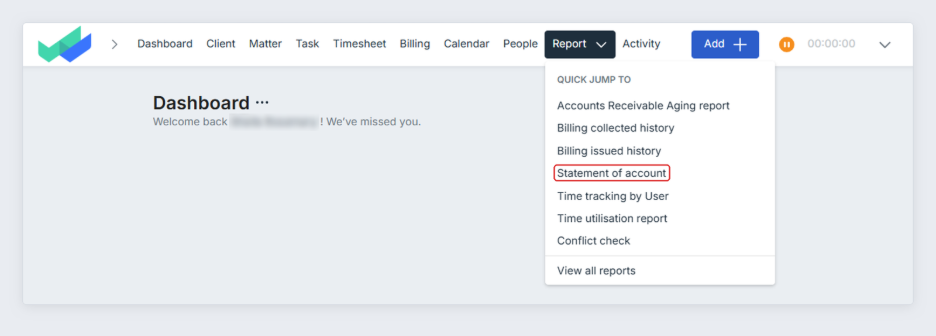
- From the Report menu: In the top bar, go to Report and select Statement of account.
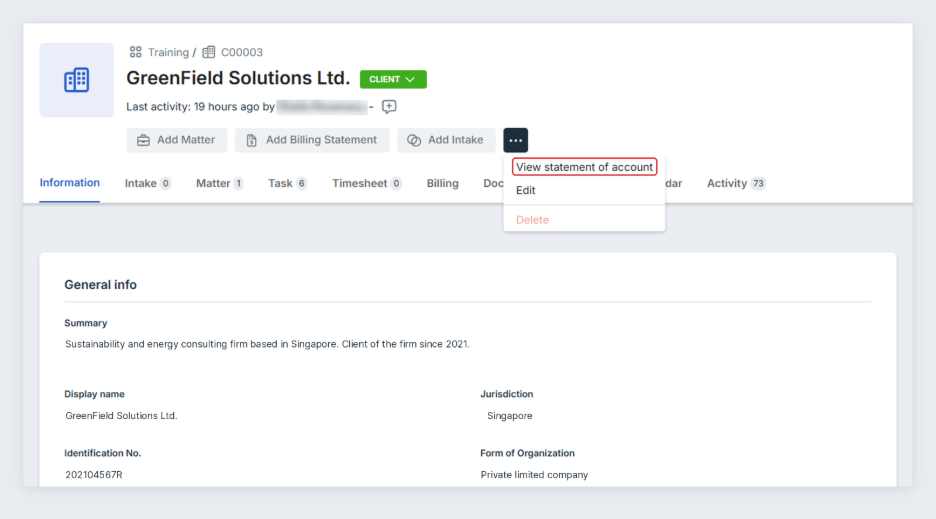
- From a client's page: Open the client, select More options (...) at the top of the page, and select View statement of account. The client is already selected. Continue from step 2 below.
To generate a statement of account:
- In Client, select the client. If the client does not appear in the list, you do not have permission for that client. Ask a user who has the Owner permission on the client, or a user with the Administrator, Manager, or Accountant role, to generate the statement of account for you.
- In Issuing entity, select the legal entity whose records you want. bilabl selects the entity for you when all of the client's records belong to one entity. The choices are:
- An entity name, for example Northbridge Legal Services (Default entity): Select an entity when you plan to send the statement of account to the client. The statement shows only the records issued by that entity, with the entity's name and address at the top. If the client has records from more than one entity, generate one statement for each entity.
- All (issuing entity ignored): Select this option to check every record of the client internally. The statement includes records from every entity and records with no entity. bilabl shows your firm's name and "Internal use only" at the top.
- No entity: Select this option to find records that were created without an issuing entity. The statement shows only those records, with your firm's name at the top. To include these records in an entity's statement, set the issuing entity on each billing statement, then generate the statement of account again.
- In Period, select one of the available periods, such as Last 3 months or This month. Last 3 months is selected by default. To use your own dates, select Custom period and set From date and To date.
- Select Generate report
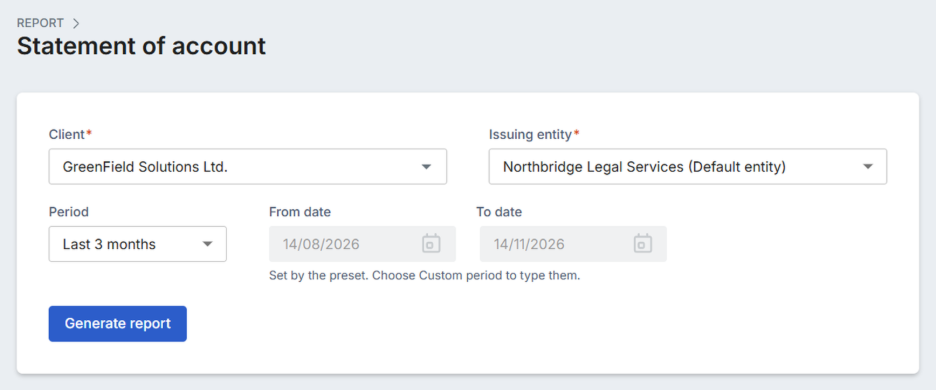
To change the client, issuing entity, or period, change the field and select Generate report again. Until you select Generate report again, a message shows that the figures on screen are for the previous client, issuing entity, or period.
Change the report parameters of a statement of account
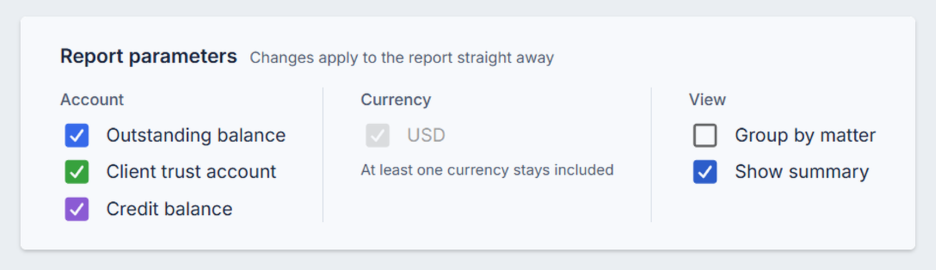
After you generate a statement, the Report parameters section appears under the form. Each option is a check box. When you select or clear a check box, the statement of account changes immediately. You do not need to select Generate report again.
- Account: Clear the check box of an account to remove that account from the statement. At least one account must stay selected. For example, to give the client a statement of the Client trust account only, clear Outstanding balance and Credit balance. When Outstanding balance is cleared, the title changes to Client funds statement. The statement no longer shows an amount due.
- Currency: Clear the check box of a currency to remove that currency from the statement. If the client has billing statements or credit notes in more than one currency, each currency has its own check box. At least one currency must stay selected.
- View: This group has two check boxes.
- Group by matter: Select the check box to show the amounts for each matter, with a subtotal for each matter. A billing statement for several matters appears under each matter, with that matter's amount. bilabl splits each payment on that billing statement between the matters in proportion to each matter's amount on the billing statement. A credit note with no matter appears under No matter allocated. The account totals do not change.
- Show summary: Clear the check box to hide the summary of each account at the top of the statement.
Read a statement of account
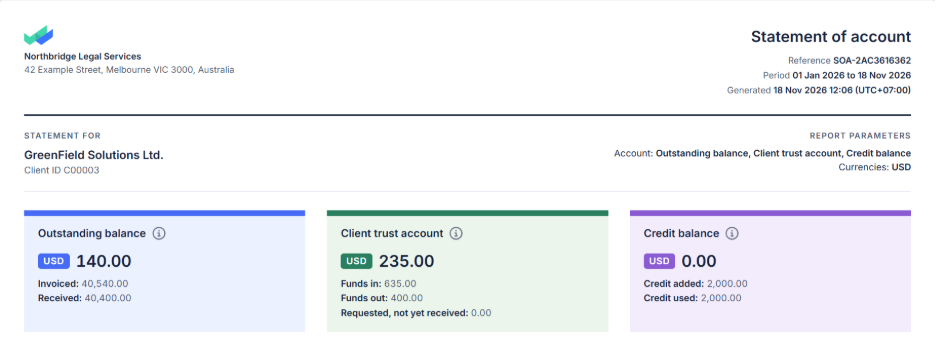
The top of the statement of account shows:
- The name and address of the issuing entity. If you selected All (issuing entity ignored) or No entity, your firm's name appears instead.
- A reference number. It starts with SOA- and changes each time you generate the statement.
- The period, and the accounts and currencies included.
- The date and time the statement of account was generated.
- The client's name, address, and client ID. The address is blank if the client has no address in bilabl.
When Show summary is selected in Report parameters, there is one summary card for each account you selected. Each card shows the closing balance in each currency, with the totals of the amount columns, such as Invoiced and Received. Use these closing balances to answer the client's questions.
How to read an account table
Each account has its own table for each currency. Each row shows the date, reference, type, description, the amounts in that account's columns, and the balance after that row. In these tables:
- The first row is Opening balance brought forward, which is the total of all records before the start of the period. The closing balance therefore includes all earlier records, whatever period you choose.
- The number in the Reference column depends on the type of row. A billing statement row shows the billing number, such as 312323. A payment, deposit, or other transaction row shows the transaction number, such as Transaction #96721, and the billing statement it relates to appears in Description. A credit note row shows the credit number, or a dash (—) if the credit note has none.
- The Description column shows where the money came from and which billing statement it relates to. The label at the start of the description tells you the source of the money:
- From client: The client paid.
- From Client trust account: Your firm used the client's money in the Client trust account to pay a billing statement.
- From Credit balance: Your firm used the client's credit to pay a billing statement.
- To Outstanding balance: The money left this account to pay a billing statement. This label appears only in the Client trust account and Credit balance tables.
- When money moves between two accounts, the row has a Matching entry line that names the other account, the currency, and the transaction number. The same transaction appears in both tables.
- An account or currency with no records in the period shows "No movement in the period."
Outstanding balance
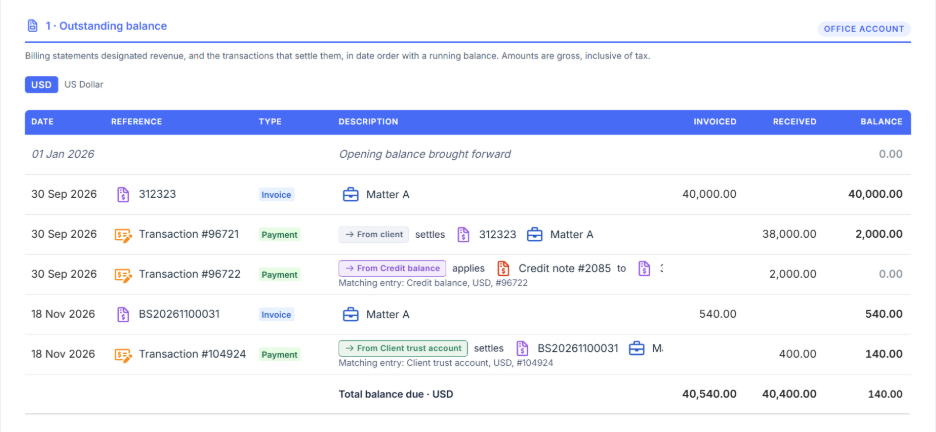
The Outstanding balance table shows what the client owes your firm, in each currency. To read it, follow the Balance column from top to bottom:
- A billing statement shows its amount in Invoiced and increases the balance.
- A payment or an applied credit note shows its amount in Received and reduces the balance.
- The Total balance due row shows the amount the client owes. The same amount is on the Outstanding balance summary card.
For example, in USD:
- Billing statement 312323 shows USD 40,000 in Invoiced. The balance is USD 40,000.
- The client pays USD 38,000. The row shows From client and USD 38,000 in Received. The balance is USD 2,000.
- Your firm applies a credit note to the remaining USD 2,000. The row shows From Credit balance, USD 2,000 in Received, and a Matching entry line. The balance is USD 0.
- Billing statement BS20261100031 shows USD 540 in Invoiced. The balance is USD 540.
- Your firm pays USD 400 of BS20261100031 from the Client trust account. The row shows From Client trust account, USD 400 in Received, and a Matching entry line. The balance is USD 140, the same amount as the Total balance due row.
Client trust account
The Client trust account table shows the client's money that your firm holds, in each currency. To read it, follow the Balance column from top to bottom:
- A billing statement that asks the client for a deposit shows its amount in Requested. It does not change the balance.
- A deposit from the client shows its amount in Funds in and increases the balance.
- Money your firm uses to pay a billing statement shows its amount in Funds out and reduces the balance.
- The Total funds held row shows the client's money your firm holds. The same amount is on the Client trust account summary card.
- The Requested, not yet received row shows how much the client was asked to deposit but has not paid yet.
For example, in USD:
- Billing statement BS20261100026 asks the client to deposit USD 635. The row shows USD 635 in Requested. The balance does not change.
- The client pays the deposit. The row shows From client and USD 635 in Funds in. The balance is USD 635.
- Your firm uses USD 400 to pay billing statement BS20261100031. The row shows To Outstanding balance, USD 400 in Funds out, and a Matching entry line. The balance is USD 235.
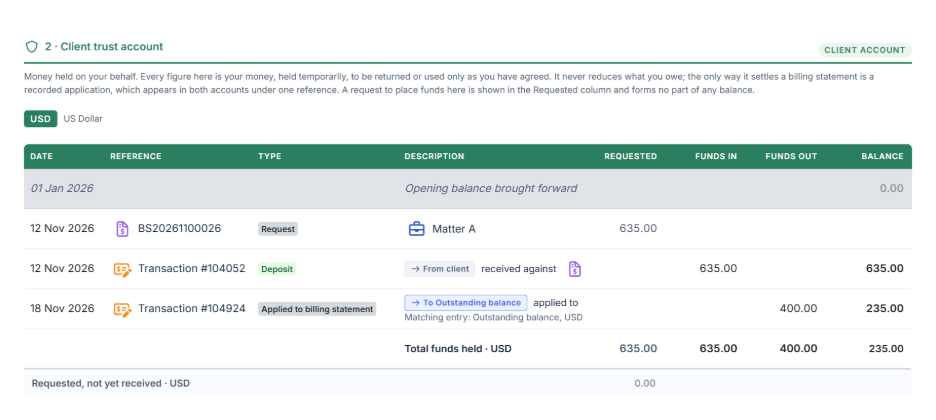
Step 3 is the same transaction as step 5 in the Outstanding balance example, where the row shows From Client trust account.
Credit balance
The Credit balance table shows credit that the client has not used yet, in each currency. To read it, follow the Balance column from top to bottom:
- An issued credit note shows its amount in Credit added and increases the balance.
- Credit applied to a billing statement shows its amount in Credit used and reduces the balance.
- The Total credit available row shows the credit the client can still use. The same amount is on the Credit balance summary card.
For example, in USD:
- A credit note of USD 2,000 shows its amount in Credit added. The balance is USD 2,000.
- Your firm applies the credit note to billing statement 312323. The row shows To Outstanding balance, USD 2,000 in Credit used, and a Matching entry line. The balance is USD 0.
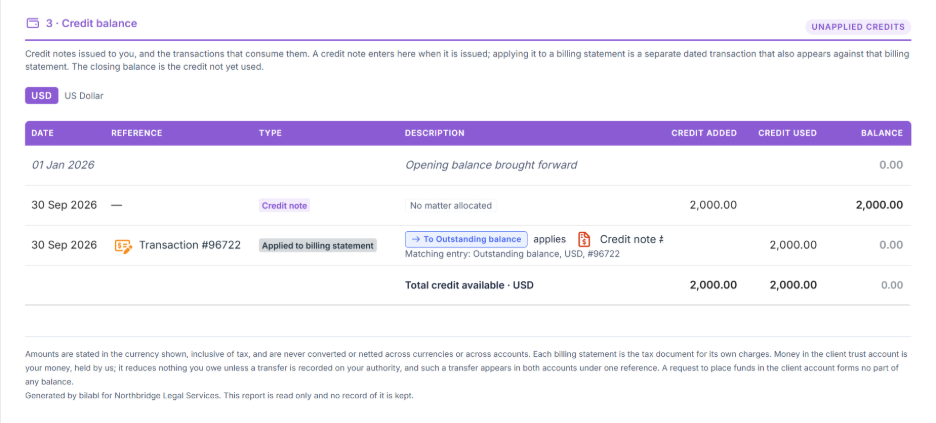
Step 2 is the same transaction as step 3 in the Outstanding balance example, where the row shows From Credit balance.
Indicative total
If the client has records in more than one currency, each summary card also shows an Indicative total. The indicative total converts all currencies into your firm's default currency. bilabl uses your firm's exchange rates at the time you generate the statement of account. The rates used appear under the total.
Export a statement of account
You can export a statement of account as a PDF file or an Excel file. The Export button works only after you generate the statement.
To export a statement of account:
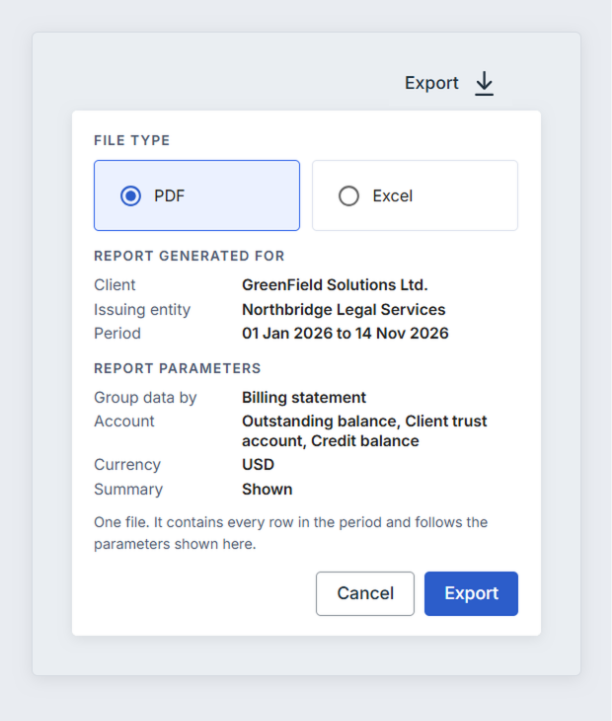
- Select Export at the top right of the page.
- Select PDF or Excel.
- Check the client, issuing entity, period, and report parameters shown. If one is wrong, select Cancel and fix it. If you changed the client, issuing entity, or period, also select Generate report. Then start again from step 1.
- Select Export in this window. The file is downloaded to your computer.
The exported file:
- Uses client-facing names in the summary: Balance due for Outstanding balance, Funds held for you for Client trust account, and Credit available for Credit balance.
- Has its own reference number, which is different from the number on screen. The footer asks the client to mention this number when they contact your firm. Keep a copy of each file you send. When the client contacts you, use the number in the file, not the number on screen.
- In Excel format, shows amounts as numbers and uses formulas for the running balance and totals.
Troubleshooting
If a billing statement is missing from the statement of account, check that:
- The billing statement is in issued (green) status .
- Its issue date is inside the period.
- You selected its issuing entity, or All (issuing entity ignored).
- Its account (Outstanding balance or Client trust account) and its currency are selected in Report parameters.


