
Set Up AI Connect
In this article
AI Connect is a bilabl add-on that controls what bilabl data AI agents can see and change in your firm. Only users with the Administrator role can enable AI Connect. An Administrator enables AI Connect once for the whole firm and sets an Access level for each type of data. After that, each user connects their own AI agent.
This article explains how to enable AI Connect, change Access levels, view the history of changes, and disable AI Connect. Before you enable AI Connect, read Risks and limits in AI Connect Overview.
The video below walks you through how to setup AI Connect in bilabl.
Enable AI Connect
When you enable AI Connect, you accept the AI Connect Terms on behalf of your firm. Read the terms carefully before you accept. If a partner must approve the terms, read the terms with that partner first.
To enable AI Connect:
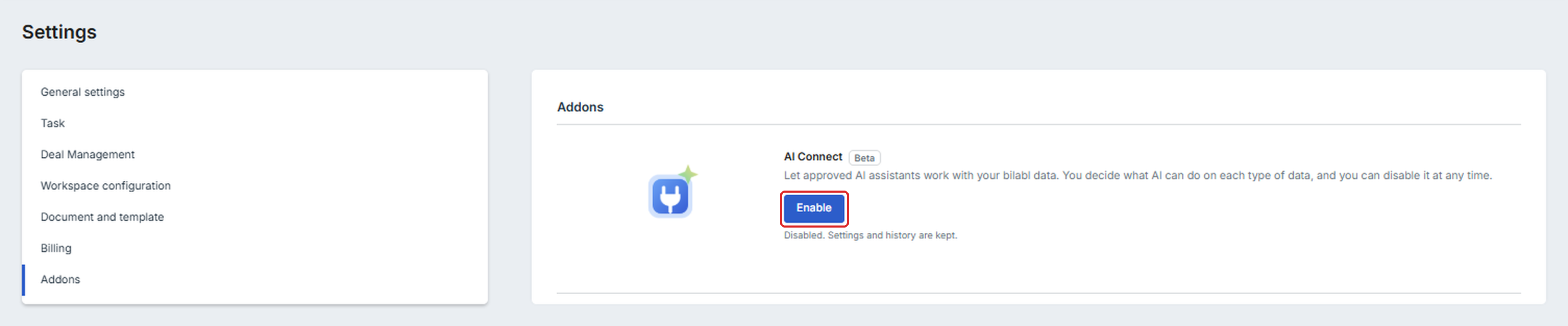
1. At the top right of bilabl, select the gear icon (System Settings), then select Addons in the left menu.
2. On the AI Connect card, select Enable.
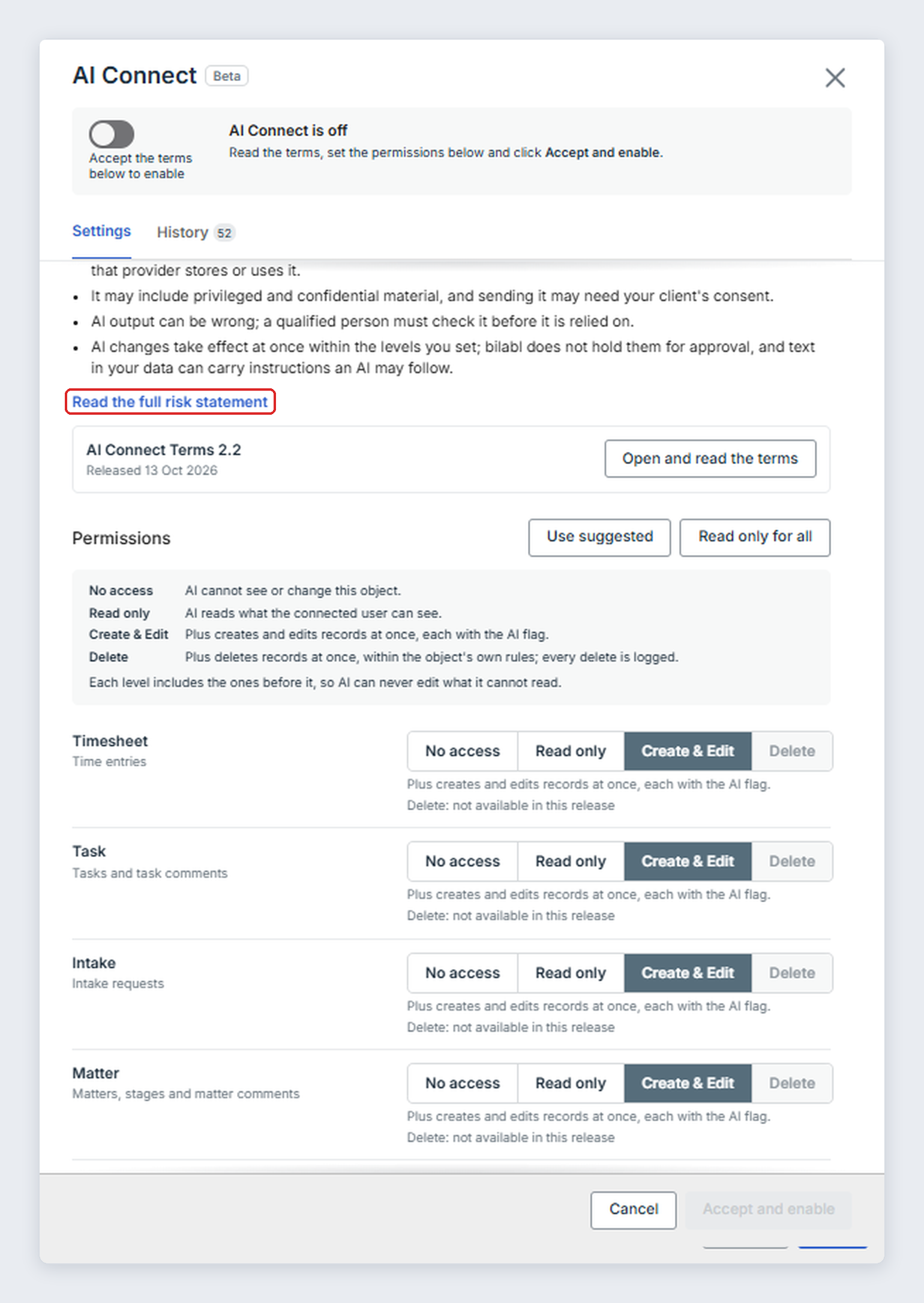
3. Read the Before you enable section at the top of the window. To see every risk in full, select Read the full risk statement.
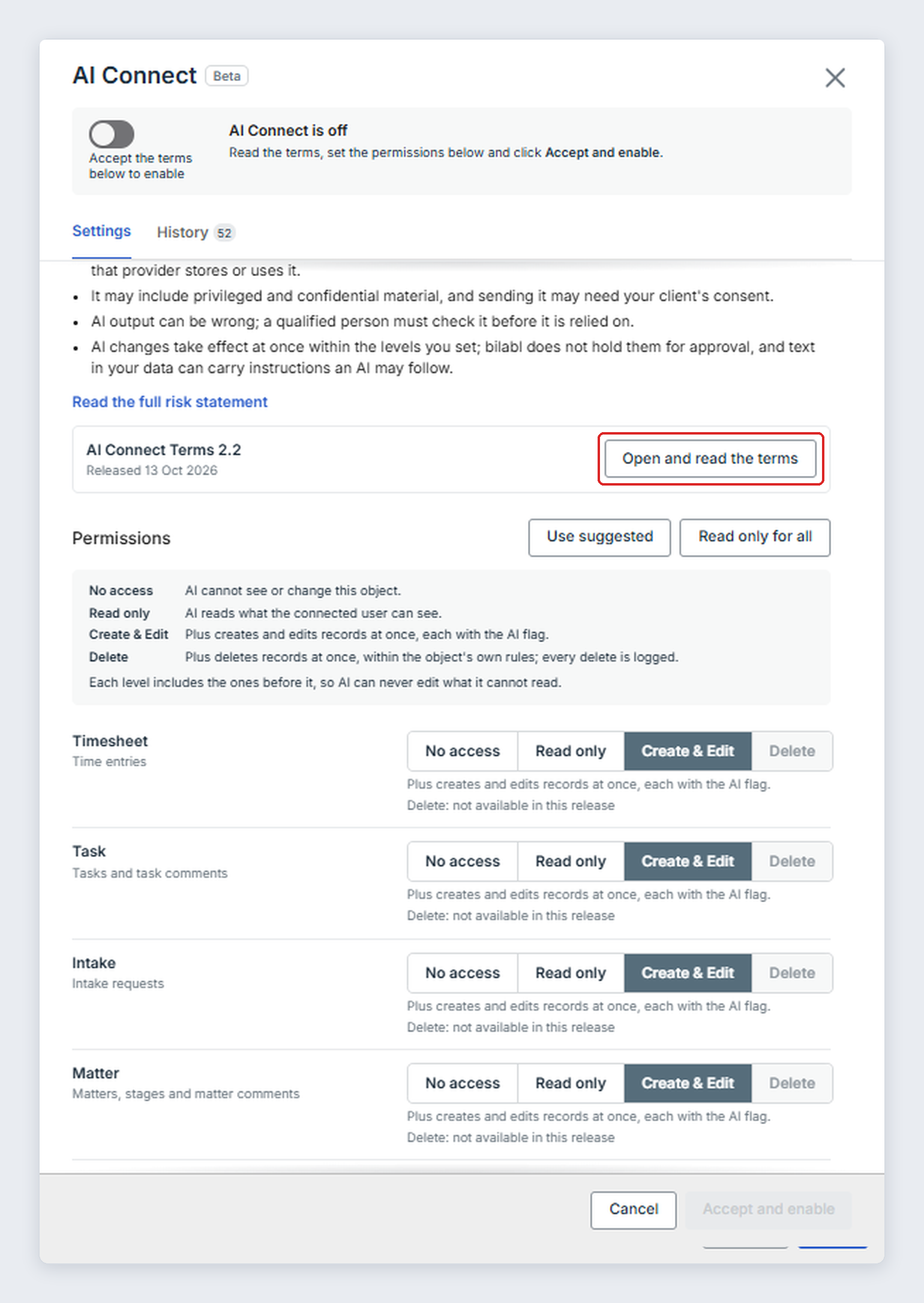
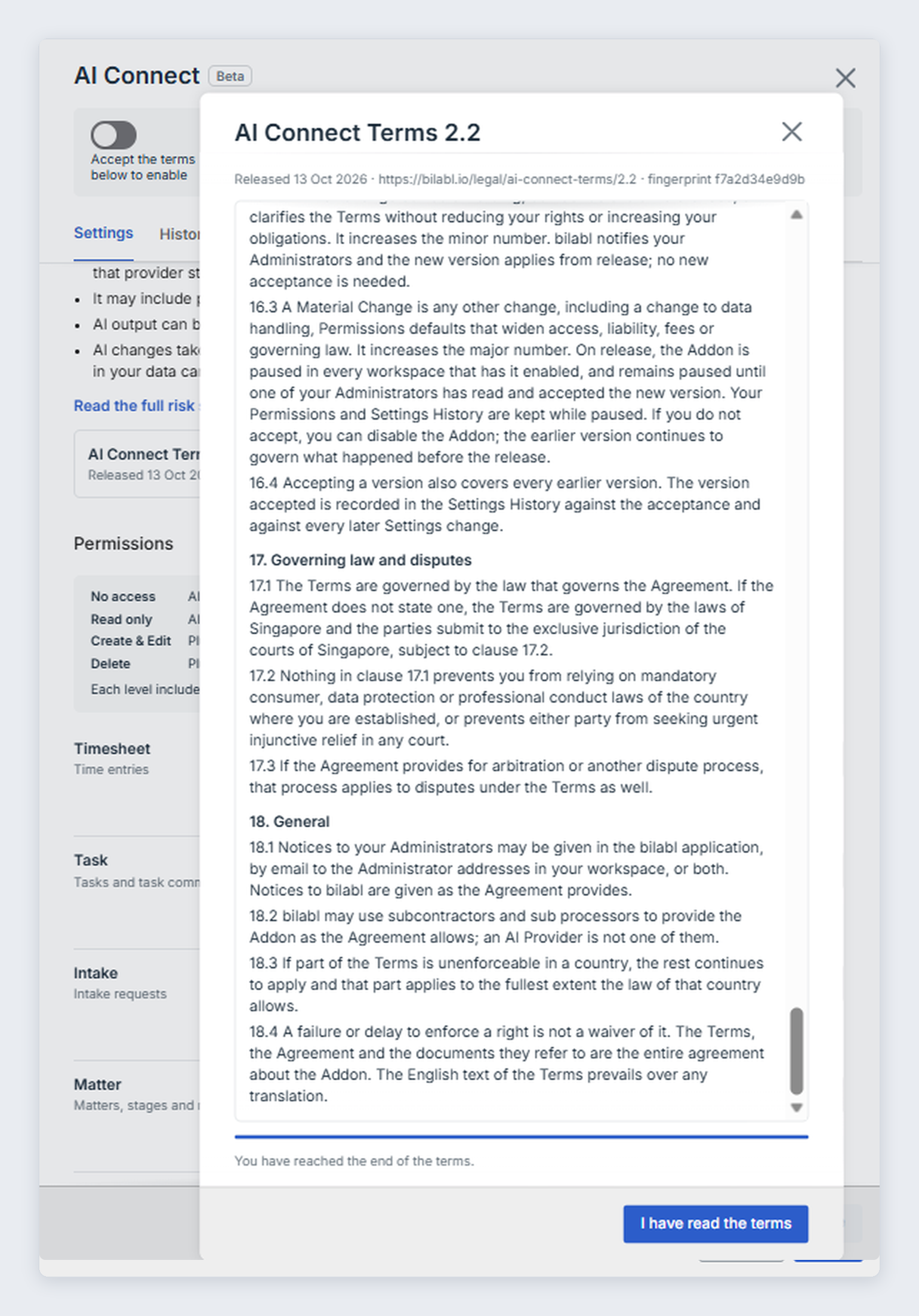
4. Select Open and read the terms. Read to the end, then select I have read the terms. The AI Connect Terms section now shows Read.
5. Under Permissions, choose an Access level for each type of data, or select one of these buttons:
- Select Use suggested to start from the Access levels bilabl suggests: Create & Edit for every type of data except Billing and User, which are set to Read only. Check each Access level before you continue.
- Select Read only for all to set every type of data to Read only.
6. Under Your agreement, select both checkboxes:
- With the second checkbox, you confirm that you are authorized to accept the terms for your firm, and that your firm has met its confidentiality, privilege, and data protection obligations.
- With the first checkbox, you accept the terms and agree that data within the Access levels you set is sent to the AI agent that each user connects, and to the AI provider of that AI agent, at your firm's own risk.
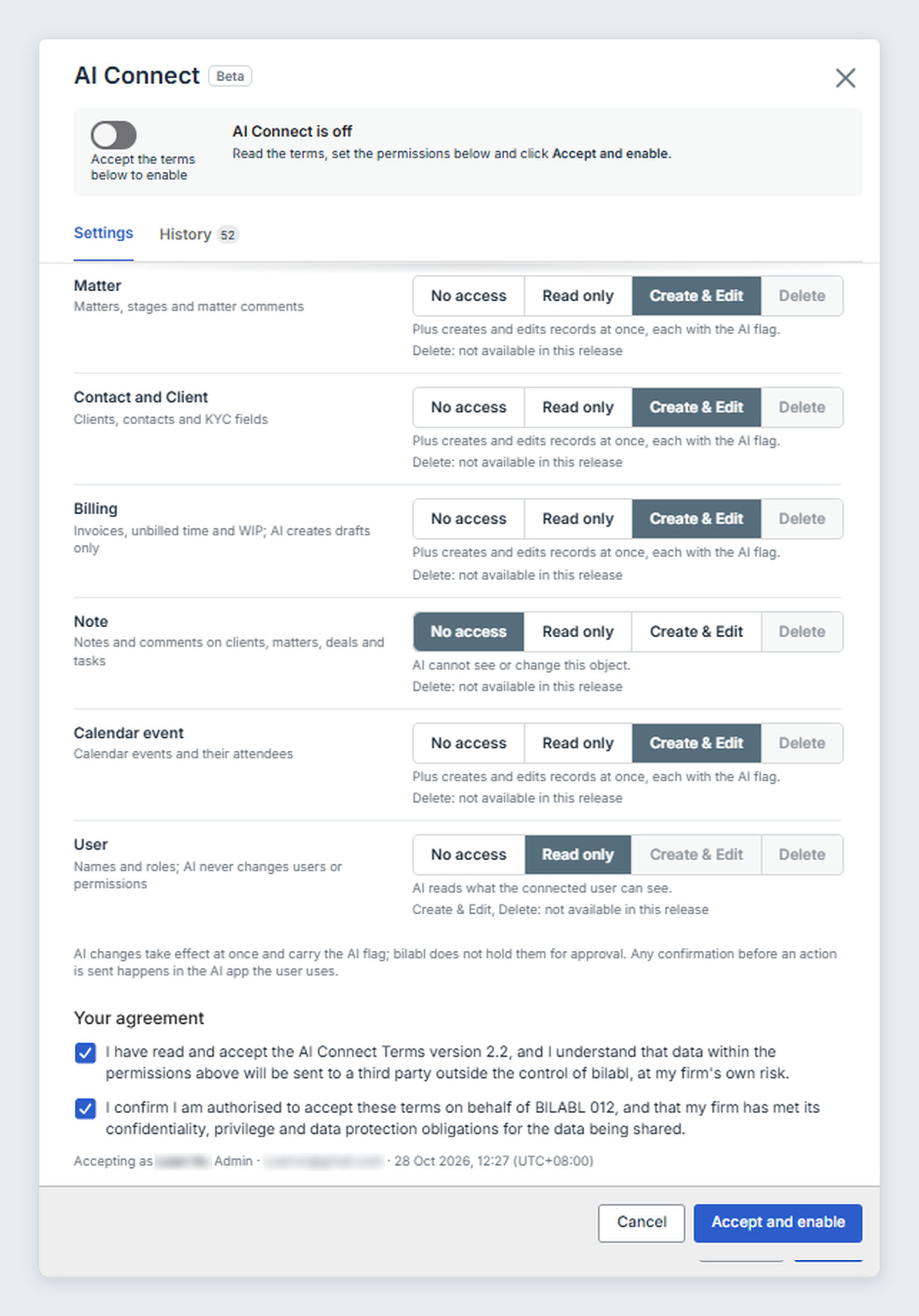
7. Select Accept and enable.
bilabl shows AI Connect enabled. Permissions saved. bilabl does not notify users in your firm. Tell users that AI Connect is enabled, so each user can connect their own AI agent. To connect an AI agent, see Connect Your AI Agent to bilabl.
Accept new versions of the AI Connect Terms
bilabl may release new versions of the AI Connect Terms. What happens depends on the type of change:
- Minor change, for example from 1.1 to 1.2. The change only corrects or clarifies the terms. Administrators receive a notification, and you do not need to accept the new version.
- Material change, for example from 1.1 to 2.0. The change can affect how data is handled, default Access levels that give AI agents more access, liability, fees, or governing law. AI Connect is paused until an Administrator accepts the new version, and every Administrator receives an Action needed notification. Your Access levels and the History tab are kept. If your firm does not accept the new version, an Administrator can disable AI Connect.
To accept a new version after a material change:
- At the top right of bilabl, select the gear icon (System Settings), then select Addons in the left menu.
- On the AI Connect card, select Review new terms.
- Read What changed and the new terms to the end, select both checkboxes, then select Accept and resume.
AI agents can reach bilabl data again, unless bilabl has also paused AI Connect for another reason. bilabl notifies users that AI Connect has resumed, and the History tab adds a row for your acceptance.
bilabl can also pause AI Connect for your firm without notice, if bilabl believes this is needed to protect bilabl, your data, or other customers, to comply with the law, or because of a breach of the acceptable use rules in the terms. bilabl tells your Administrators why, and resumes AI Connect when the reason has ended. Administrators cannot resume AI Connect themselves in this case. Each pause and resume appears in the History tab.
Change Access levels
To change Access levels:
- At the top right of bilabl, select the gear icon (System Settings), then select Addons in the left menu.
- On the AI Connect card, select Manage.
- On the Settings tab, choose a new Access level for each type of data you want to change.
- Select Save. In the Confirm changes window, check the changes, then select Confirm changes.
The changes take effect at once.
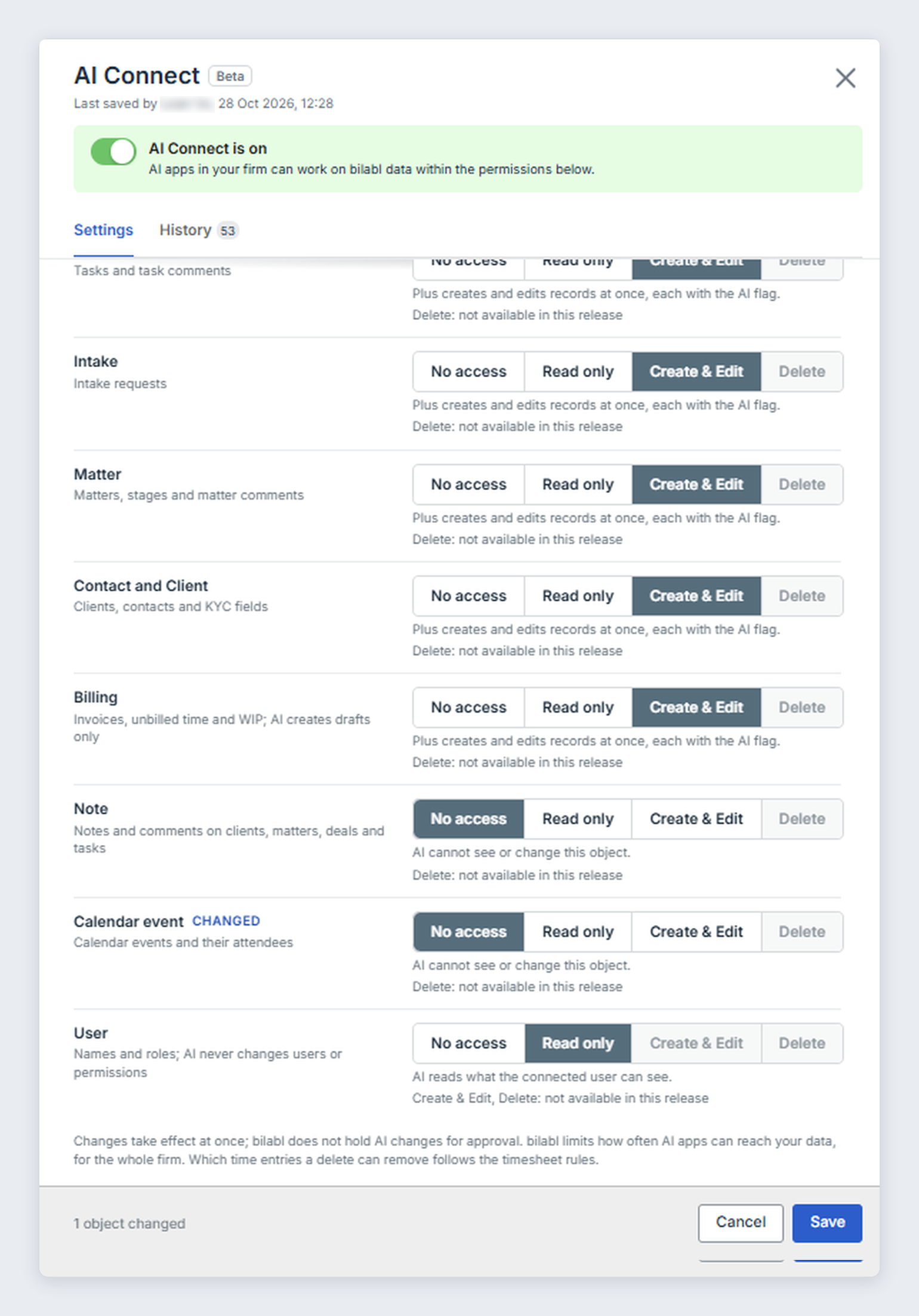
The Settings tab also shows which version of the terms your firm accepted, who accepted the terms, and when. To read the terms again, select View terms. To read the risks again, select Risk statement.
View history
To view history:
- At the top right of bilabl, select the gear icon (System Settings), then select Addons in the left menu.
- On the AI Connect card, select Manage.
- Select the History tab.
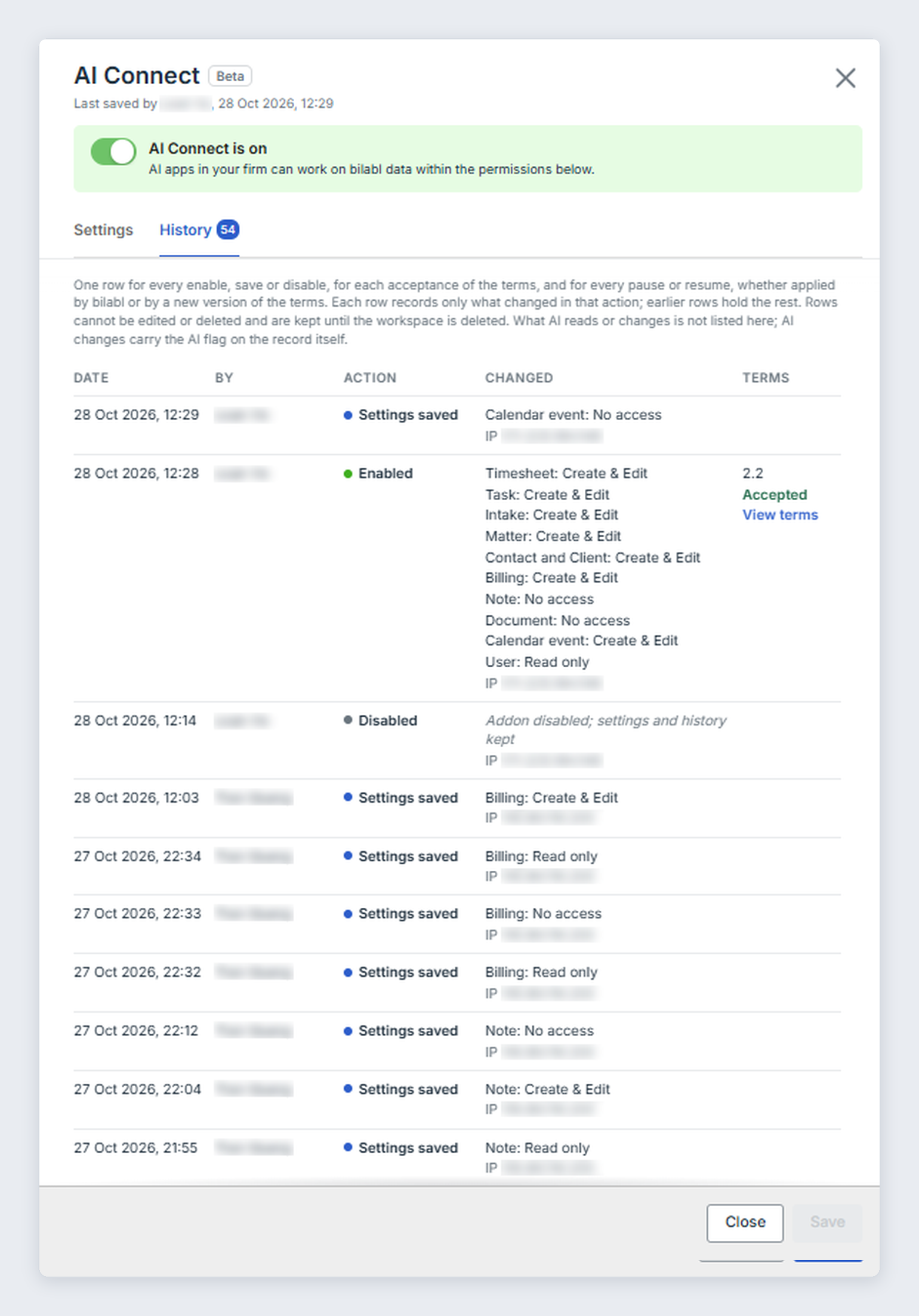
The History tab adds a row, with the user's name and the time, each time an Administrator enables AI Connect, saves new Access levels, disables AI Connect, or accepts the terms.
In each row, Changed shows the new Access levels, and Terms shows the version of the terms your firm accepted at that time. These rows cannot be edited or deleted.
Disable AI Connect
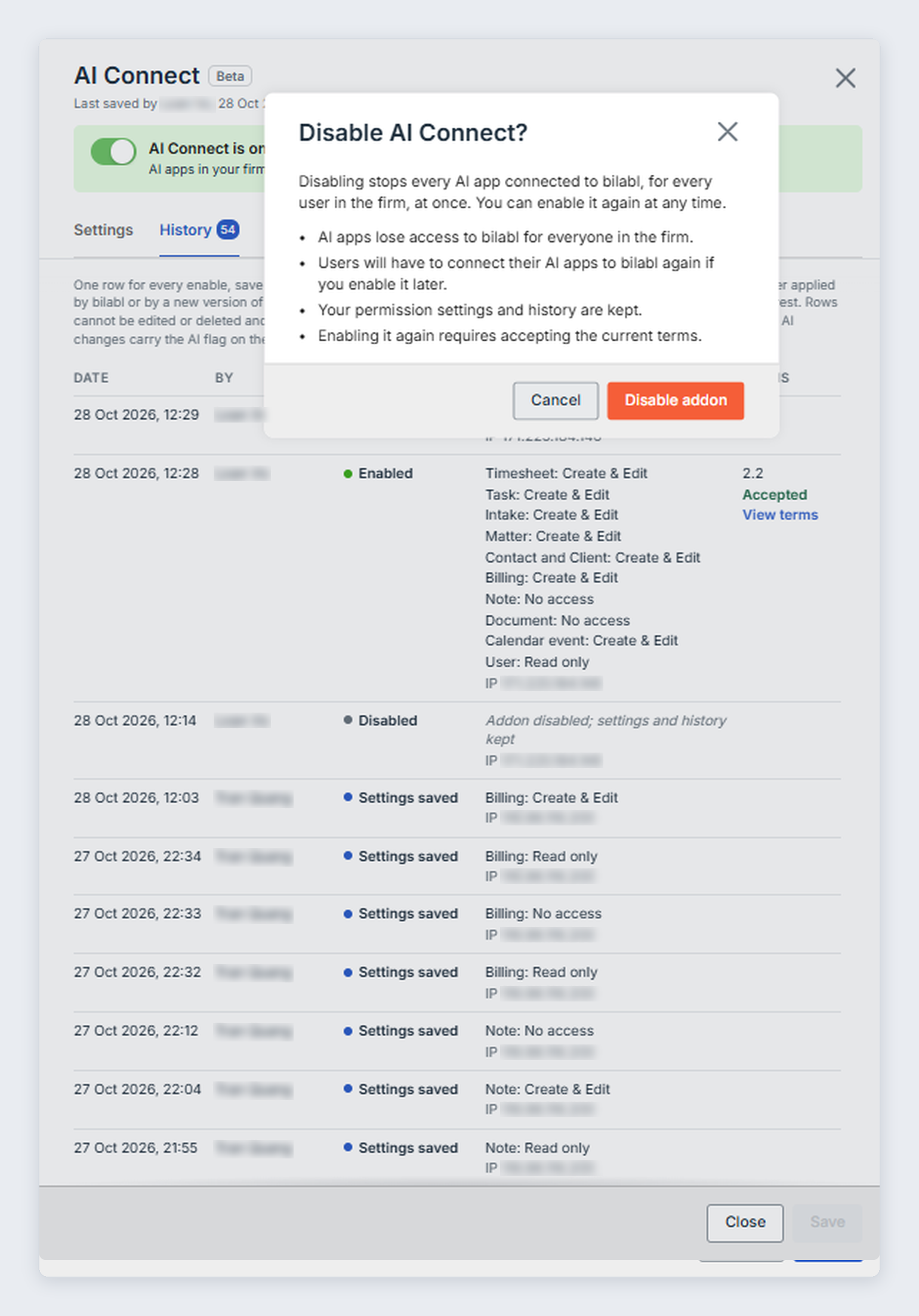
Disabling AI Connect stops every AI agent for every user in your firm at once. After you enable AI Connect again, every user must connect their AI agent again and sign in to bilabl again. To stop the AI agent of one user only, that user disconnects bilabl in their own AI agent.
When you disable AI Connect:
- Your Access levels and the History tab are kept.
- If you enable AI Connect again later, you must accept the current terms, and each user must connect with their AI agent again.
To disable AI Connect:
- At the top right of bilabl, select the gear icon (System Settings), then select Addons in the left menu.
- On the AI Connect card, select Manage.
- Switch the AI Connect is on toggle off.
- In the Disable AI Connect? window, read what happens. When Disable addon becomes available after a few seconds, select Disable addon. To keep AI Connect on, select Cancel.
Troubleshooting
If you cannot solve a problem below, contact support@bilabl.io.


