Events in bilabl
In this article
In bilabl, an event is anything scheduled on a calendar, such as a meeting, court appearance, filing deadline, or billing due date. You create and manage events from the Calendar, and you can link an event to a client, matter, deal, or billing so related work stays together.
This article covers creating and managing events. To view and navigate your calendars, see Calendar.
Add an event
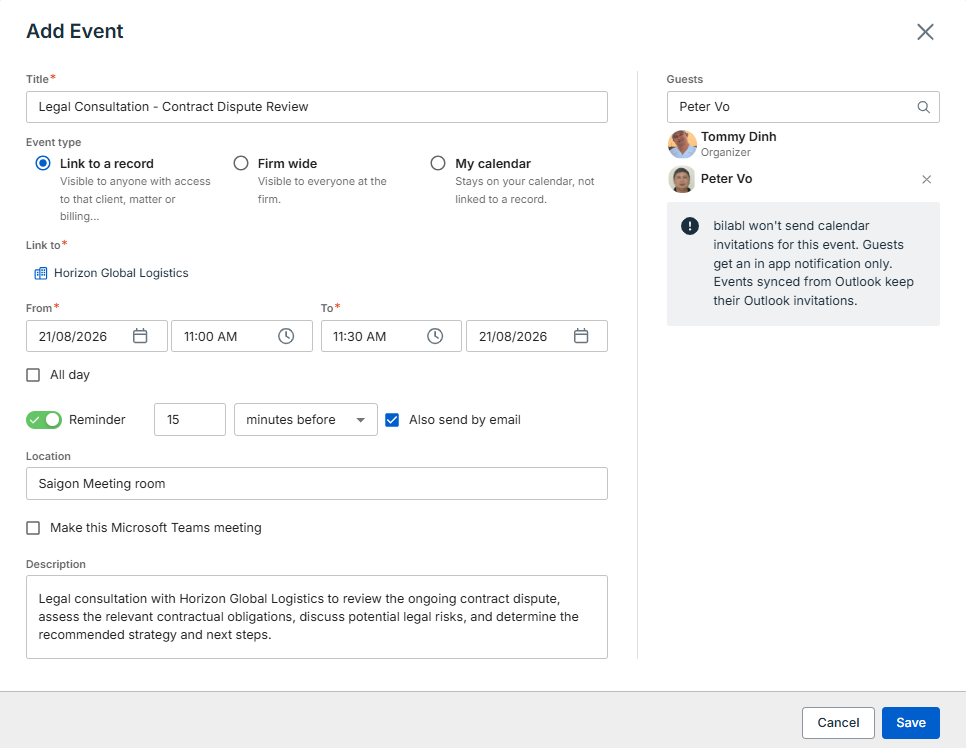
Go to the Calendar from the main menu and select Add event to open the Add Event form, then complete the following details.
Select the event type
Choose how the event is stored and who can see it.
When you select Link to a record, choose the client, matter, deal, or billing in the Link to field.
Set the details
- Title: Enter a name that identifies the event on the calendar.
- From / To: Set the start and end date and time.
- All day: Turn on for events that run the whole day with no specific start or end time.
Add a reminder
A reminder notifies you before an event starts. For regular events, when you turn on Reminder, bilabl sets it to 15 minutes before by default. You can change the reminder by entering a different number and choosing a unit: minutes, hours, days, or weeks before the event starts.
The reminder is sent to you and your guests as an in-app notification. Select Also send by email to receive the reminder by email as well. Each event can have one reminder.
For all-day events, the reminder is calculated from the event start time of 8:00 AM in the user’s time zone. You can choose to be reminded hours, days, or weeks before the event. By default, bilabl sets the reminder to 16 hours before the event start time.
For example, for an all-day event on 26 Aug, the event starts at 8:00 AM. A reminder set to 16 hours before is sent at 4:00 PM on 25 Aug. bilabl shows the exact reminder date and time below the field.

Add a location and description
Enter a Location so guests know where to go and use the Description field to add context or agenda items.
Invite guests
In the Add guests field, search by name to invite other bilabl users to your firm. Guests receive an in-app notification.
Only bilabl users within your firm can be invited. bilabl does not send meeting invitations that guests accept or decline; the event is simply recorded in bilabl. Events synced from Outlook keep their original Outlook invitations. For more, see Calendar integration.
Work with a saved event
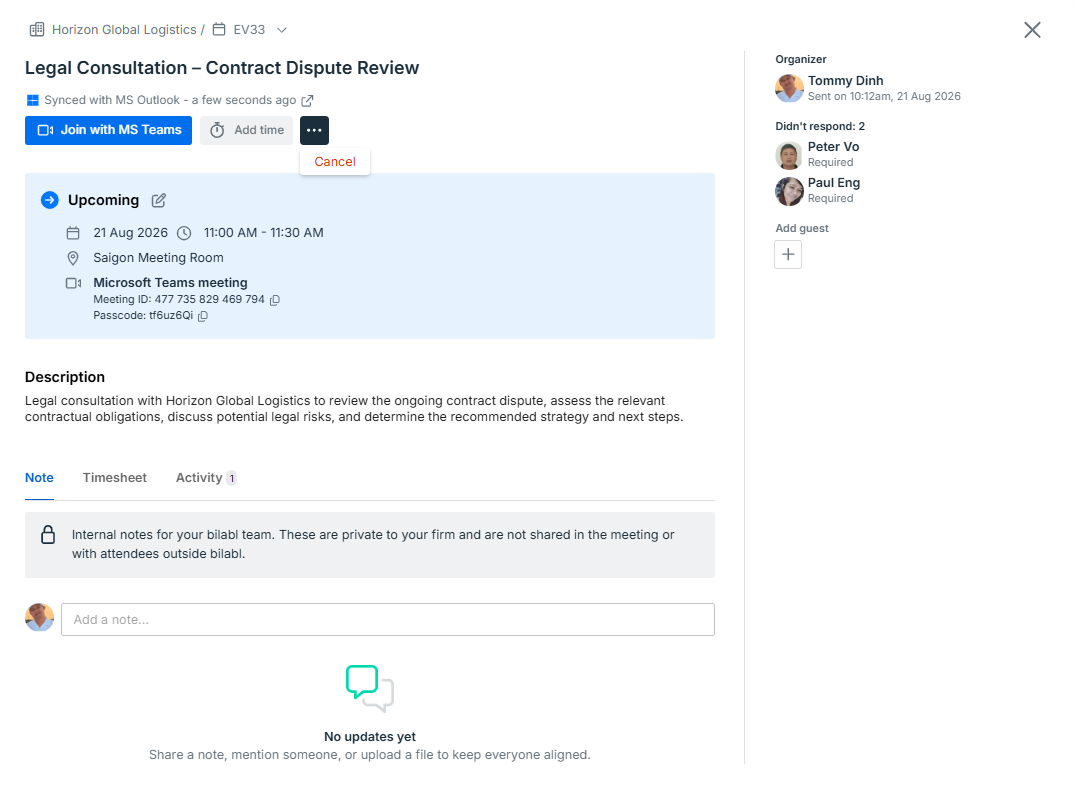
After you save an event, bilabl confirms that the event has been created. You can open the event from the Calendar or from a link to the event, such as a link in a notification. From the event details, you can add time, add notes, and review its history.
Add time
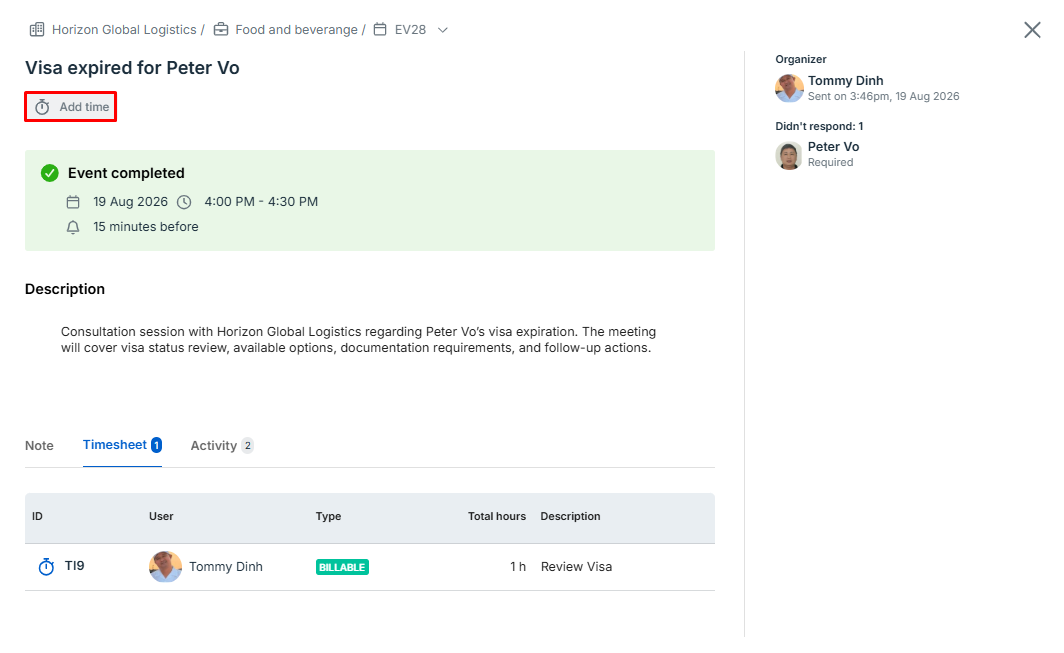
Select Add time to record time against the event without leaving the Calendar. You can record time for upcoming, in-progress, and completed events. You cannot record time against a cancelled event.
When adding time from an event, you can save the time record as Draft if you do not know which record it should be linked to yet. You can update it later and link it to the appropriate record.
To review time records added to an event, open the event details and select the Timesheet tab. This shows the time records associated with that event.
Draft time records remain available in the Timesheet tab, where you can review and update them later.
For more information about recording time, see Add time.
Add notes
Use Note to add internal updates and share information with your team while keeping all event-related notes in one place. Notes are only visible to users within your firm and are not shared with guests outside bilabl. You can mention teammates, attach images, and keep all notes connected to the event.
For more about notes, see Notes.
Review activity
Use the Activity tab to review the event’s history. The activity log records who made each change and when, such as when the event is created, edited, cancelled, or rescheduled, giving you a complete audit trail.
Edit, cancel, or delete an event
You can update an event as your schedule changes, cancel it if it will no longer take place, or delete it if it was created by mistake
Edit an event
Edit an event whenever the details change, such as a new time or location. Only events that have not yet taken place can be edited.
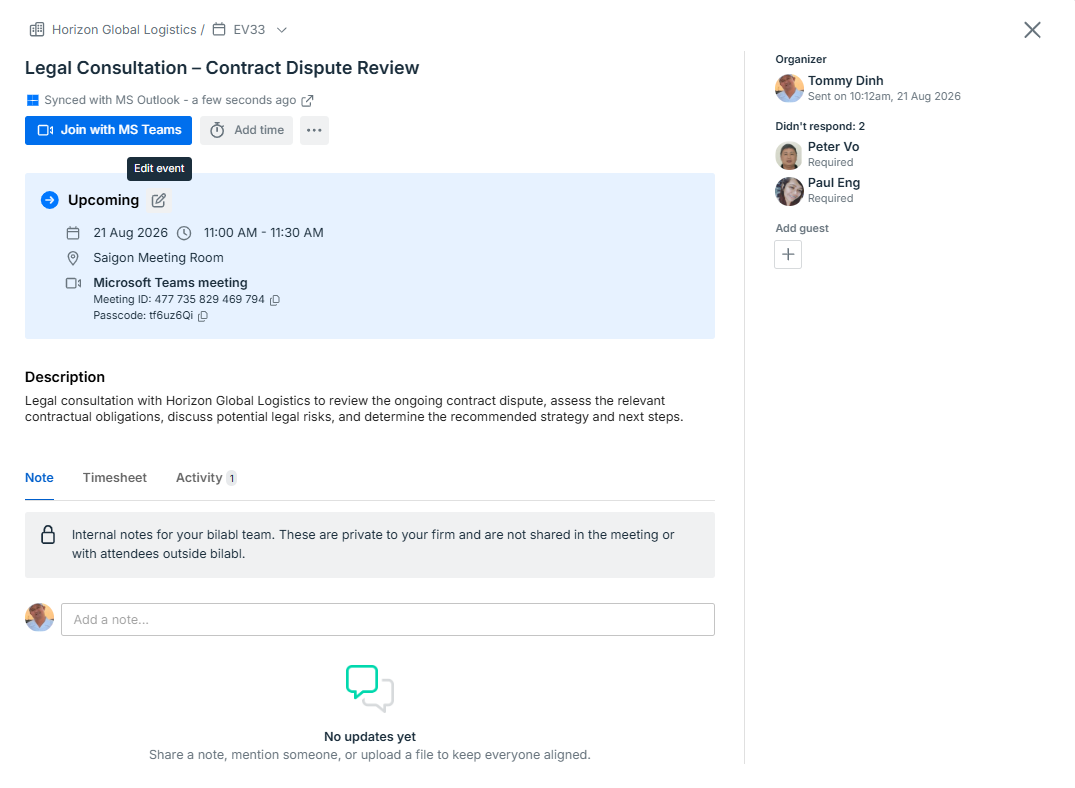
Open the event and select the Edit (pencil) icon, then update the title, date and time, location, guests, reminders, description, or linked record. Changes apply immediately wherever the event appears. What you can do with an event depends on your role and your access to the event.
Cancel an event
Cancel an event that will no longer take place but that you want to keep a record of. The event stays on the calendar with a Cancelled status and keeps its notes, guest details, and activity history. You cannot record time against a cancelled event.
To cancel, open the event, select More options (…), then select Cancel. Only the organizer can cancel an event.