
Calendar in bilabl
In this article
bilabl Calendar helps your firm keep work-related events organized and connected to the clients, matters, deals, and billing they relate to. Use it when you need to see upcoming meetings, deadlines, billing due dates, reminders, or firm-wide events in the context of your work.
You can also extend bilabl Calendar with Microsoft Outlook and Microsoft Teams integrations, or use the calendar feed to view your bilabl Calendar in Outlook. This allows you to keep bilabl connected with the tools you already use to manage your schedule.
With bilabl Calendar, you can:
- Keep events connected to your work: Keep work-related events connected to the clients, matters, deals, or billing they belong to, so you can quickly access the related records.
- View your schedule in one place: View events from different areas of bilabl in one calendar and switch between different calendar view modes.
- Connect with Microsoft Outlook: Connect bilabl with Microsoft Outlook to keep your work schedule synchronized.
- Connect with Microsoft Teams: Create Microsoft Teams meetings directly from bilabl events. After a meeting ends, you can see who joined, who did not join, and how long each participant attended. You can also create timesheet entries directly from the meeting information.
- View bilabl Calendar in Outlook via calendar feed: Use the calendar feed to view a read-only copy of your bilabl Calendar in Outlook.
bilabl Calendar is built for work-related events tied to your firm's internal records, not as a replacement for your primary calendar. For external commitments like client meetings or anything involving a third party, we recommend keeping your primary calendar, such as Microsoft Outlook, as the source of truth and using bilabl's integrations to stay in sync.
For information on Calendar integrations with Microsoft Outlook and Microsoft Teams and using the calendar feed to view your bilabl Calendar in Outlook, see Calendar integrations and Calendar feed.
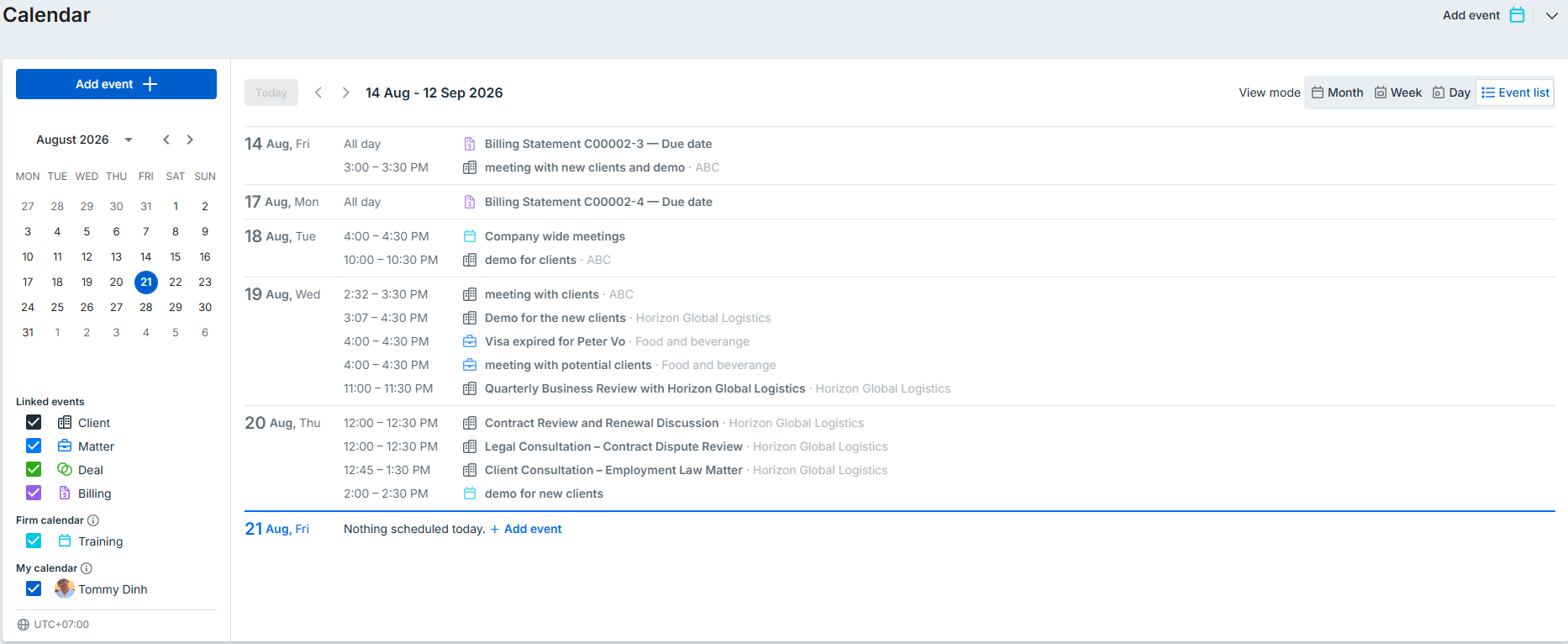
Calendar in bilabl
View calendars
In bilabl, calendar events can be viewed in different contexts depending on what you are working on.
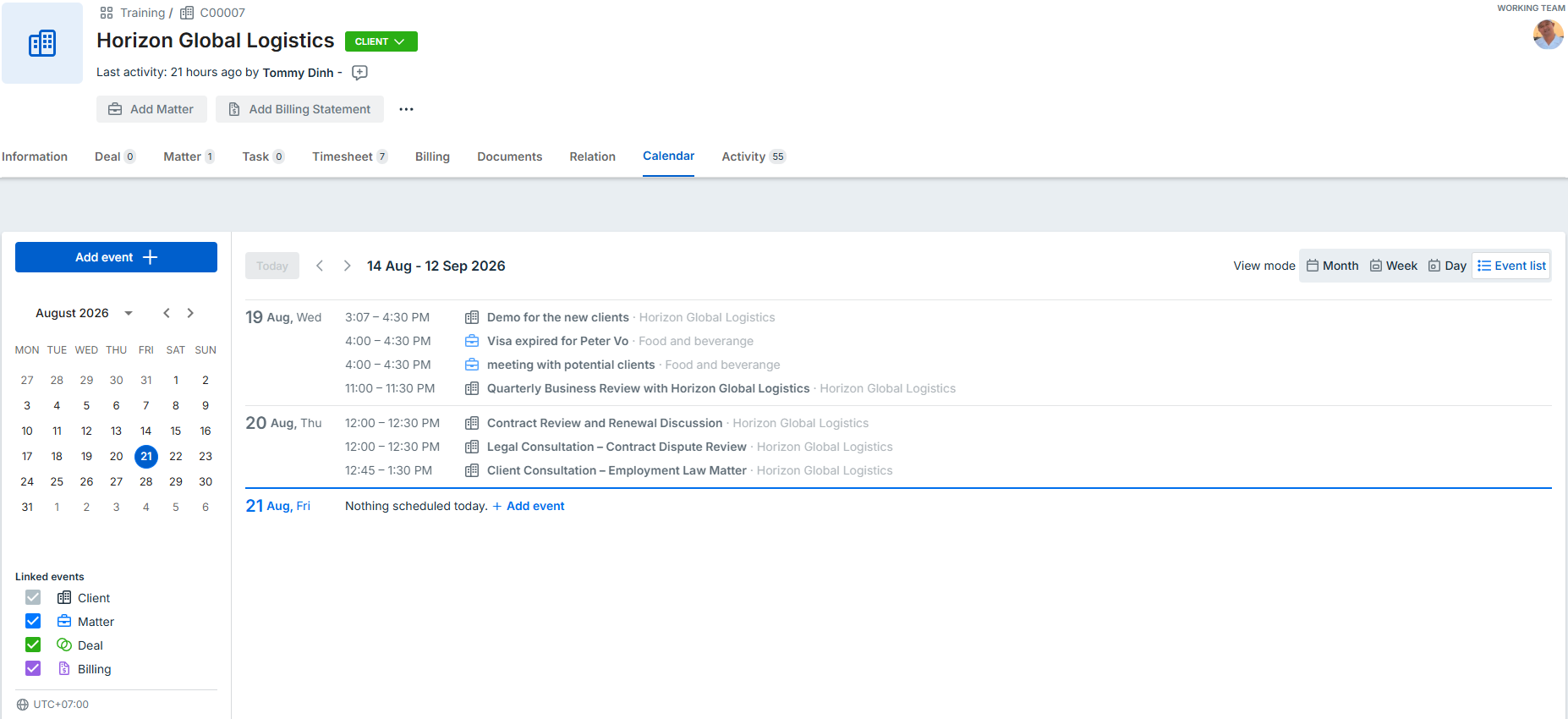
When you are working with a specific Client, Matter, or Deal, you can view the events related to that record from its Calendar tab. This gives you a focused view of the events associated with that record.
The Main Calendar provides a broader view of the events you have access to across bilabl. It brings together events from different areas of bilabl, including clients, matters, deals, billing, My calendar, and the Firm calendar.
These views provide different ways to see calendar events based on the context you are working in:
- Calendar from a record: Focuses on events related to a specific Client, Matter, or Deal.
- Main Calendar: Provides an overall view of calendar events across bilabl.
View related events from a record
When you are working on a specific Client, Matter, or Deal, select the Calendar tab to view the events related to that record.
- Client: View events across all matters and deals for the client in a single timeline.
- Matter: View all events related to the matter, including meetings, deadlines, and billing due dates. When a billing is created, its due date is automatically added as an event.
- Deal: View all events related to the deal.
View all calendar events
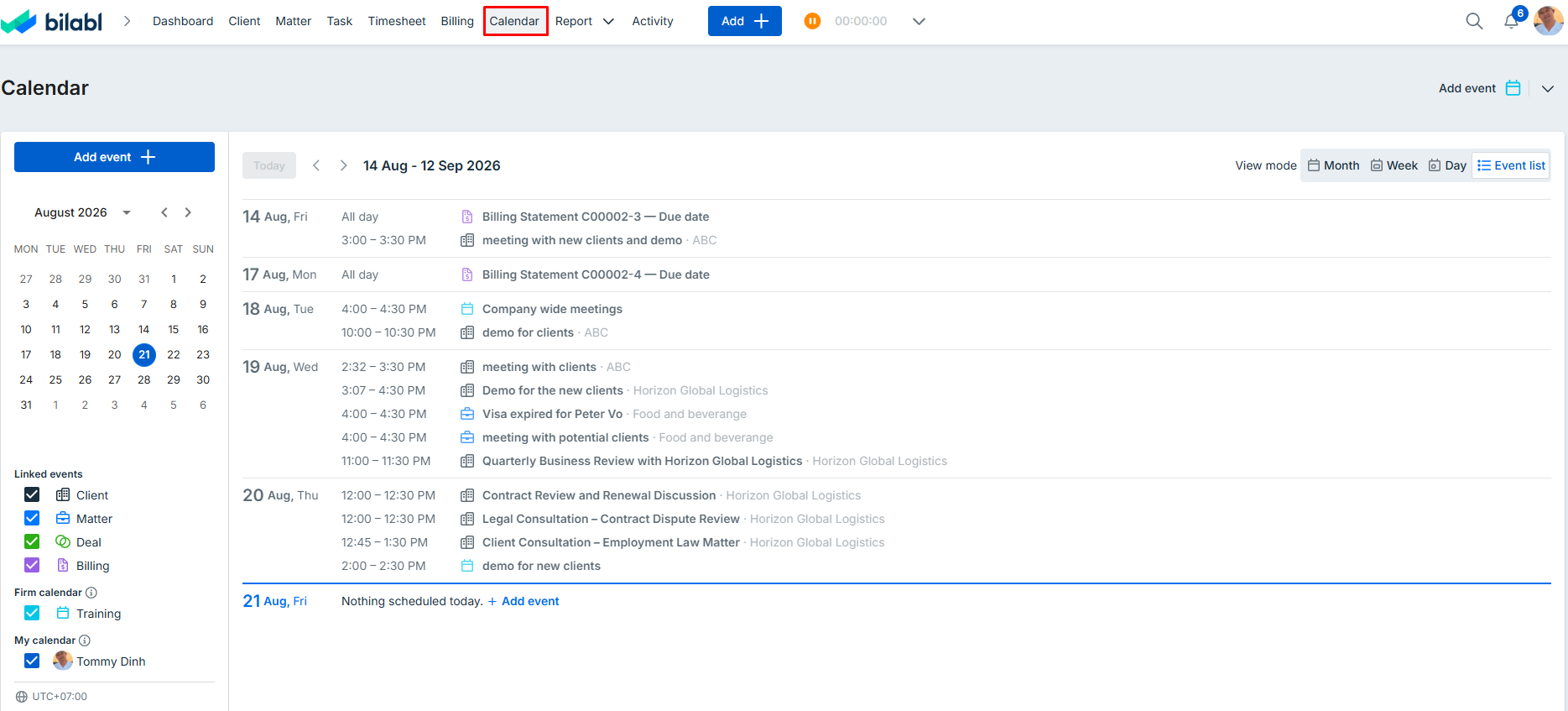
To view your overall schedule, select Calendar from the main navigation menu.
This view brings together events from your clients, matters, deals, billing, My calendar, and the Firm calendar into a single calendar, making it easy to manage your entire schedule from one place.
Calendar types
The Calendar can include events from different sources, depending on what each event is related to. The event type determines where an event appears and who can see it. For more about creating and choosing an event type, see Events.
Linked events
Events linked to a client, matter, deal, or billing are visible to users who have access to the related record.
My calendar
My calendar contains events that are not linked to a client, matter, deal, or billing. Only the person who created the event and any invited guests can see it, and it can be linked to a record later.
Firm calendar
The Firm calendar contains events shared across the firm, such as internal team meetings, training sessions, office closures, public holidays, and leave. These events are visible to everyone in the firm.
Calendar view modes
The Calendar opens in Event list view by default. Switch views at any time to match how you want to see your schedule.
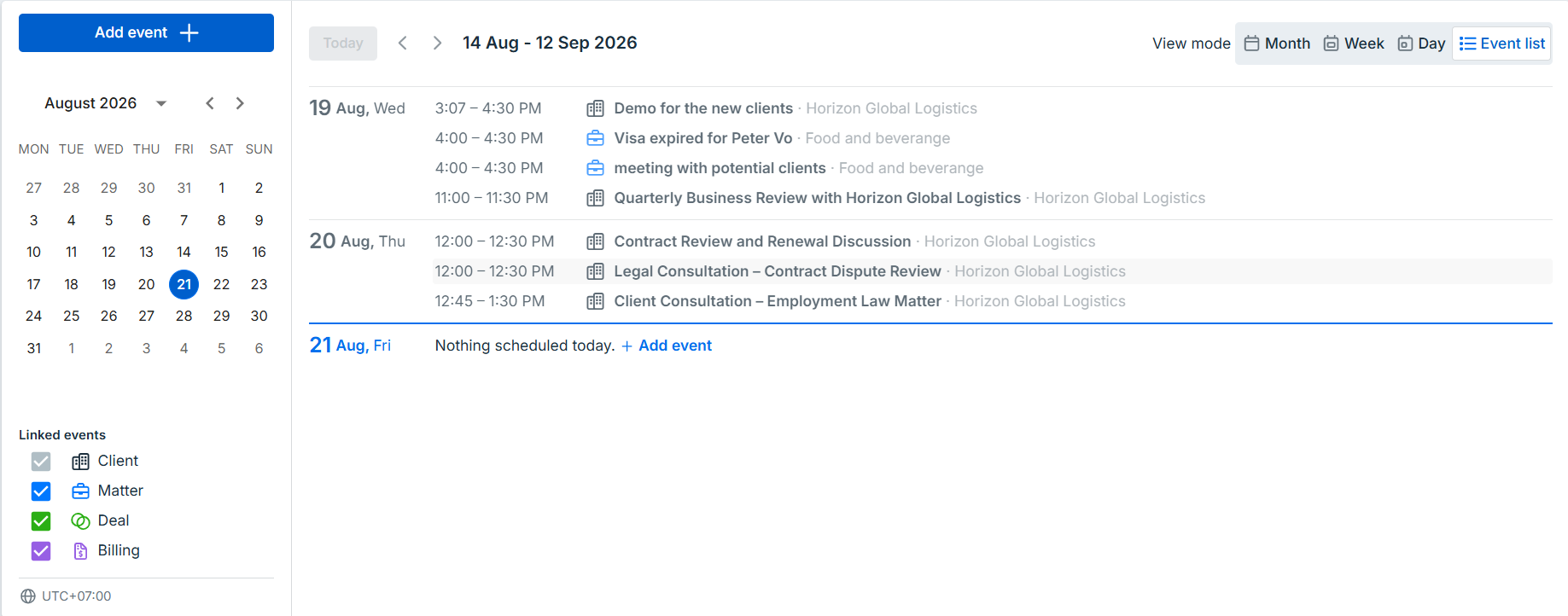
- Event list: See your events as a chronological list grouped by day. Select Today to return to today’s date, or use the left and right arrows to move between dates.
- Month: View all events for the month to plan ahead and identify busy periods, upcoming deadlines, and important dates.
- Week: View your schedule for the week, making it easier to organize meetings and manage your workload.
- Day: Focus on a single day’s schedule, making it easier to manage multiple meetings and deadlines.
View events on the calendar
Each event on the calendar shows key details at a glance, so you can understand your schedule and open the right item without leaving the Calendar.
- Event title: Every event displays its title, so you can quickly recognize meetings, deadlines, reminders, and billing due dates.
- Linked record: Events linked to a client, matter, deal, or billing also show the record they belong to, so you can see the context for each event.
- Open event details: Select an event to open its full details, including the date, time, description, guests, and linked record.
- Open the linked record: Select the linked record shown on an event to go straight to that client, matter, deal, or billing.
Navigate the calendar
These controls sit at the top of the Calendar and work in every view.
- Today: Select Today to jump back to the current day.
- Back and forward arrows: Select the arrows to move to the previous or next period. The step depends on the view, for example a day in Day view or a month in Month view.
- Mini calendar: Select a date in the mini calendar to jump straight to that day.
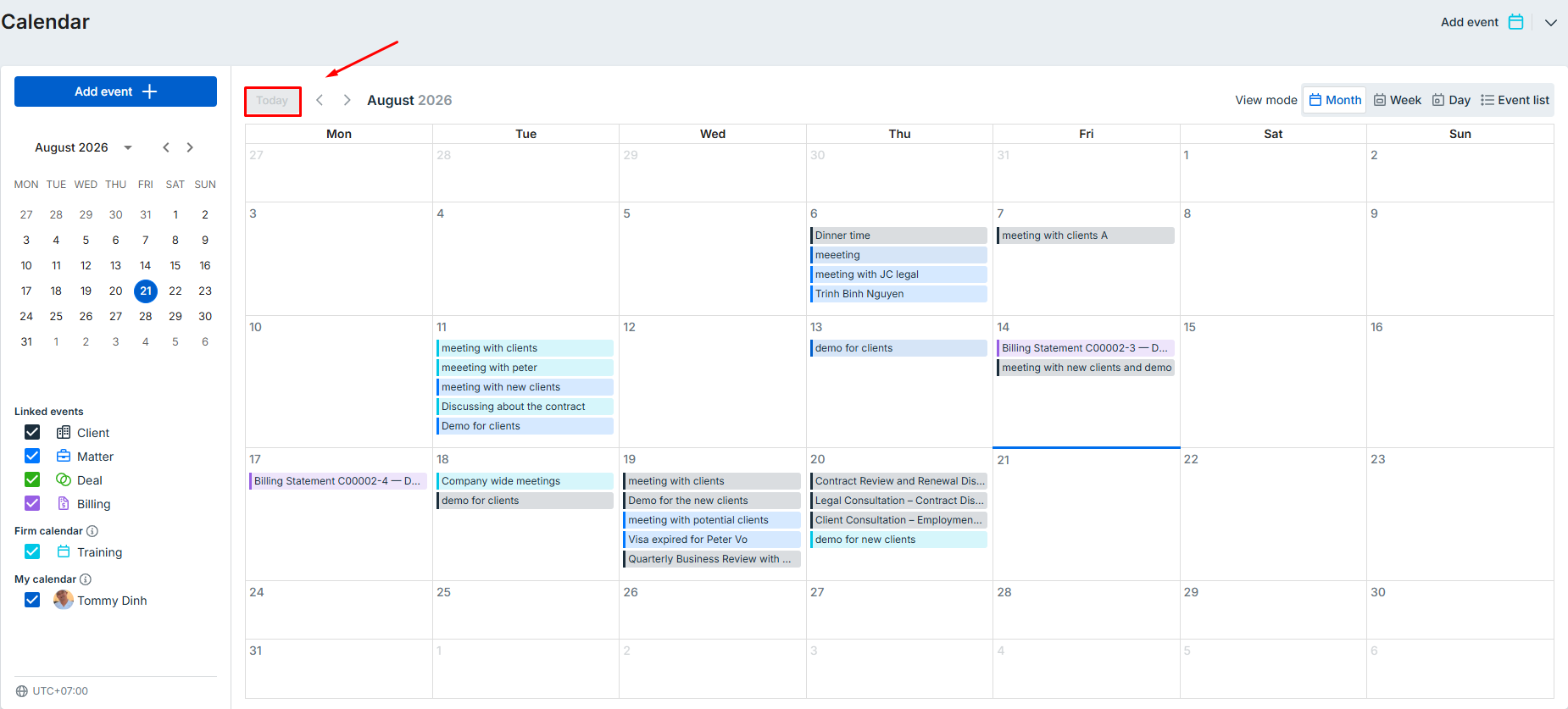
Calendar filters
Use calendar filters to focus on the events you want to see, without changing or deleting any calendar data.
- Linked events: Show or hide client, matter, deal, and billing events individually.
- My calendar: Show or hide events that are not linked to a record.
- Firm calendar: Show or hide events shared across the firm.
bilabl remembers your selected calendar view and filter preferences, so the next time you open the Calendar your previous layout is restored automatically.
Calendar permissions
What you can see in the Calendar depends on your role and your access to the underlying clients, matters, deals, and billing.
- Admins and Managers can view calendars for all clients, matters, deals, and billings across the firm. They can also manage events in the Firm calendar.
- Other users can view calendar events for the clients, matters, deals, and billings they have permission to access.
For linked events, access follows a user’s existing access to the related record. Invited guests can also see events they are invited to, subject to the event’s visibility and their access to the linked record.
Calendar time zone
The time zone currently in use is shown on the Calendar (for example, UTC+07:00), and event times are displayed based on this firm-wide time zone.


