
Calendar integration with Microsoft Outlook
In this article
bilabl Calendar integrates with Microsoft Outlook to help you keep your calendar events connected with the work you manage in bilabl. Link Outlook events to clients, matters, or deals, and keep the linked events updated when changes are made in Outlook.
This integration helps you keep your Outlook schedule connected with the related work in bilabl without manually creating duplicate events.
This article explains how to connect Microsoft Outlook, link Outlook calendar events to bilabl, and manage your Outlook connection.
Before you start
Before connecting Microsoft Outlook:
- Outlook sync works one way, from Outlook to bilabl. Changes made in Outlook are reflected in bilabl, but changes made to the synced event in bilabl are not sent back to Outlook.
- To link Outlook events to bilabl, you must install the bilabl Outlook add-in. For more information, see bilabl Outlook add-in.
- Microsoft Outlook integration is different from the calendar feed. The calendar feed provides a read-only view of your bilabl Calendar in Outlook, while Outlook integration brings Outlook events into bilabl. To view your bilabl calendar inside Outlook, see Calendar sync and feeds.
The video below walks you through connecting Microsoft Outlook and linking Outlook events to bilabl.
Connect Microsoft Outlook
Connect your Microsoft Outlook account to link Outlook events to your bilabl Calendar. After connecting, you can use the bilabl Outlook add-in to link Outlook events to clients, matters, or deals.
To connect your Outlook account to bilabl:
1. In bilabl, select your user icon.
2. Select Account settings.
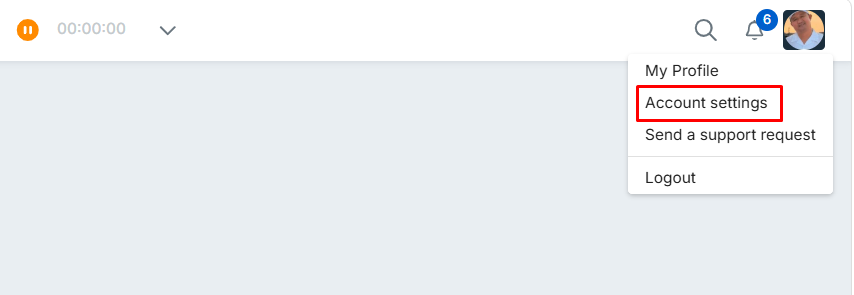
3. Go to the Connect calendar section and select Connect.
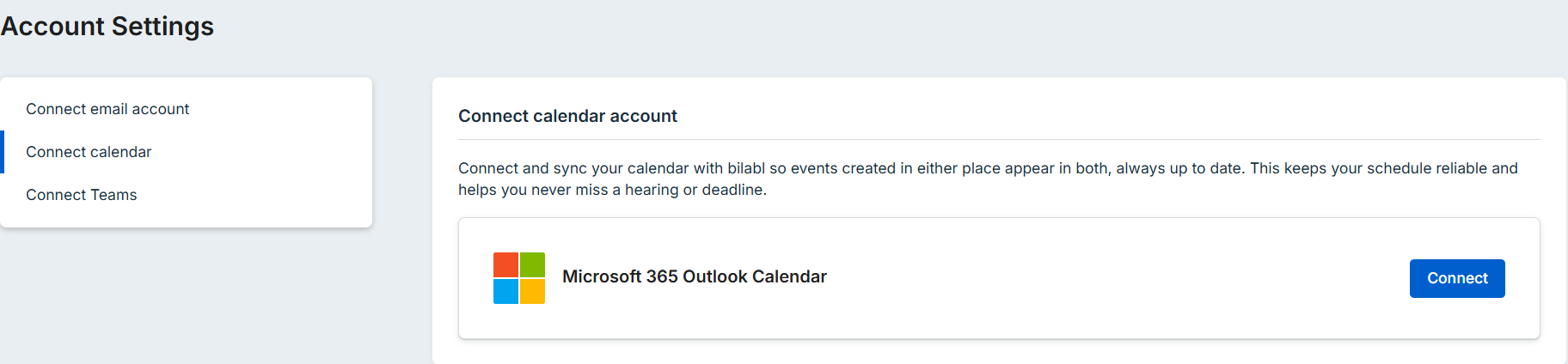
4. Select Connect with your Microsoft account.
5. On the Microsoft sign-in page, select the Microsoft account you want to connect.
After you select your account, the connection is completed automatically.
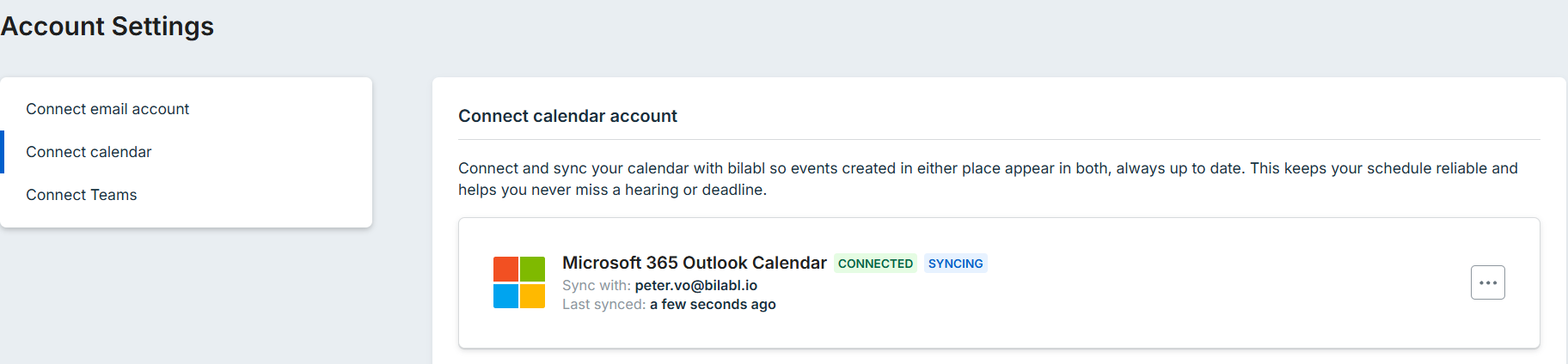
Once connected, bilabl shows:
- The connection status
- The Microsoft account connected to bilabl
- The last sync time
Manage your Outlook connection
You can manage your Microsoft Outlook connection from Account settings.
Stop syncing with Microsoft Outlook
Stop syncing when you want to temporarily pause updates from Outlook while keeping your Microsoft account connected.
To stop syncing:
- In bilabl, select your user icon.
- Select Account settings.
- Go to the Connect calendar section.
- Open the options menu for the connected account and select Stop sync.
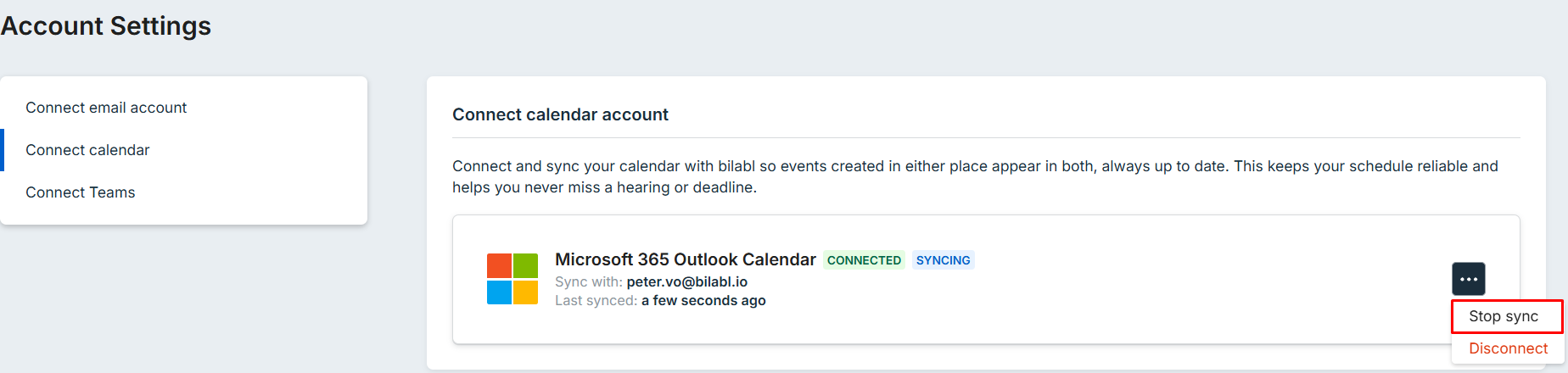
When you are ready to resume syncing, select Start sync. Syncing resumes without requiring you to connect or sign in again.
Disconnect Microsoft Outlook
Disconnect when you no longer want bilabl linked to a Microsoft account or when you want to switch to a different account.
Disconnecting removes the connection between bilabl and the Microsoft account. You need to connect the account again before bilabl can sync with it.
To disconnect:
- In bilabl, select your user icon.
- Select Account settings.
- Go to the Connect calendar section.
- Open the options menu for the connected account and select Disconnect.
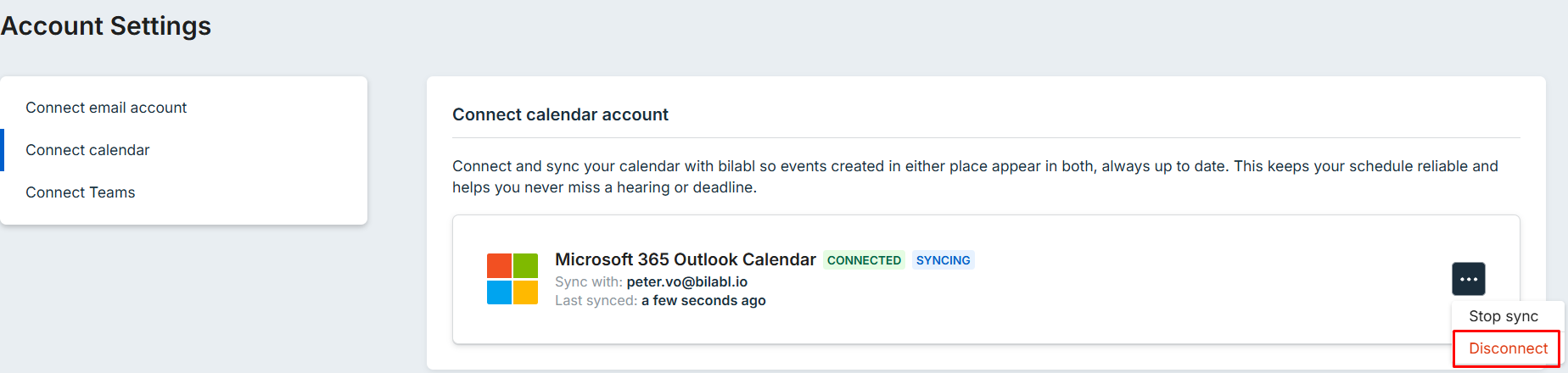
Events already synced to bilabl remain after you disconnect.
Link an Outlook event to bilabl
Before linking Outlook events, install the bilabl Outlook add-in.
To link an Outlook event to bilabl:
- In Outlook, go to Calendar and create a new event or open an existing event.
- Enter or review the event details as needed.
- On the Outlook toolbar, open the bilabl Outlook add-in.
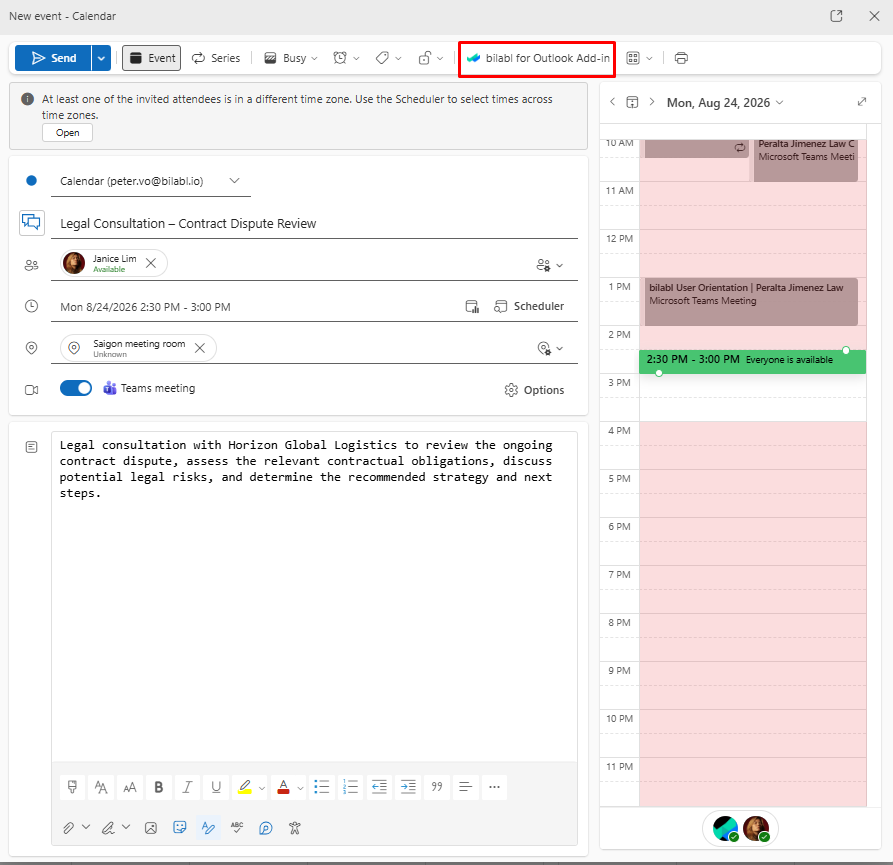
- In the bilabl add-in, select the client, matter, or deal you want to link the event to.
- Select Link event.
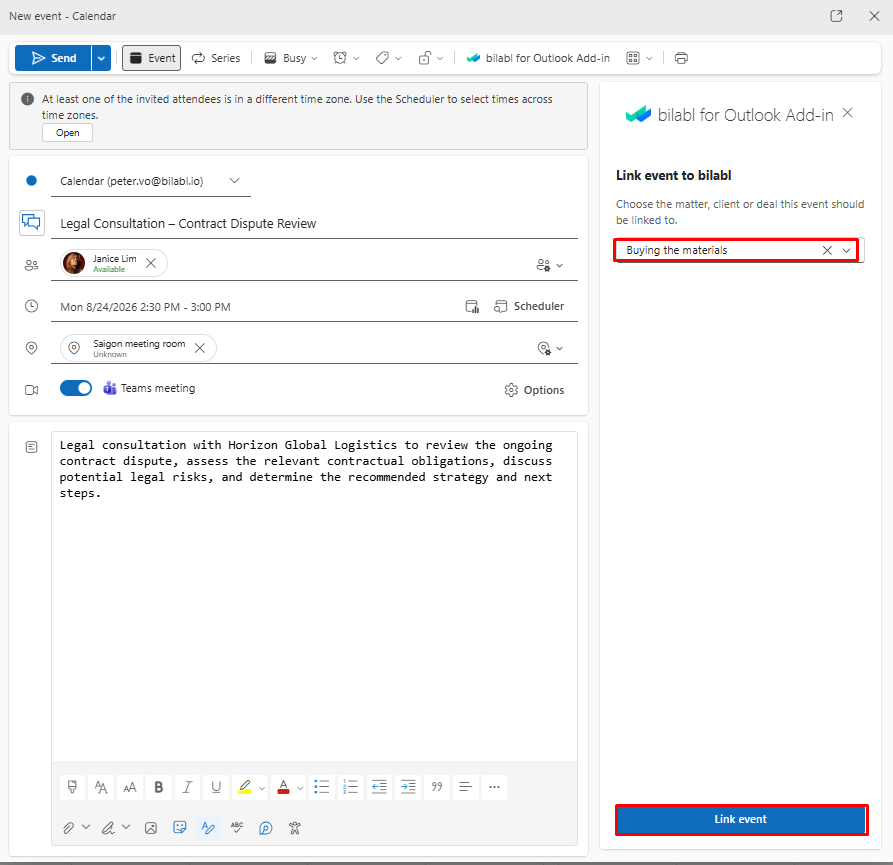
bilabl confirms that the event has been linked successfully and marks the event as Synced with bilabl.
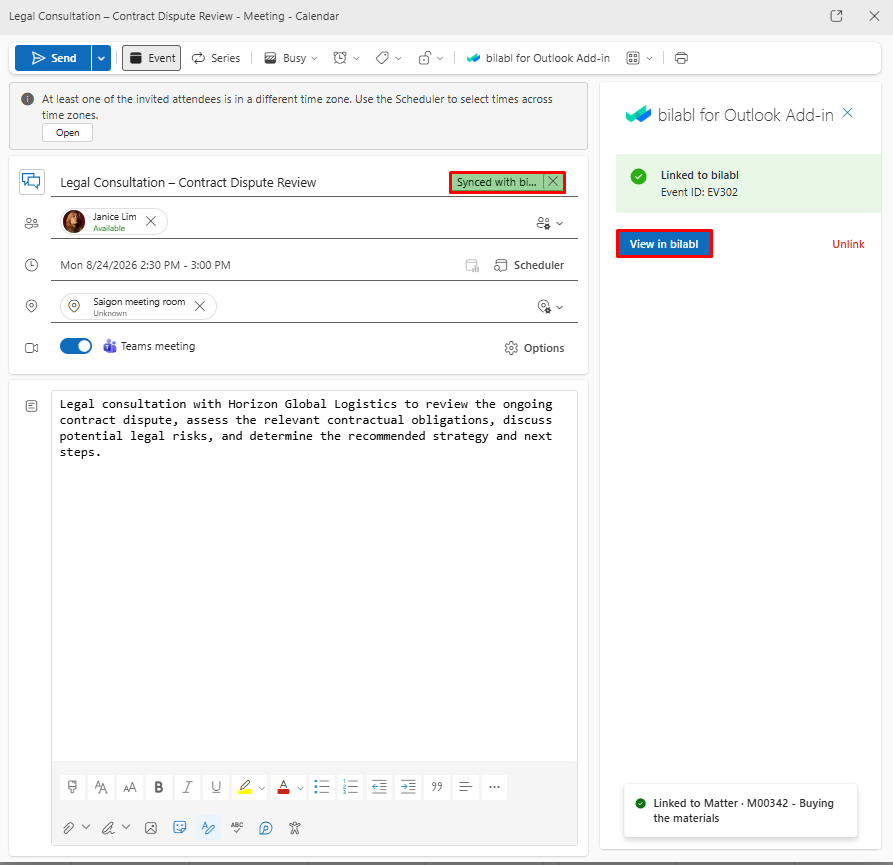
You can select the event to open it in bilabl and view the linked record and its calendar.
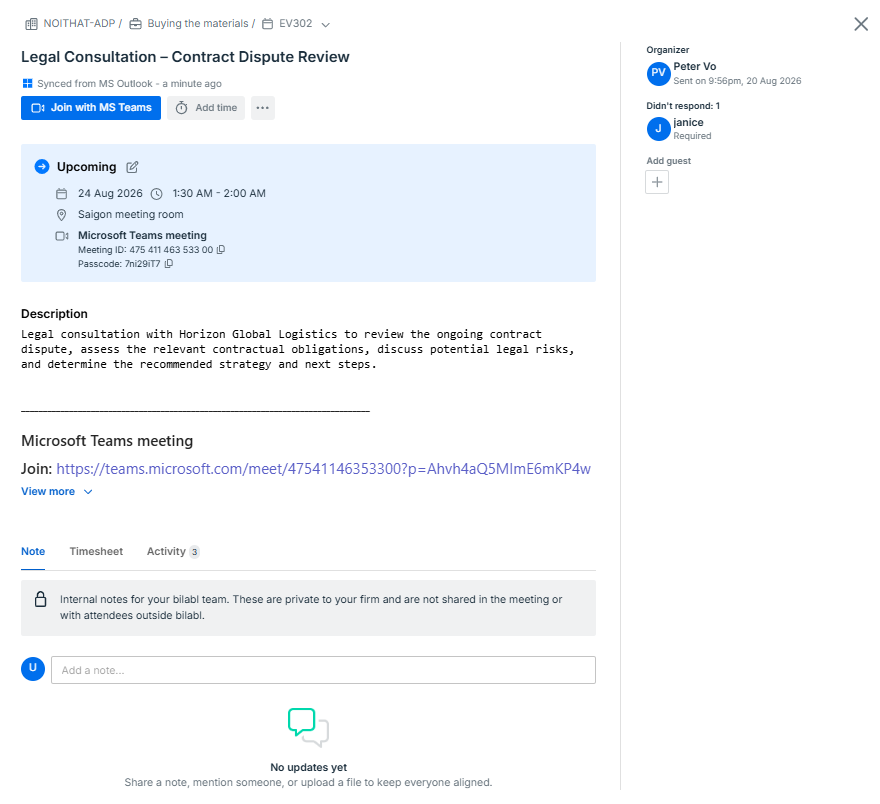
When you update the event in Outlook, the changes are automatically reflected in bilabl. Changes made to the synced event in bilabl are not sent back to Outlook.


