
Entity Permission
In this article
An entity is a client or a matter. Entity permission decides who can see a specific client or matter, and what each user can do with it. There are two entity permissions: Owner and Assistant. You set them when you create a client or matter, and you can change them at any time.
Before you start
- Who can change entity permission: Administrators, Managers, and anyone who is an Owner of that client or matter.
- Who you do not need to add: People whose role is Manager or Administrator can already see and do everything on every client and matter. People whose role is Accountant can see every client and matter, but you need to add them as an Assistant if they need to add time entries, or as an Owner if they need to work on billing statements and payments, see User Role.
Types of entity permission
Each user you add to a client or matter gets Owner or Assistant. A client or matter can have more than one Owner and more than one Assistant.
How matters inherit permissions from their client
When you assign a user to a client, they get the same permission on every matter of that client, so you do not need to assign them to each matter.
You can also give a user a different permission on one matter. That permission applies to that matter only, and it can be higher or lower than their permission on the client. For example, the Owner of Client A can be an Assistant on its matter A1.
If you remove a user from a client, they also lose the permission they got on its matters through that client. They keep any permission given to them directly on a matter.
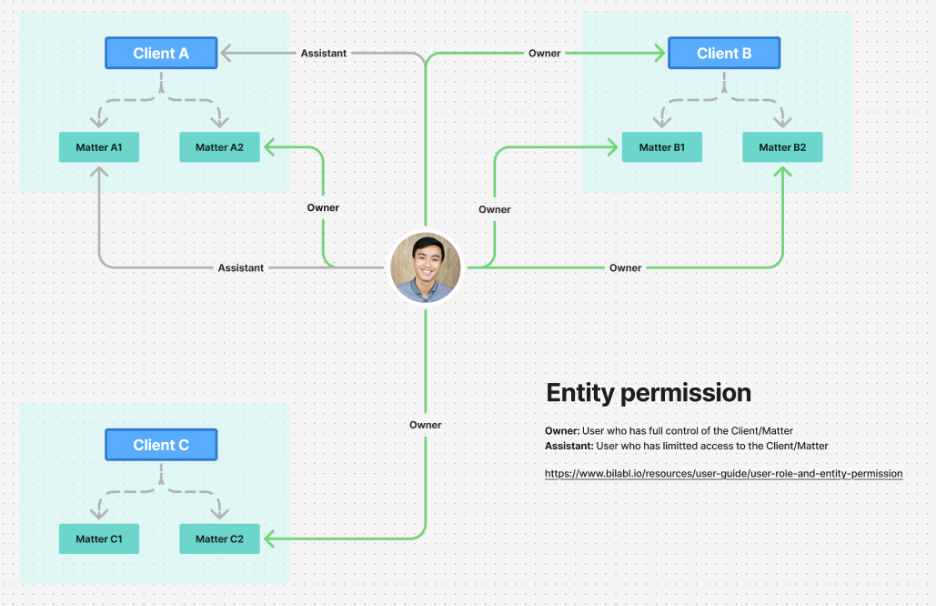
Manage who can access a client or matter
What happens when you create a client or matter:
- Client: bilabl makes you its Owner automatically.
- Matter: bilabl does not assign you to it. You get the same permission on the matter as you have on its client. If you are an Assistant on the client and need to be the Owner of the matter, assign yourself as its Owner before you save.
To assign, change, or remove people:
- Go to the Visibility section of the client or matter form. On an existing client or matter, select the Manage.
- Select the Assign to field and enter the name of a user or a team.
- Select the user or team from the list. If you select a team, bilabl assigns all its current members. People who join the team later are not assigned.
- In the Permission column, open the drop-down next to each user and select Owner or Assistant. To remove a user, select Remove. On a matter, the Hourly rate column does not affect access.
- Select Save in the Manage Visibility window.
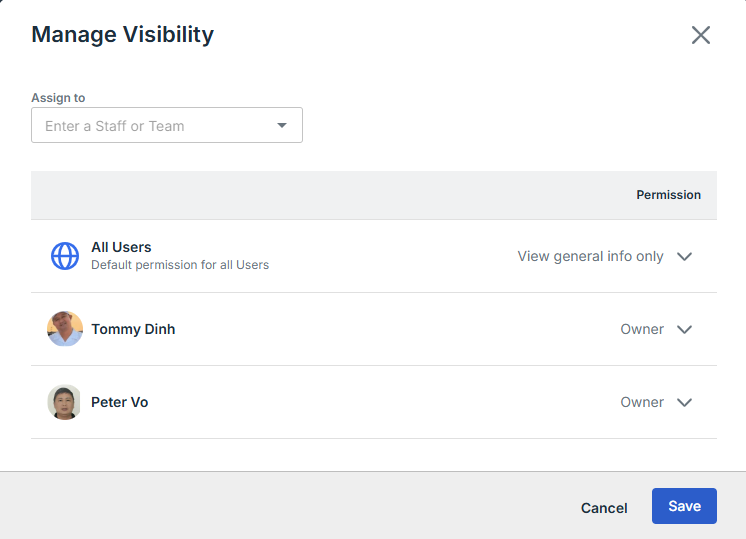
To give a user a different permission on one matter only, open that matter, not its client.
The Manage Visibility window also has Other People Who Can Access This Client/Matter section. It lists people who have access without being assigned in this window, such as team leaders, see Team Leaders or Client assistant. Check it before you assign someone, because they may already have access.
Give everyone in your firm access
Every client and matter has an All Users row in its Visibility section. Use it to give every user in your firm the same permission in one step, instead of assigning each user. You cannot remove the row.
By default:
- On a client, the row is set to View general info only. Users who are not assigned still cannot see the client. They see only its general information, and only through a relation or a matter, see When you see only part of a client in Permission Overview.
- On a matter, the row is set to Cannot access. The row gives no one access to the matter.
To give everyone access, set the row to Owner or Assistant. You change it in the Visibility section or the Manage Visibility window, the same way you change a user's permission. A setting on a client also applies to all of its matters.
For example, to let everyone add time entries for internal work, create a client with your firm's name, add matters such as Annual leave and Training, and set the client's All Users row to Assistant.
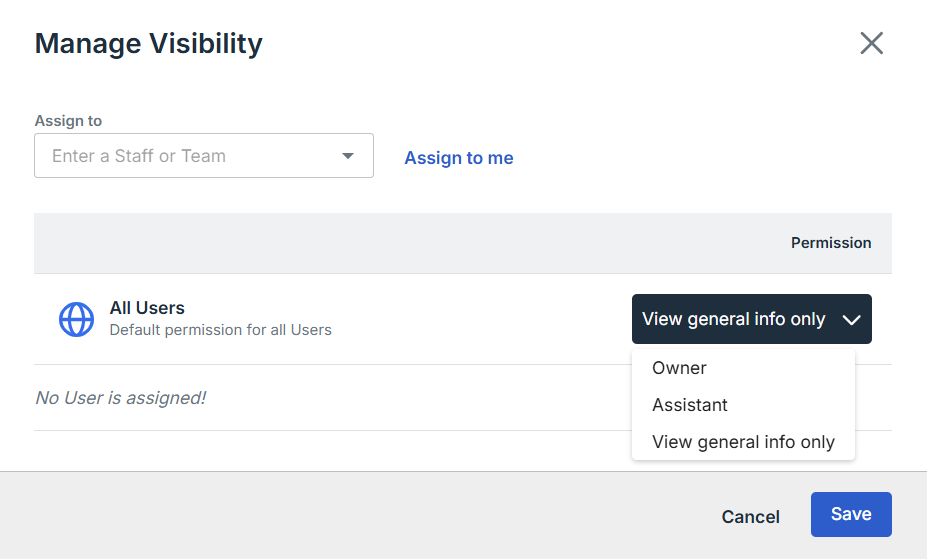
Warning: If you set the All Users row to Owner, everyone in your firm can see the billing statements and payments of that client or matter, and can change who has access to it.


