
Calendar Sync and Feeds
In this article
The bilabl calendar feed lets you view your bilabl calendar, including appointments, court dates, and deadlines, directly inside Outlook, so you no longer need to switch between bilabl and Outlook.
Before you start
Supported Outlook versions:
- Classic Outlook for Windows (2021 and earlier)
- New Outlook for Windows (2024 and later), Outlook for Mac, and Outlook on the web
The feed is one-way and read-only. Outlook displays a copy of your bilabl calendar, so your events appear there automatically but cannot be edited from Outlook. This keeps bilabl as the single source of truth for your key dates. To change an event, update it in bilabl.
The feed does not update in real time. How often it refreshes is controlled by Microsoft, not bilabl. Updates typically appear within a few hours and can take up to about 24 hours.
Add the bilabl feed to Outlook
Get your bilabl feed link
- In bilabl, go to Calendar.
- Next to Add Event, open the drop-down menu and select Share this calendar.
- In the window that opens, select Publish feed link.
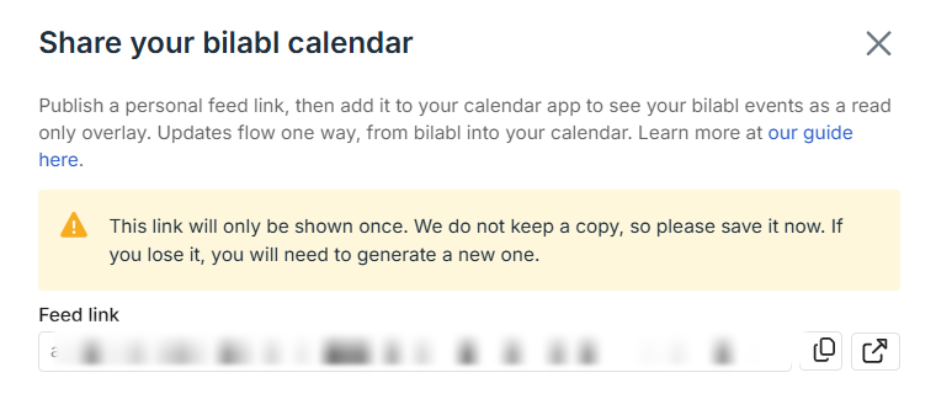
Warning: Keep this link private. It grants read access to your calendar and may include confidential client information or matters. If the link is ever exposed, generate a new one in bilabl (see Generate a new feed link) so the old one stops working.
You can now add the feed to Outlook in one of the two ways. Choose the option that matches how you use Outlook.
Option 1: Open directly in your calendar app
Use this option when Outlook is set as the default calendar app on your device.
- Select Open in calendar app. Your default calendar app (Outlook) opens automatically.
- In Outlook, go to Calendar. The Subscribe from web window opens with the feed link already filled in.
- Enter a name (for example, bilabl), choose a color and an icon (charm), and select the account to add to, such as My calendars or other calendars.
- Select Import
Option 2: Copy the feed link and add it in Outlook
Use this option when you want to paste the feed link into Outlook yourself. First copy the link, then follow the steps for your version of Outlook.
In the Share your bilabl calendar window, copy the full URL. It begins with https:// and ends in .ics.
For Classic Outlook (2021 and earlier)
- Open Outlook and go to Calendar.
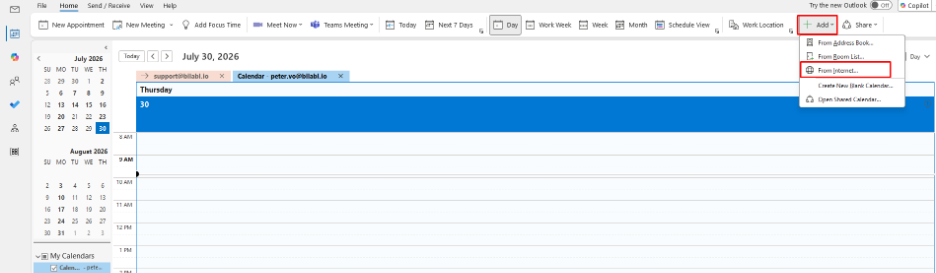
- On the Home tab, select Add Calendar, then From Internet.
- Paste your bilabl feed URL, then select OK.
- When Outlook asks whether to subscribe to updates for this calendar, select Yes.
You can also add it under File > Account Settings > Account Settings > Internet Calendars > New.
For New Outlook (2024 and later)
- Sign in to Outlook and open Calendar.
- In the left pane, select Add calendar.
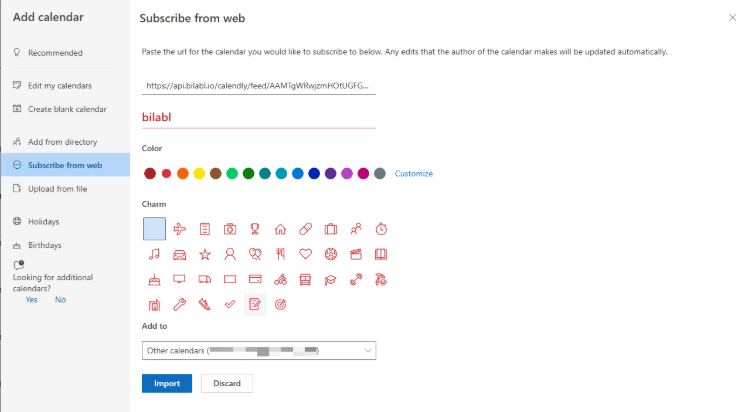
- Select Subscribe from web.
- Paste your bilabl feed URL into the field.
- Enter a name such as bilabl, choose a color and an icon (charm), and select the account to add it to.
- Select Import.
Once added, your bilabl events appear as a separate calendar that you can show or hide using the checkbox next to its name.
Manage the calendar feed
Generate a new feed link
If your feed link is ever exposed, regenerate it, so the old URL stops working.
- In bilabl, go to Calendar, open the drop-down menu next to Add Event, and select Share this calendar.
- Select the option to Generate new link, then confirm.
- A new feed link is available.
- Add the feed in Outlook again using the new link (see Add the bilabl feed to Outlook) and remove any calendar that still uses the old link.
Regenerating the link immediately stops the previous URL from working. Any calendar still subscribed to the old link will stop updating until you add the new one
Remove the feed
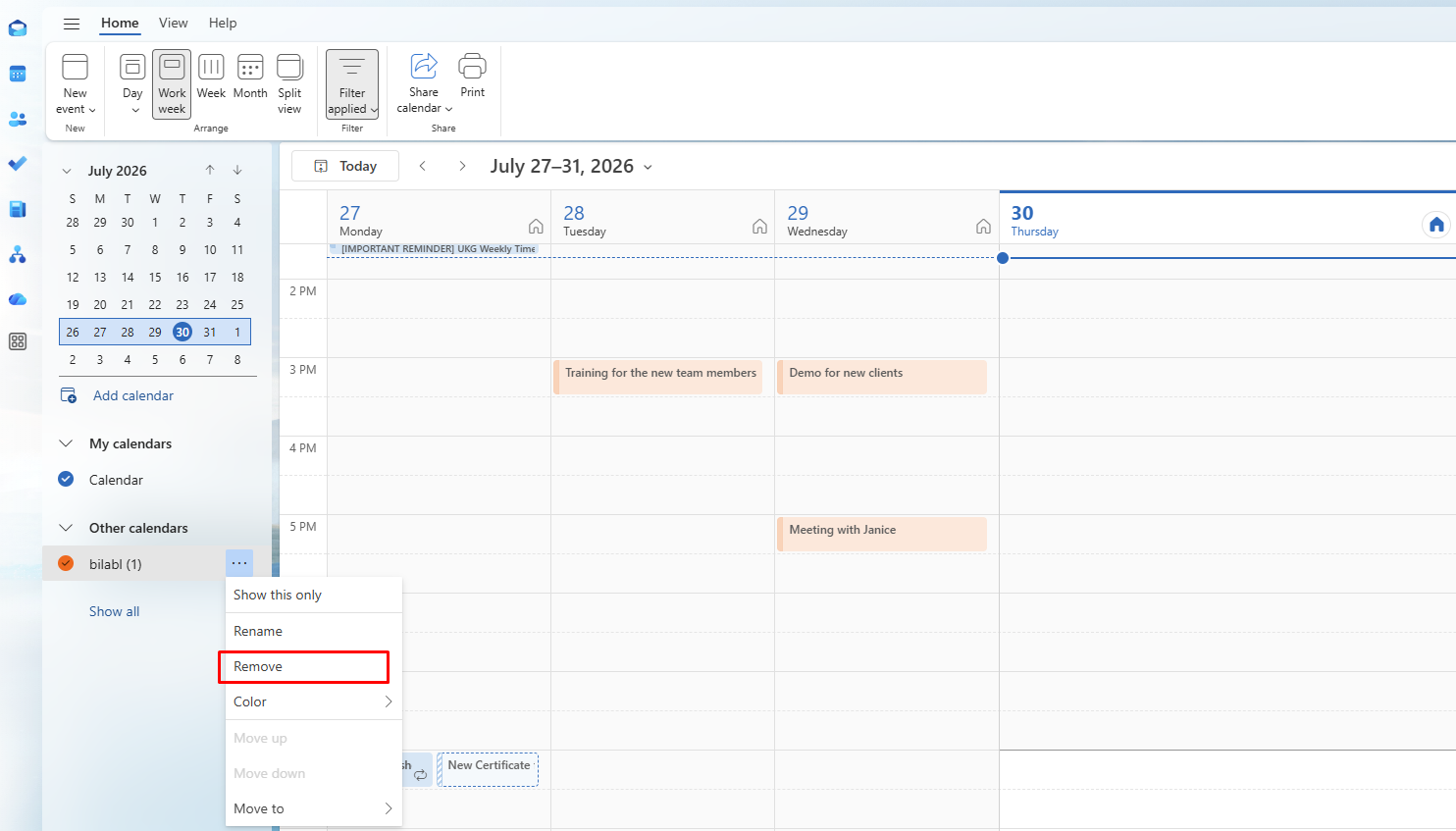
Removing the feed only affects Outlook, so your bilabl calendar stays untouched. In Outlook, find the bilabl calendar in your calendar list, right-click it, and select Remove.
Stop sharing the feed
Stopping sharing turns the feed off completely. The feed link stops working and your bilabl calendar stops updating in Outlook. Use this when you no longer want any calendar app to receive your bilabl events.
- In bilabl, go to Calendar, open the drop-down menu next to Add Event, and select Share this calendar.
- Select Stop sharing.
To start again later, publish a new feed link and add it to Outlook (see Add the bilabl feed to Outlook). Removing the calendar from Outlook as well keeps your list tidy.
Frequently asked questions
Can I edit bilabl events from Outlook?
No. The feed is read-only, so any changes need to be made in bilabl.
Do my Outlook edits sync back to bilabl?
No. The feed runs one way only, from bilabl into Outlook.
I opened the feed link, but nothing appeared in Outlook.
Go to Calendar in Outlook. Opening the link does not show a prompt straight away. Once you switch to Calendar, the Subscribe from web window opens with your feed link already filled in, ready to import.
The link shows Subscribe from web, but Outlook says it is invalid.
Add https: to the front of the link. Outlook sometimes drops the prefix, which makes the link invalid. For example:
Invalid: //api.bilabl.io/calendly/feed/AAMTgWRw...ics
Valid: https://api.bilabl.io/calendly/feed/AAMTgWRw...ics
Fix the prefix, then select Import.
My events aren’t showing up at all.
This usually means the link wasn’t added correctly. Check that you pasted the complete URL and that it ends in .ics. If it looks correct, remove the calendar and add it again.
My events show up but haven’t been updated in a while.
This is usually down to Microsoft’s refresh interval rather than bilabl. To force an immediate refresh, remove the calendar and add it again.
I see duplicate events.
This happens when the feed has been added more than once. Remove any extra copies of the bilabl calendar.
Is it safe to share this link?
No. Anyone with the link can read your calendar, including confidential client and matter details. Keep it private and regenerate it in bilabl if it is ever exposed.


