
SharePoint Integration
In this article
Connecting SharePoint lets your firm keep its documents in its own SharePoint site, organized by bilabl.
Once connected, bilabl automatically creates folders for clients, matters and intakes in the selected SharePoint site, and access to each folder follows the users assigned to the matching record in bilabl. You can also make SharePoint your firm’s default document source in bilabl.
This setup is for administrators. If an IT provider manages your firm’s Microsoft 365, they may need to complete the Microsoft 365 steps for you.
Before you begin, make sure you have:
- Administrator access in bilabl, to start the connection. See User Role and Entity Permission for more information.
- One SharePoint site for bilabl to use. bilabl connects to one site only and creates all of its folders there.
Microsoft requires two separate approvals, each with its own minimum role. A Global Administrator can complete both.
Connect SharePoint in bilabl
An administrator in bilabl starts the connection:
- Go to Settings > Select Add-ons
- Find Manage your documents with SharePoint
- Select Connect to start the setup.
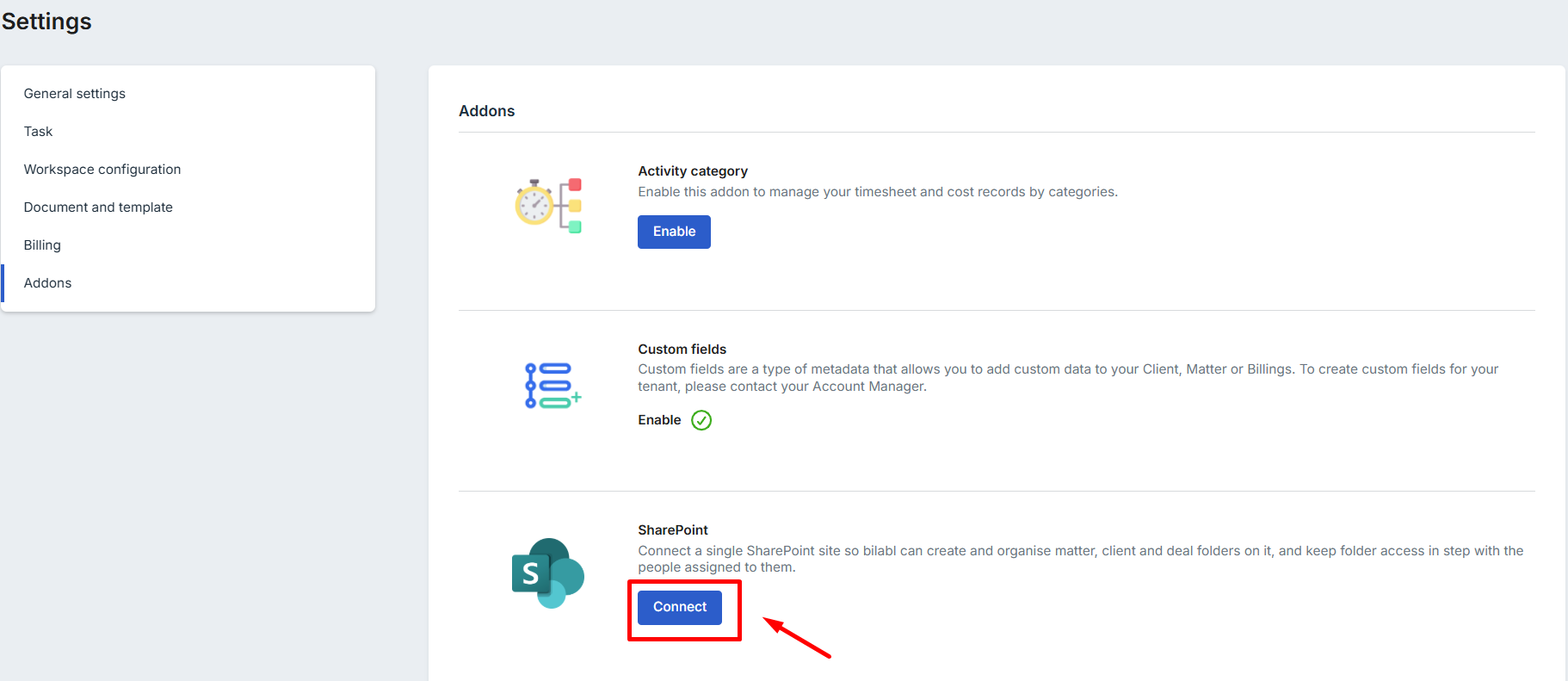
After you select Connect, bilabl guides you through the two Microsoft 365 steps.
Step 1: Approve the bilabl app
The first step requires a Global Administrator.
bilabl shows the consent screen, where you either approve bilabl yourself or send the approval to your Global Administrator.
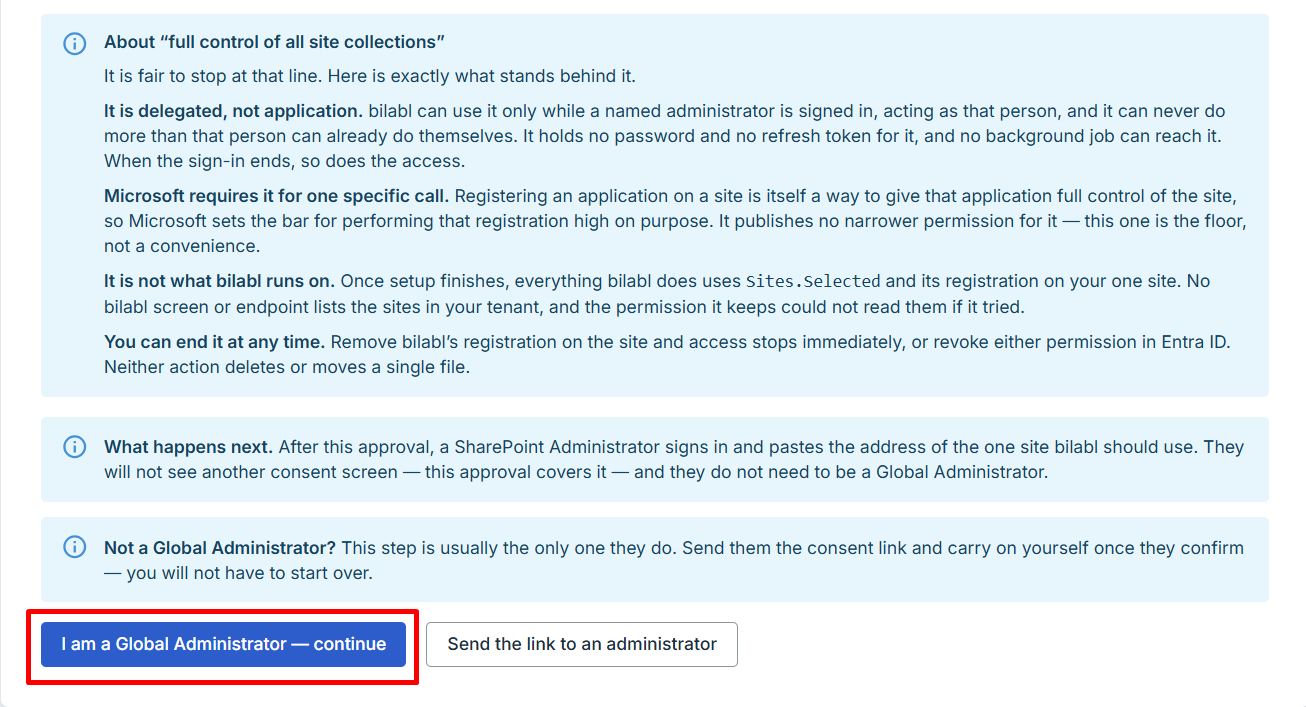
If you are a Global Administrator:
- Select I am a Global Administrator - continue.
- Sign in with your Global Administrator account.
- On Microsoft's consent screen, review the requested permissions and select Accept.
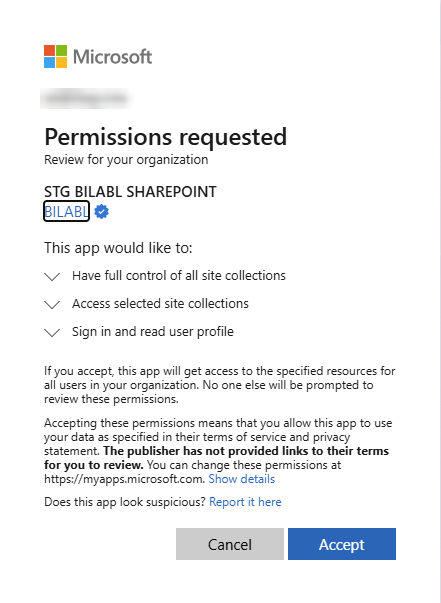
After Microsoft confirms the approval, bilabl records the approval and continues to step 2.
If you are not a Global Administrator:
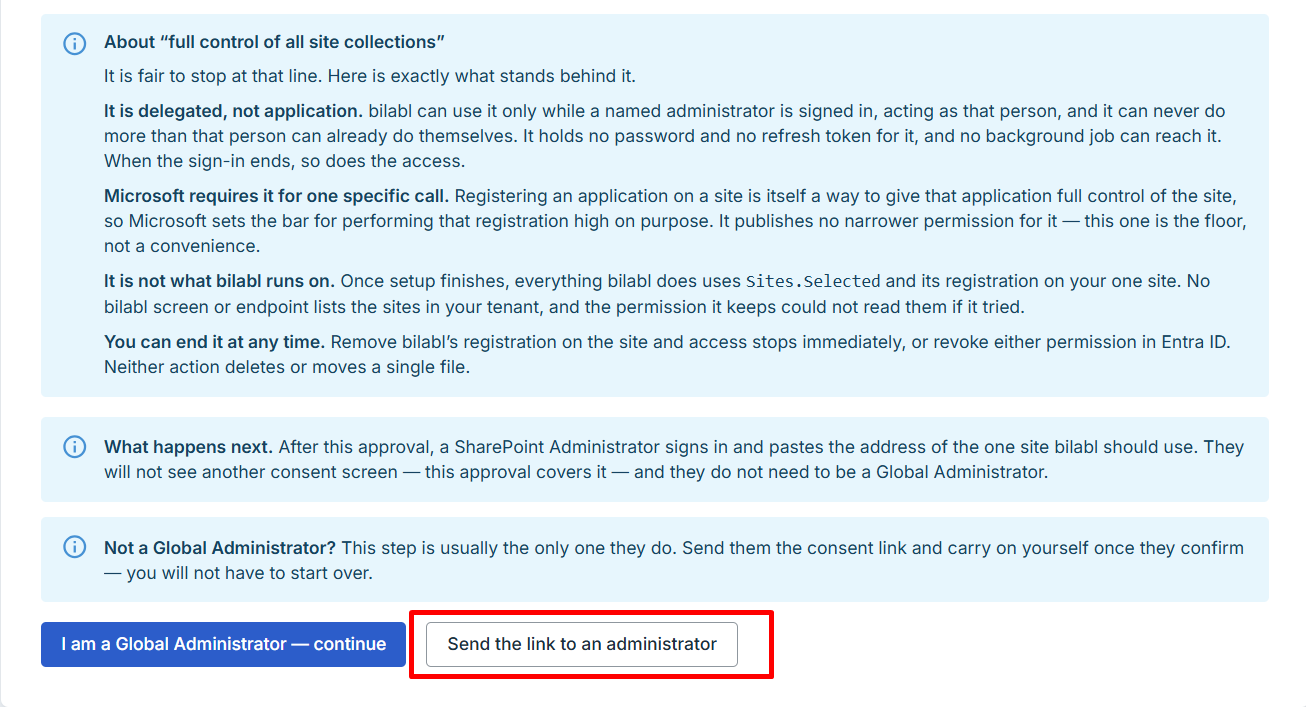
- Select Show the link to copy.
- Select Copy link or select Copy message to copy a ready-made message.
- Send it to your Global Administrator. They can open the link, review the request and approve it on Microsoft’s consent screen without signing in to bilabl.
The ready-made message includes information the administrator can use to identify the request, including:
- The bilabl application
- Publisher: bilabl Pte Ltd (verified)
- The requested permission
- The Application (client) ID
- Once they have approved it, return to bilabl. If the status has not updated, select Check again.
.png)
The approval link is valid for 72 hours and can be used once. If it expires or has already been used, generate a new link from bilabl.
Step 2: Approve the SharePoint site
This step needs a SharePoint Administrator or a Global Administrator.
If a Global Administrator gets an error at this step, assign the SharePoint Administrator role to their account and try again, following Microsoft's guide Assign Microsoft Entra roles.
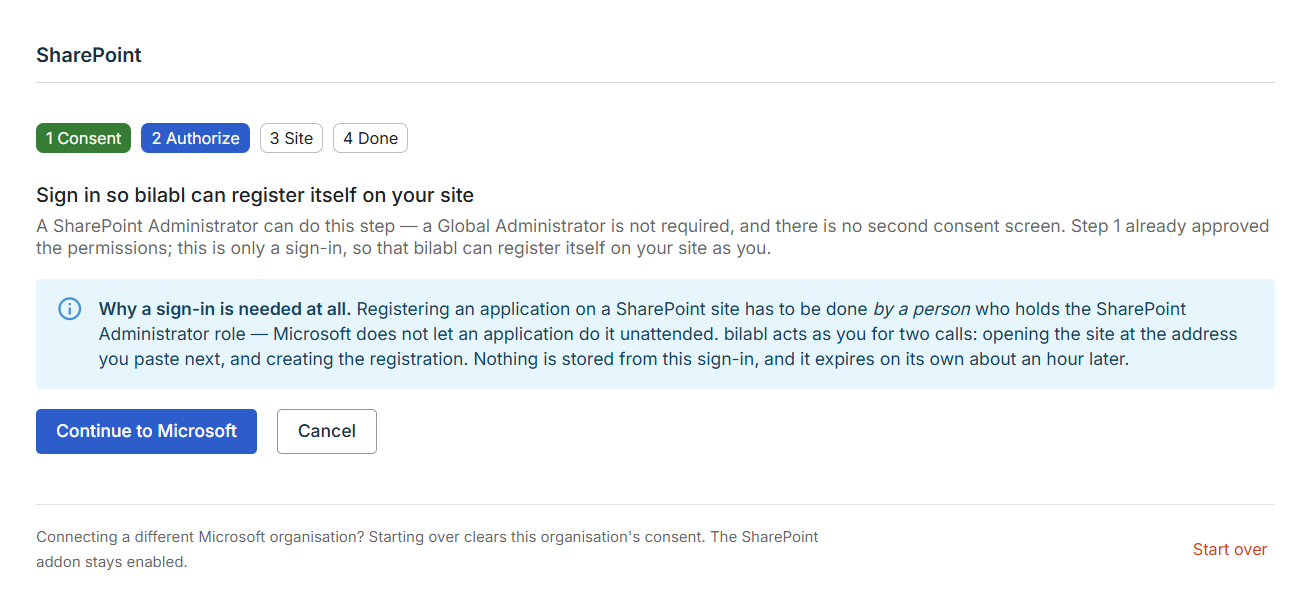
Authorize bilabl
- Select Continue to Microsoft.
- Sign in with your SharePoint Administrator or Global Administrator account.
- Review the request on Microsoft’s screen and select Accept.
After authorization is complete, bilabl asks you to provide the address of the SharePoint site it should use.
Enter the SharePoint site address
bilabl cannot list your SharePoint sites, so you give it the address of the site to use.
To enter the site address:
- Open the SharePoint site you want bilabl to use and copy its address from your browser. An address from a page, a document library or another location within the site also works.
- Return to bilabl and paste the address into Site address.
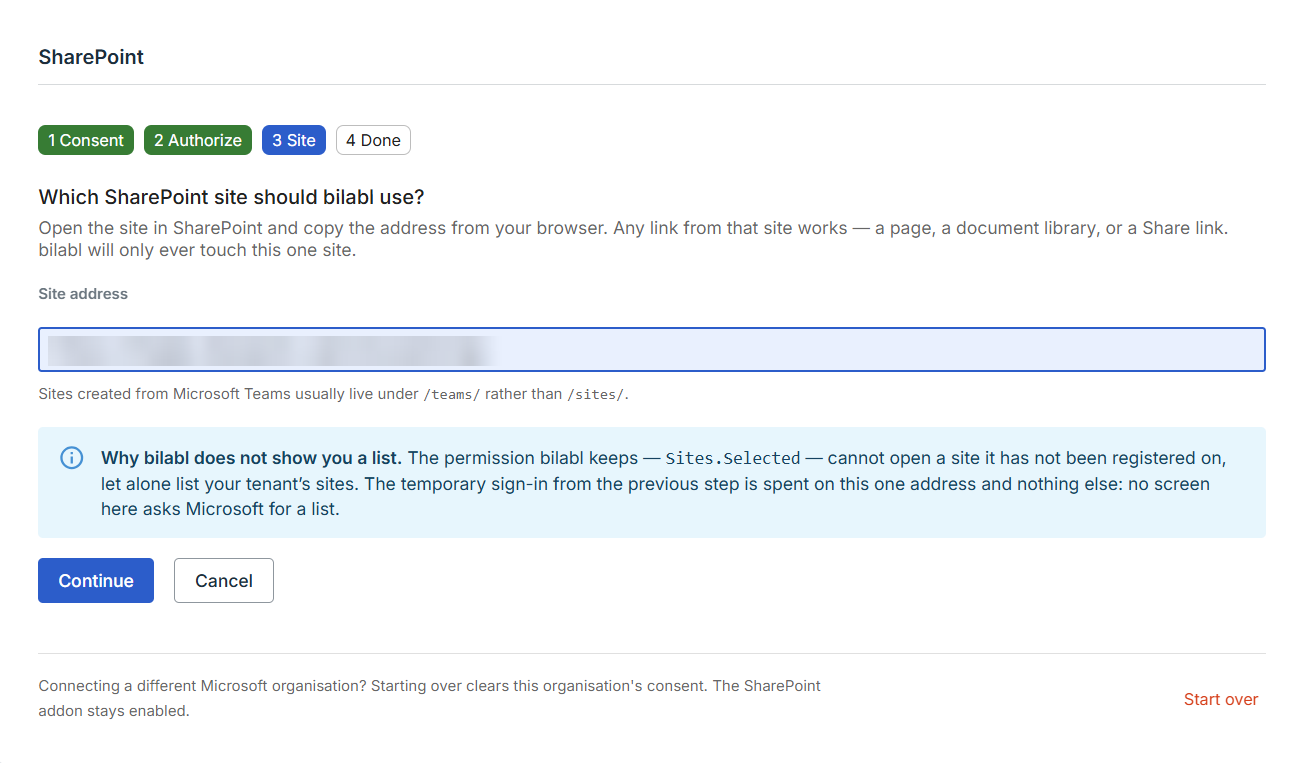
- Select Continue.
Sites created from Microsoft Teams usually use a /teams/ address rather than /sites/.
Confirm the SharePoint site
bilabl shows the site it found so you can check it before granting access.
- Check the site name and address.
- Review the access bilabl will have to the site.
- Select Grant access.
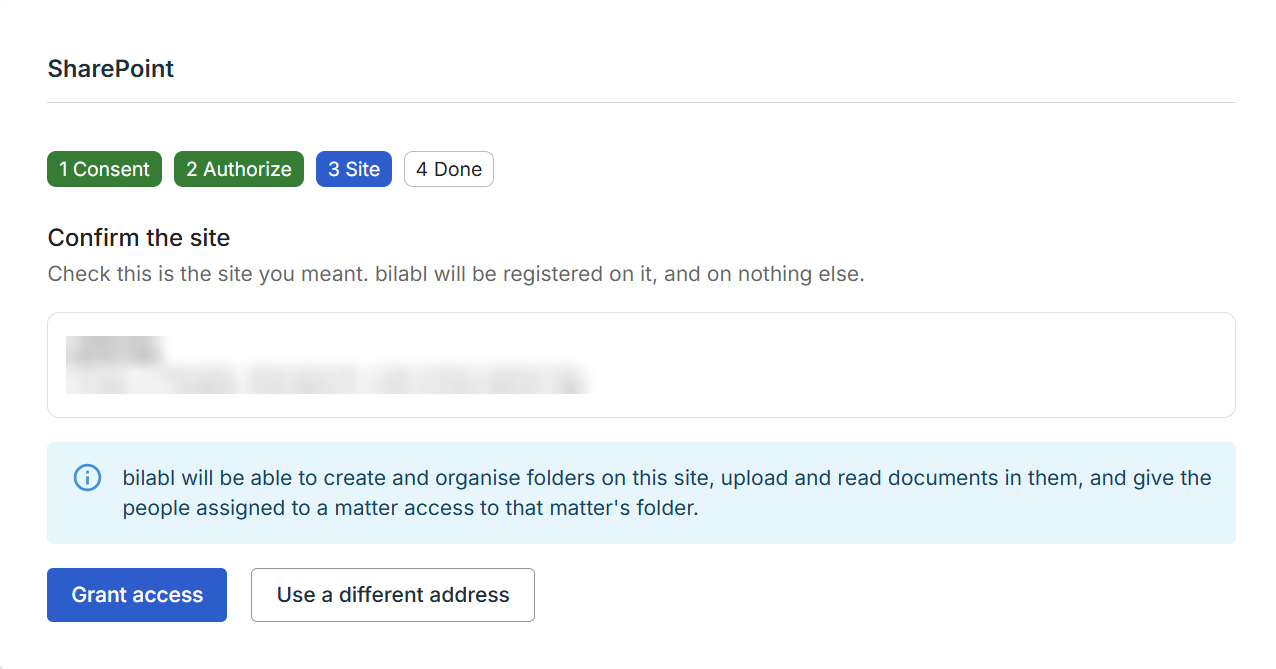
If it is the wrong site, select Use a different address and enter the correct address.
Check the connection
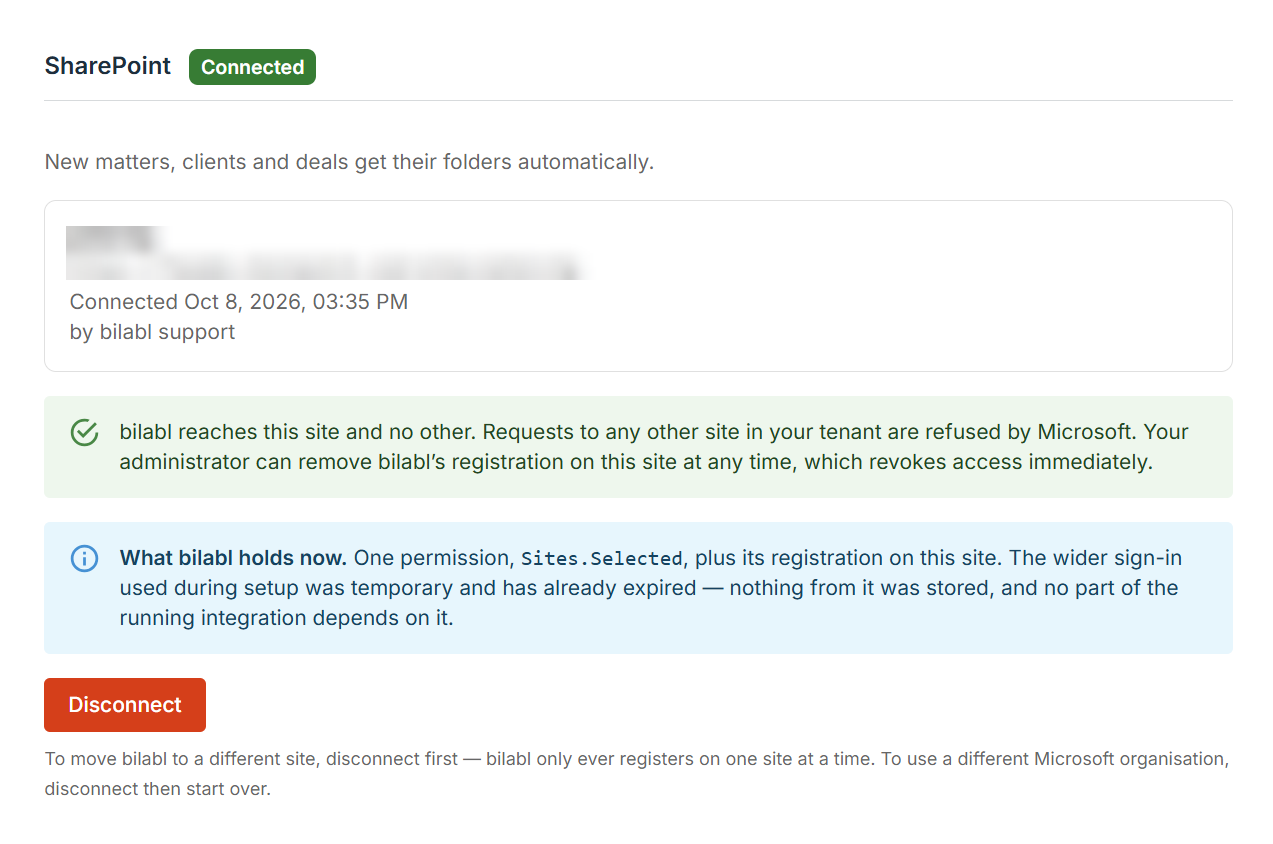
Once access is granted, the SharePoint card under Settings > Add-ons shows Connected, along with the connected site, the connection date and the account used. The integration is now ready to use.
Set SharePoint as your default document source
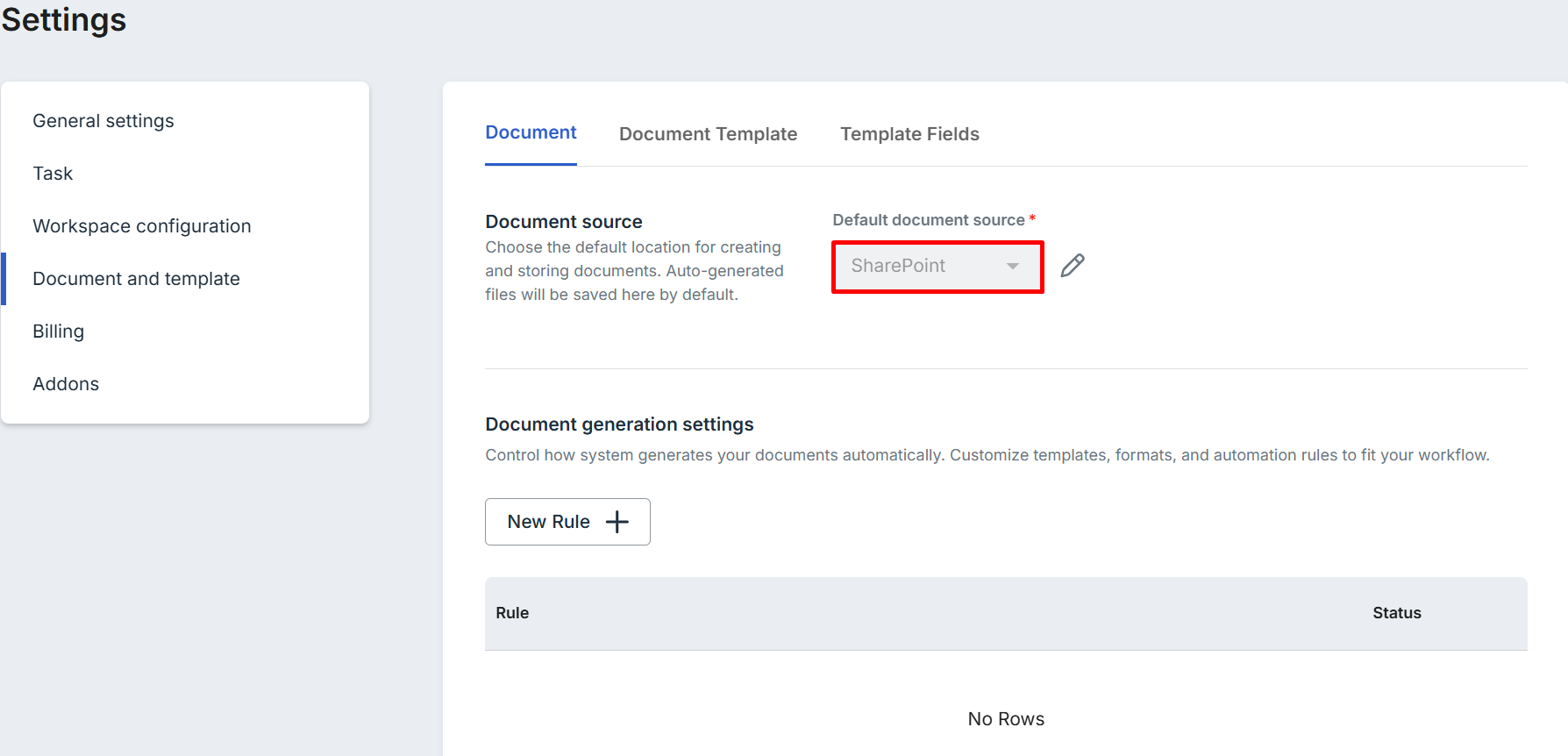
Once SharePoint is connected, you can make it your firm's default document source.
- Go to Settings > Document and template
- Set the default document source to SharePoint.
Disconnect change the SharePoint site
bilabl connects to one SharePoint site at a time. Disconnecting needs a Global Administrator.
To disconnect:
- Go to Settings > Add-ons > SharePoint.
- Select Disconnect.
- Sign in with your Global Administrator account.
- Select Disconnect again to confirm
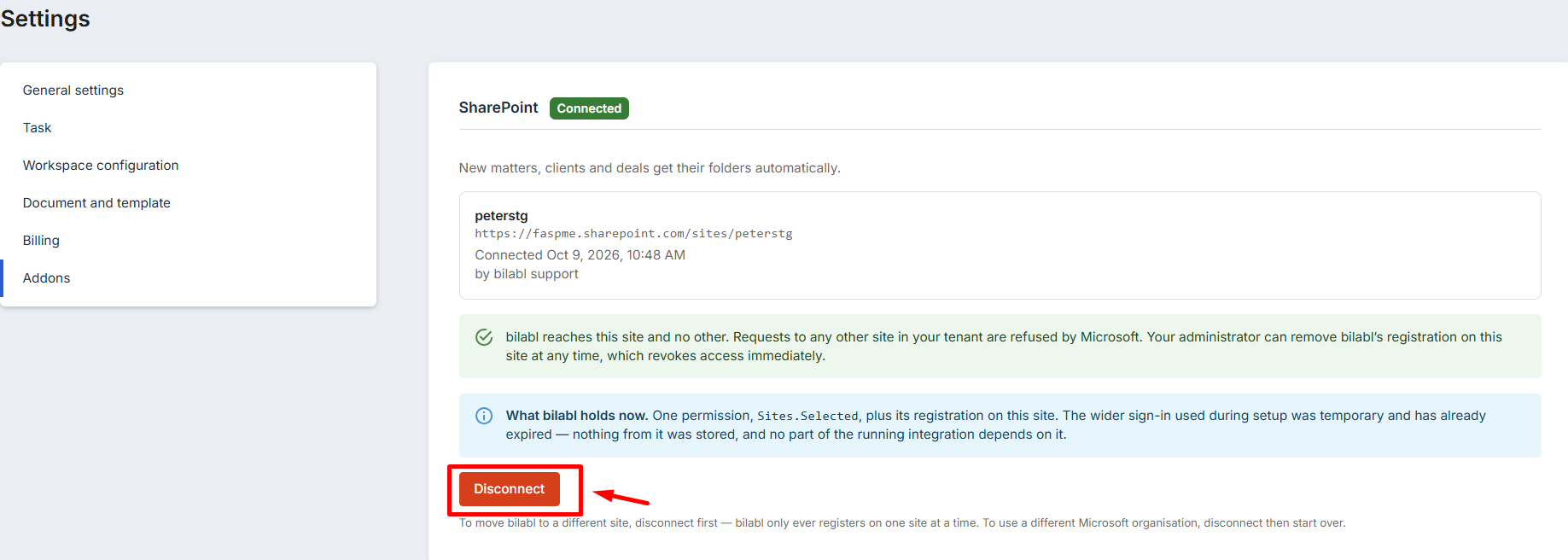
bilabl then stops using the site. Disconnecting does not delete or move any documents. A Microsoft 365 administrator can also remove bilabl’s registration from the site, which removes bilabl’s access to it.
To connect a different site, select Connect to Microsoft and complete the setup again with the new site’s address.


