
Set up billing email templates
In this article
A billing email template sets the default subject line and message bilabl uses when you send a billing statement by email. You write the wording once, and every billing email your firm sends starts from it, so no one rewrites the message each time.
Templates use autofill fields that pull details straight from the billing statement, such as the client's name, total amount, and due date, so each email is personalized automatically.
Before you start
You need an administrator user role to create, edit, or delete billing email templates, and because templates are shared across the firm, your changes apply to everyone.
Create a billing email template
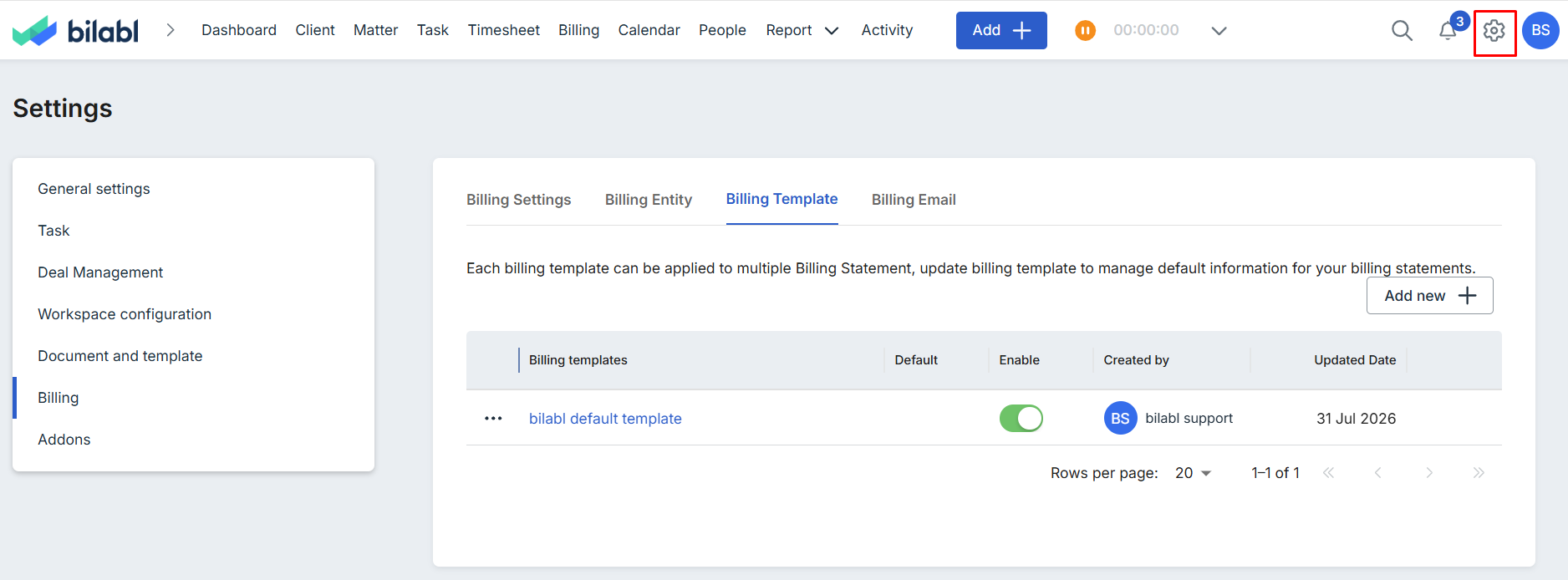
To create a template, go to System Settings > Billing, open the Billing Email tab, then select Add new and complete the details below.
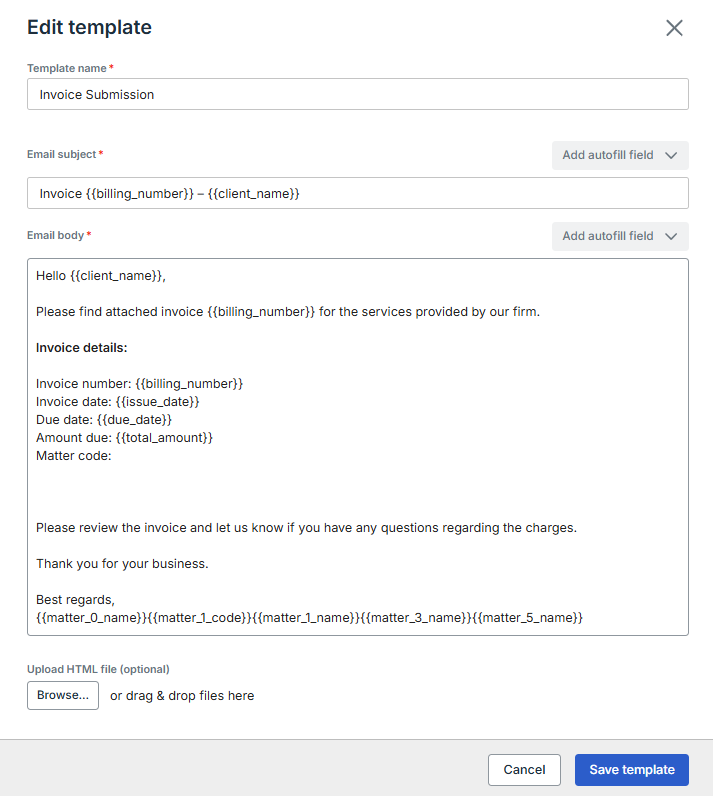
- Enter a Template name you will recognize when choosing a template on the sending screen.
- In the Email subject field, enter the subject line for the email. You can type fixed text, insert autofill fields, or combine both.
- In the Email body field, enter the message text, and insert autofill fields wherever you want personalized details.
- Optionally, use Upload HTML file to provide your own HTML design for the email instead of writing the body in the editor.
- Select Save template.
The template is now available to select when you send a billing statement by email.
Add an autofill field
Autofill fields are placeholders that bilabl replaces with the real details from the billing statement when the email is sent. For example, a message that begins "Dear {{client_name}}" arrives as "Dear Acme Corporation."
To insert one, place your cursor where you want the detail to appear in the Email subject or Email body, select Add autofill field, then choose the field you need. bilabl inserts the placeholder for you.
The following autofill fields are available for billing email templates.
Set a default template
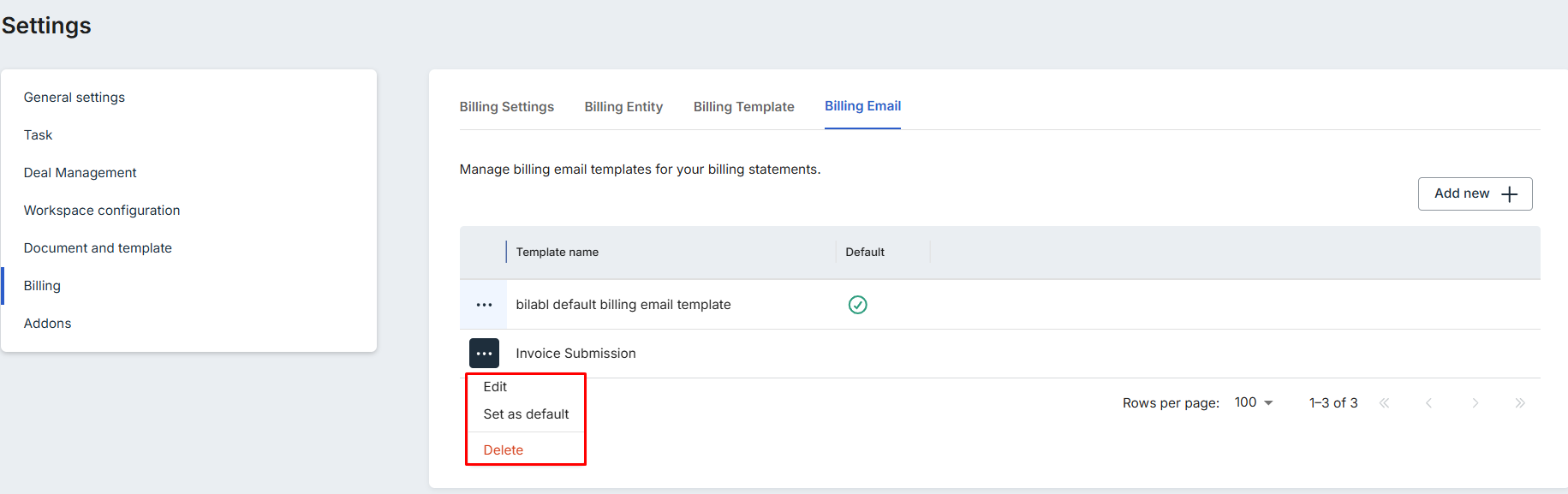
The default template is selected automatically when you send a billing statement by email, so your firm's standard wording is used unless you choose a different template. The current default is marked in the Default column on the Billing Email tab.
To change it, select More options next to a template, then select Set as default
Edit or delete a template
You can update a template as your firm's wording changes, or delete one you no longer use.
To edit, select More options next to the template on the Billing Email tab, then select Edit. Make your changes and select Save template. Your changes apply to future emails only and do not affect billing emails already sent.
To delete, select More options next to the template, then select Delete. Deleting a template cannot be undone.


