
Connect your email to send billings
In this article
You can connect your own Microsoft 365 or Google Workspace account to bilabl so that billing emails are sent from your own address, which your clients recognize and trust. You connect and manage email accounts from Account Settings.
Before you start
- Until you connect an account, bilabl sends billing emails from billing@bilabl.io, a built-in address (shown as Bilabl SMTP) that is always available as the default sender, so email delivery works even before you connect anything.
- Connecting your own account does not require admin approval, so you can set it up yourself. You connect email accounts under Account Settings > Connect email account, which signs you in through Microsoft 365 or Google Workspace, so have your account credentials ready.
Connect a Microsoft 365 account
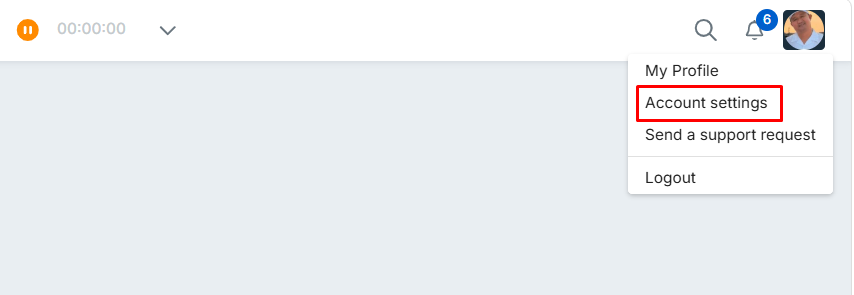
1. In bilabl, open your user profile and go to Account Settings.
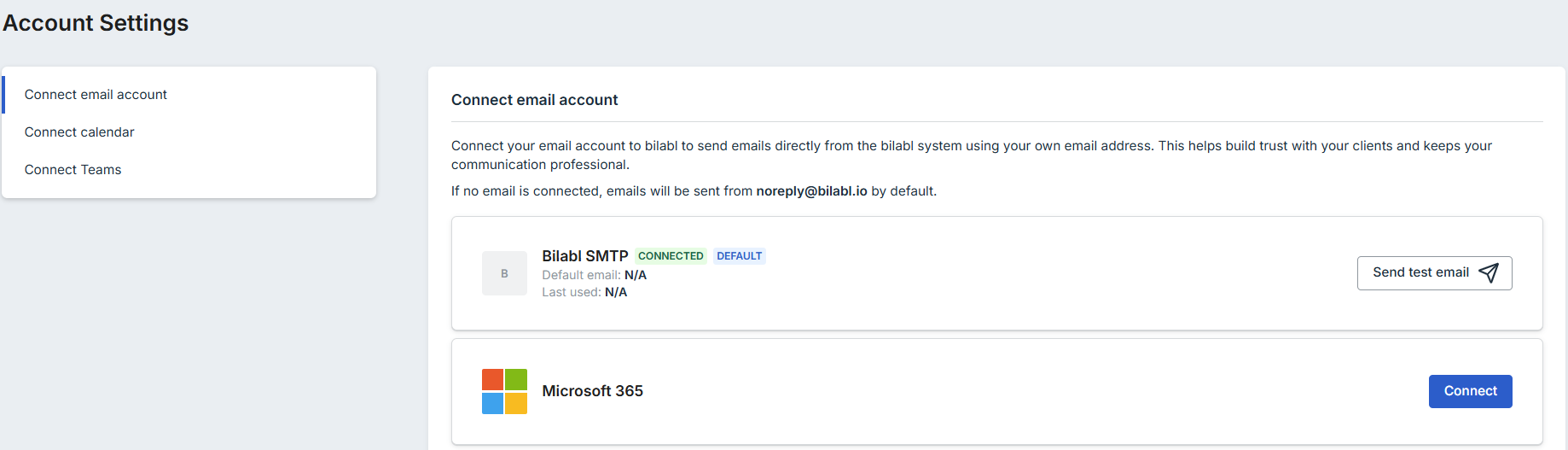
2. On the Connect email account tab, select Connect next to Microsoft 365.
3. Sign in to your Microsoft account and allow bilabl to send email on your behalf.
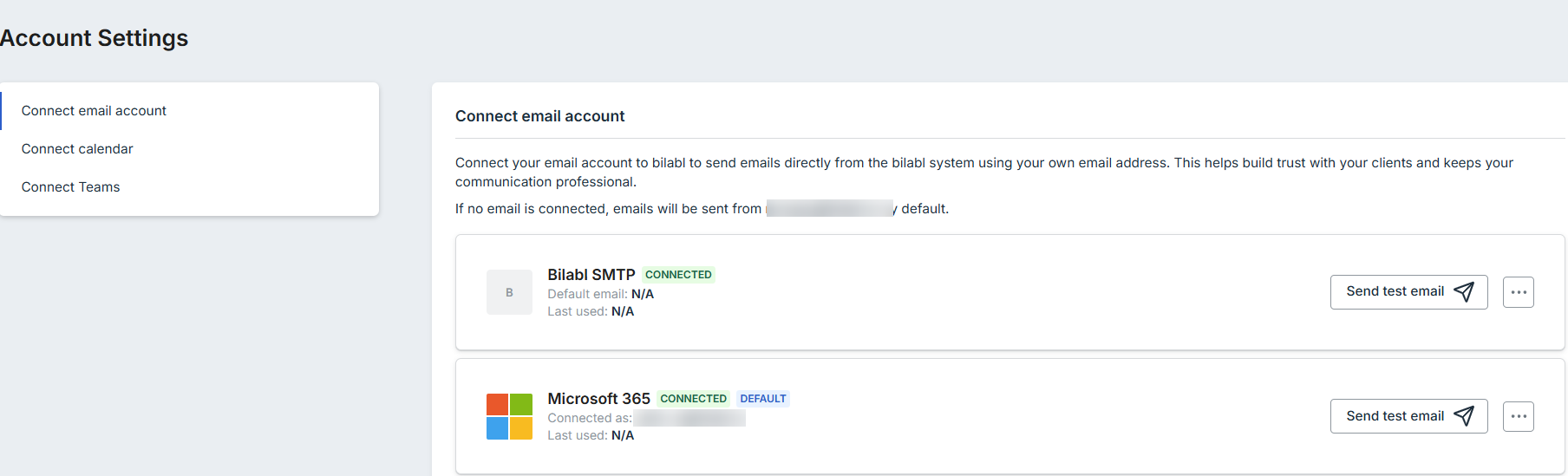
4. Once connected, the account shows CONNECTED, with your address listed under Connected as.
Connect a Google Workspace account
1. In bilabl, open your user profile and go to Account Settings.
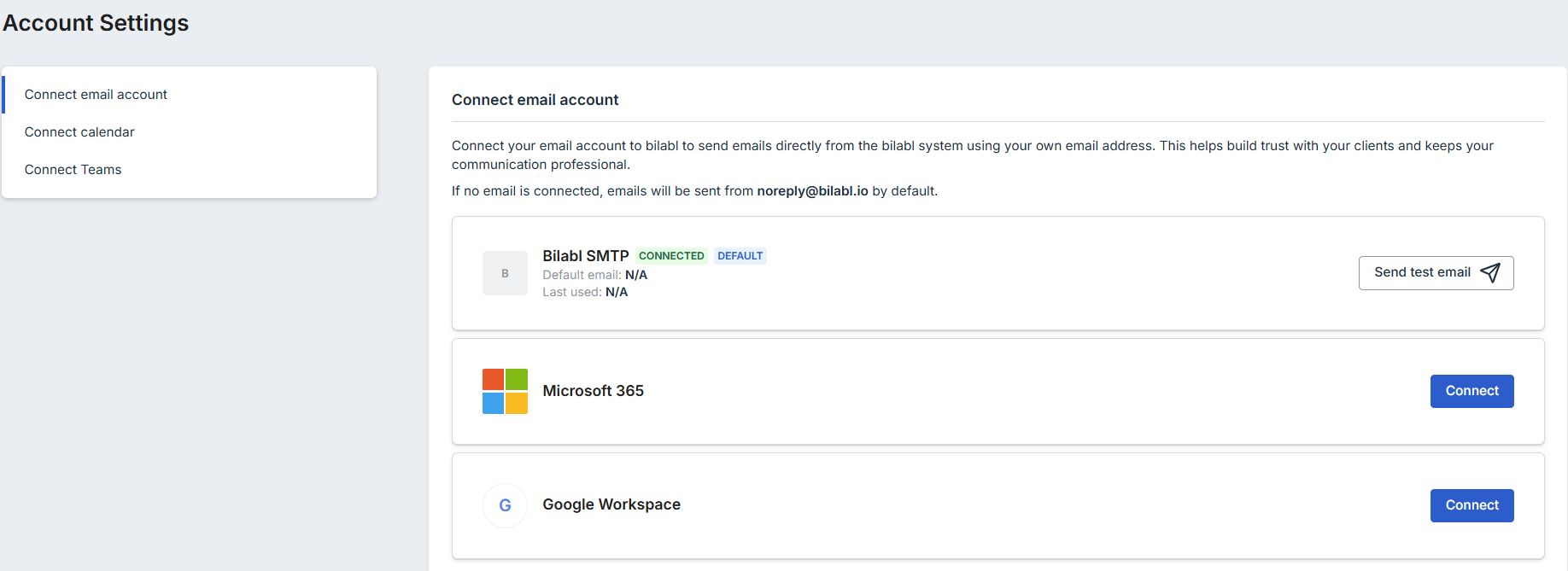
- On the Connect email account tab, select Connect next to Google Workspace.
- Sign in to your Google Workspace account and grant bilabl permission to send email on your behalf.
- Once connected, the account shows a CONNECTED badge and displays the address under Connected as.
.png)
Manage your connected accounts
Once you have connected an account, you can test that it works, choose which account to send your billing emails, and disconnect accounts you no longer use. You do all of this from the Connect email account page.
Send a test email
To check that a connected account can be sent, select Send test email next to it. bilabl will sends a test message from that address so you can confirm it is connected and able to send.
Set the default account
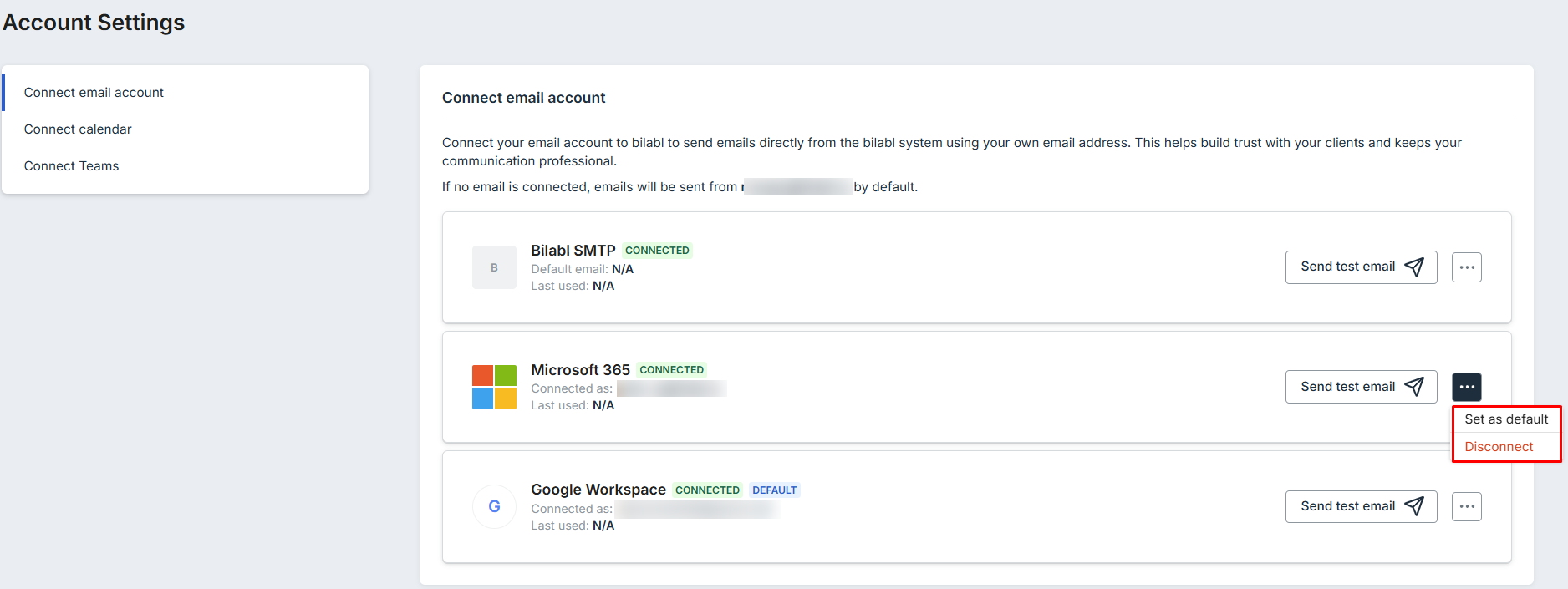
The account marked DEFAULT is used as the sender for your billing emails. When you have more than one account connected, select More options (...) next to the account you want to use, then select Set as default. The sending form will then use this address as the sender.
Disconnect an account
To disconnect an account, select More options next to it, then select Disconnect.
Once you have disconnected all your Microsoft 365 and Google Workspace accounts, bilabl sends billing emails from billing@bilabl.io again, using the built-in bilabl SMTP address.


