
Calendar integration with Microsoft Teams
In this article
bilabl Calendar integrates with Microsoft Teams to help you create Teams meetings from calendar events and keep meeting information connected with the related work.
After a Teams meeting is completed, bilabl captures available meeting information, including attendance, meeting chat, recording information, and draft timesheet records. This information is available from the event, allowing you to review meeting details in the context of the related client, matter, or deal.
This article explains how to connect Microsoft Teams, create calendar events with Teams meetings, review meeting recap information, and manage your Microsoft Teams connection.
Before you start
Before connecting Microsoft Teams:
- Connect Microsoft Outlook to bilabl first. An Outlook calendar connection is required to create Microsoft Teams meetings from bilabl Calendar.
- You can add a Teams meeting only when creating a new bilabl event. You cannot add a Teams meeting to an existing event.
The video below walks you through connecting Microsoft Teams, creating Teams meetings, and reviewing meeting details in bilabl.
Connect Microsoft Teams
To connect Microsoft Teams to bilabl:
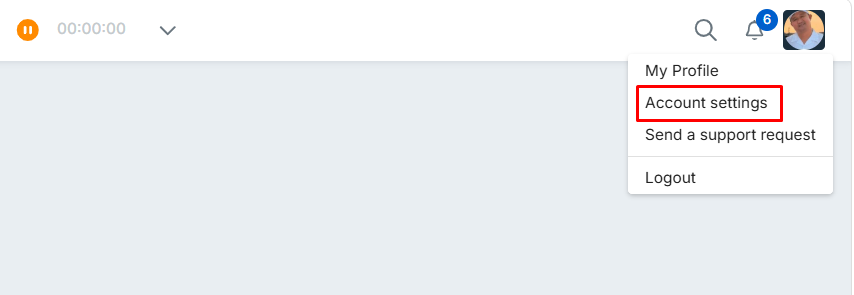
1. In bilabl, select your user icon.
2. Select Account settings.
3. Go to the Connect Teams section and select Connect.
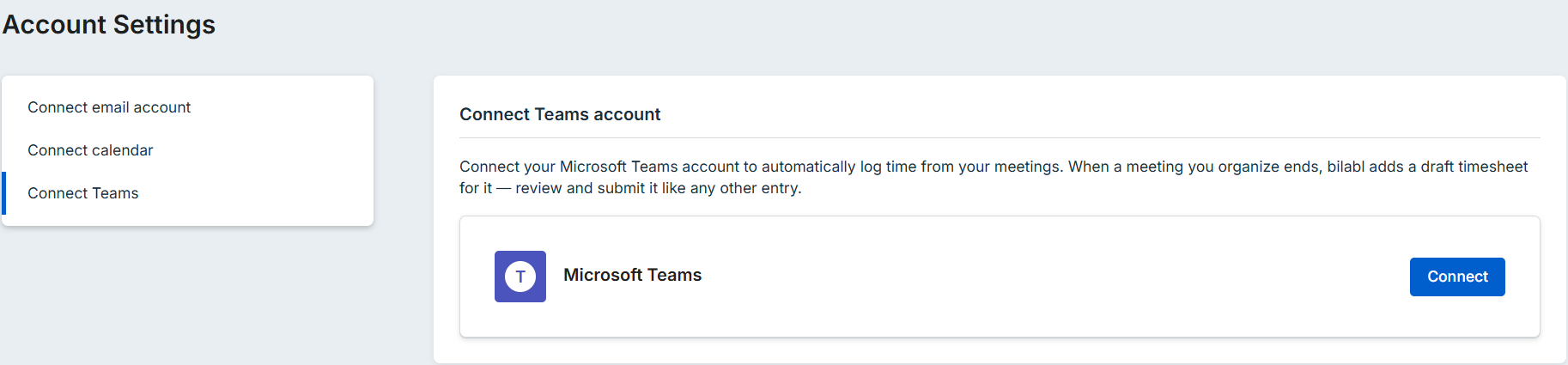
4. Select Connect with your Microsoft account.
5. On the Microsoft sign-in page, select the Microsoft account you want to connect.
After you sign in, bilabl completes the connection automatically.
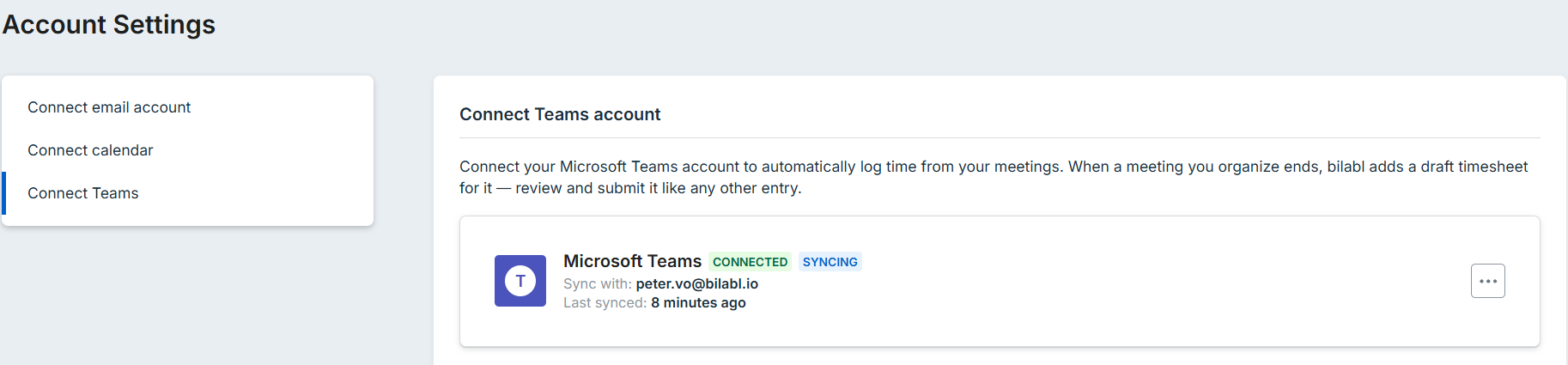
Once connected, Account settings shows:
- The connection status
- The Microsoft account connected to Teams
- The last sync time
Manage your Teams connection
Once Microsoft Outlook and Microsoft Teams are connected, you can manage your Teams integration in bilabl, including creating Teams meetings, reviewing meeting information, managing sync, and disconnecting your account.
Add event with Teams meeting
You can create an event with a Teams meeting either directly in bilabl or in Microsoft Outlook and then link the event to bilabl. The option you use depends on whether the meeting is for internal team members or includes guests outside your firm.
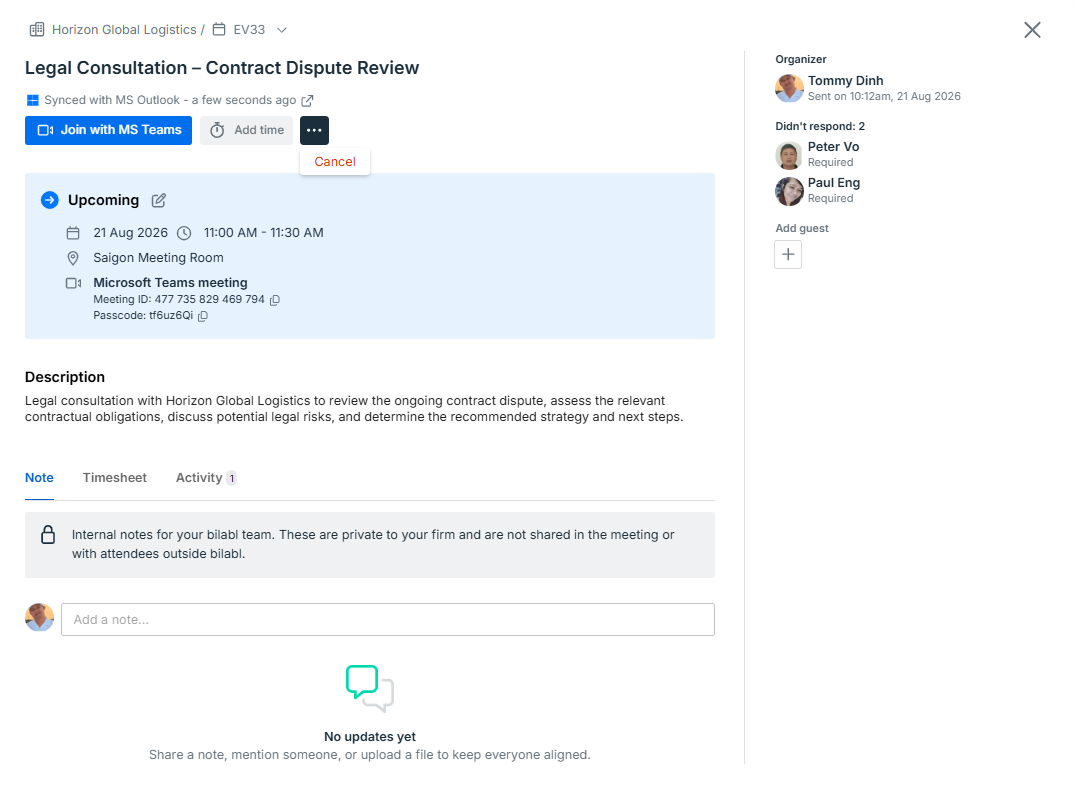
Create an event with Teams meeting in bilabl.
Use this option for internal team meetings. bilabl does not send invitations to guests outside your firm.
To create a Teams meeting from bilabl:
- In bilabl, create a new event.
- In the event form, select Make this a Microsoft Teams meeting.
- Complete the event details as needed.
- Select Save.
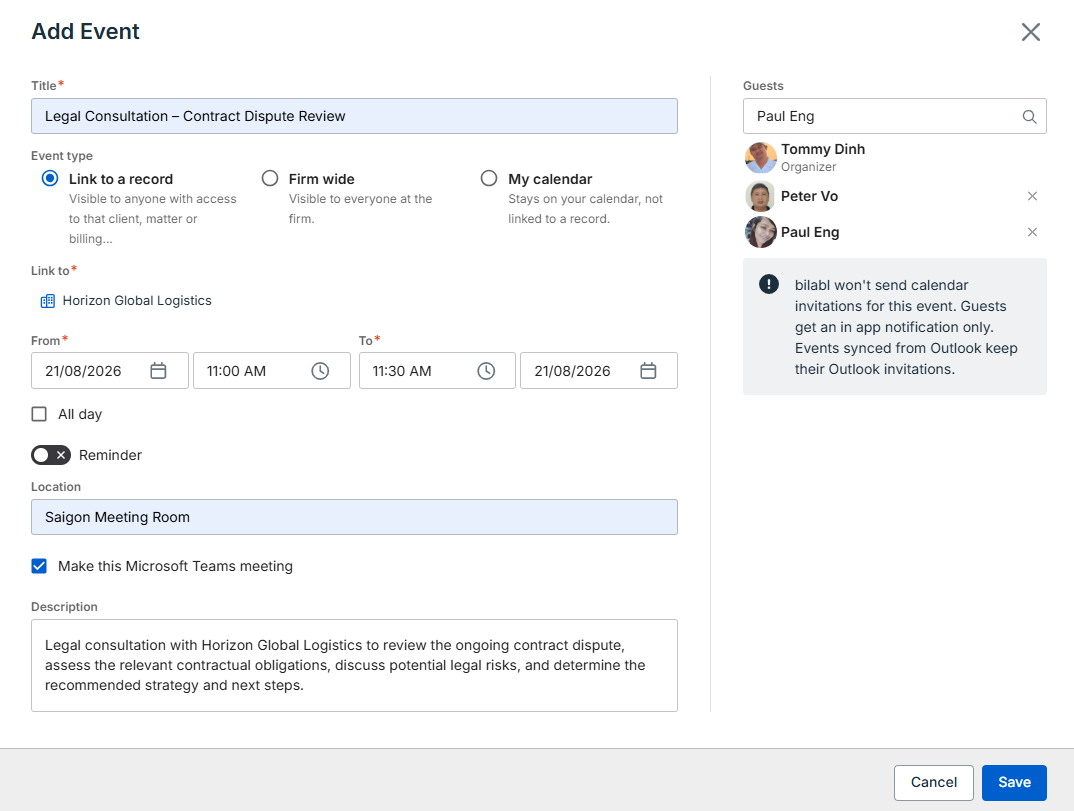
bilabl creates the Microsoft Teams meeting and adds the meeting details and join link to the event.
The Teams meeting is also available in your Outlook and Teams calendars. You can join the meeting from:
- The bilabl event
- Microsoft Outlook
- Microsoft Teams
Create an event with Teams meeting in Outlook
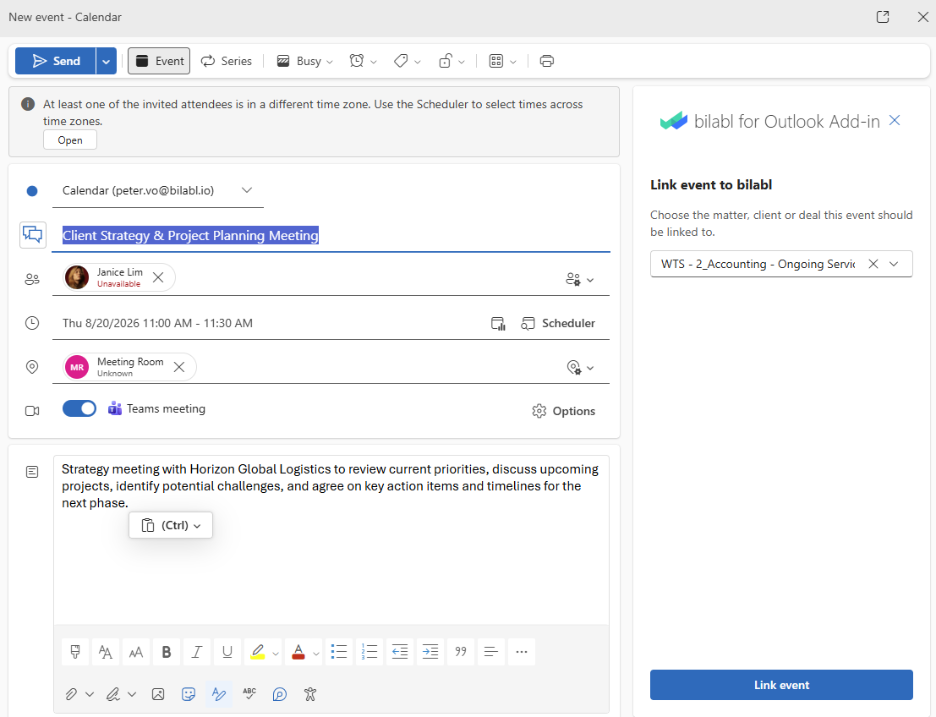
Use this option when the event includes guests outside your firm. Create the Teams meeting in Microsoft Outlook, then link the event to bilabl using the bilabl Outlook add-in.
To create and link the event:
- In Microsoft Outlook, create a new event.
- Add the guests and select Teams meeting to add a Teams meeting to the event.
- Open the bilabl Outlook add-in.
- Link the event to bilabl.
- Select the Client, Matter, or Deal to associate with the event.
- Select Link event.
After the event is linked to bilabl, it is associated with the selected Client, Matter, or Deal.
Meeting recap
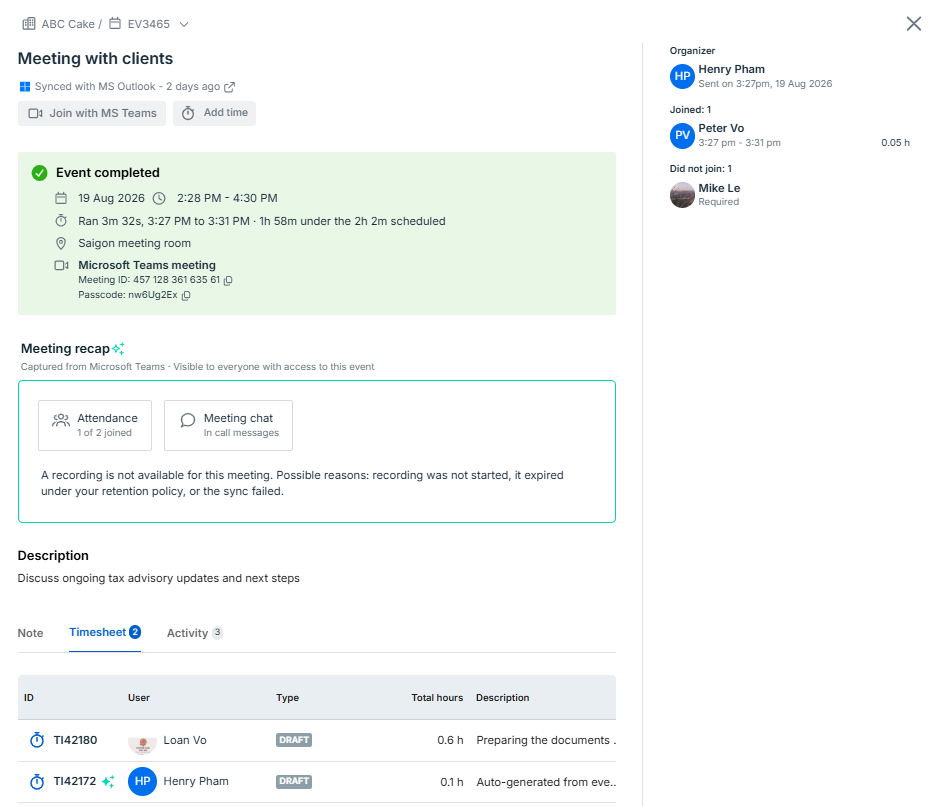
After a Teams meeting is completed, bilabl captures available meeting information and displays it in the event.
The Meeting recap section includes attendance, meeting chat, and recording information when available, allowing you to review meeting information directly from bilabl.
Attendance
The Attendance section in Meeting recap provides an overview of meeting participation, including how many invited participants joined the meeting.
Detailed attendance information is shown on the right-hand side of the event details. This includes the meeting organizer, who joined or did not join, when each participant joined and left, and their total attendance time.
For example, the Attendance summary shows 1 of 2 joined. On the right-hand side, you can see that Peter Vo joined from 2:27 PM to 2:31 PM, for a total of 0.05 h, while Mike Le did not join.
Meeting chat
The Meeting chat section provides an overview of the chat from the Teams meeting.
To view the chat messages, click the Meeting chat section. The chat messages are then displayed in the right-hand panel of the event details.
Meeting recording
If a Teams recording is available, you can access it from the meeting recap to review what was discussed.
If a recording is not available, bilabl indicates that the recording could not be captured.
Timesheets
bilabl automatically creates Draft time records based on meeting attendance and participation time. These records appear in the event’s Timesheet tab.
Automatically created time records are marked with the bilabl AI icon next to the user’s name and use the description “Auto-generated from event: [Event title]”. These indicators help distinguish them from time records created manually.
For example, in this event, the automatically created record for Henry Pham has the bilabl AI icon and the description “Auto-generated from event: Meeting with clients”. The manually recorded time entry does not have the bilabl AI icon and uses its own description instead of “Auto-generated from event: Meeting with clients.”
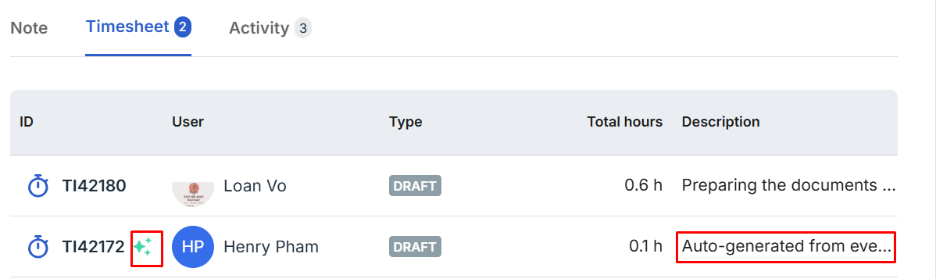
You can review and update automatically created draft records when the details are confirmed.
Stop syncing with Microsoft Teams
Stop sync when you want to temporarily pause updates while keeping your Microsoft account connected.
To stop syncing:
- In bilabl, select your user icon.
- Select Account settings.
- Go to the Connect Teams section.
- Open the options menu for the connected account and select Stop sync.
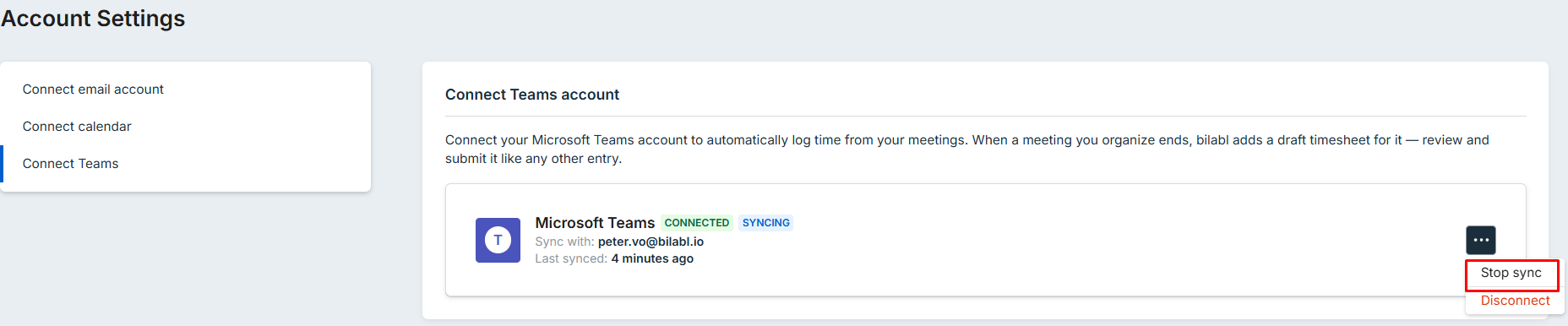
When you are ready to resume syncing, select Start sync. Syncing resumes without requiring you to connect or sign in again.
Disconnect Microsoft Teams
Disconnect when you no longer want bilabl linked to a Microsoft account or when you want to switch to a different account.
Disconnecting removes the connection between bilabl and the Microsoft account. You need to connect the account again before bilabl can sync with it.
To disconnect:
- In bilabl, select your user icon.
- Select Account settings.
- Go to the Connect Teams section.
- Open the options menu for the connected account and select Disconnect.
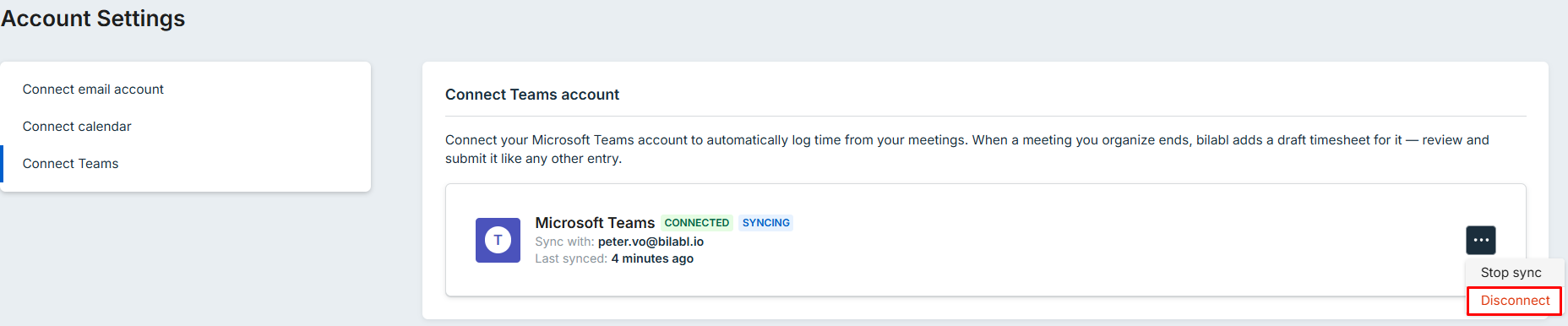
Events already synced to bilabl remain after you disconnect.


