
Breadcrumb navigation
In this article
Navigate between linked records using the breadcrumb trail at the top of every Client, Matter, and Task page. See exactly where you are, switch between Matters or Tasks in one click, and add new records without leaving the page. You can also reassign or unlink Tasks directly from the breadcrumb when your work needs change. Less time navigating, more time on billable work.
Discover the step-by-step guide:
Overview
When you open a Client, Matter, or Task in bilabl, you will see a line of text at the top of the page that looks like this:
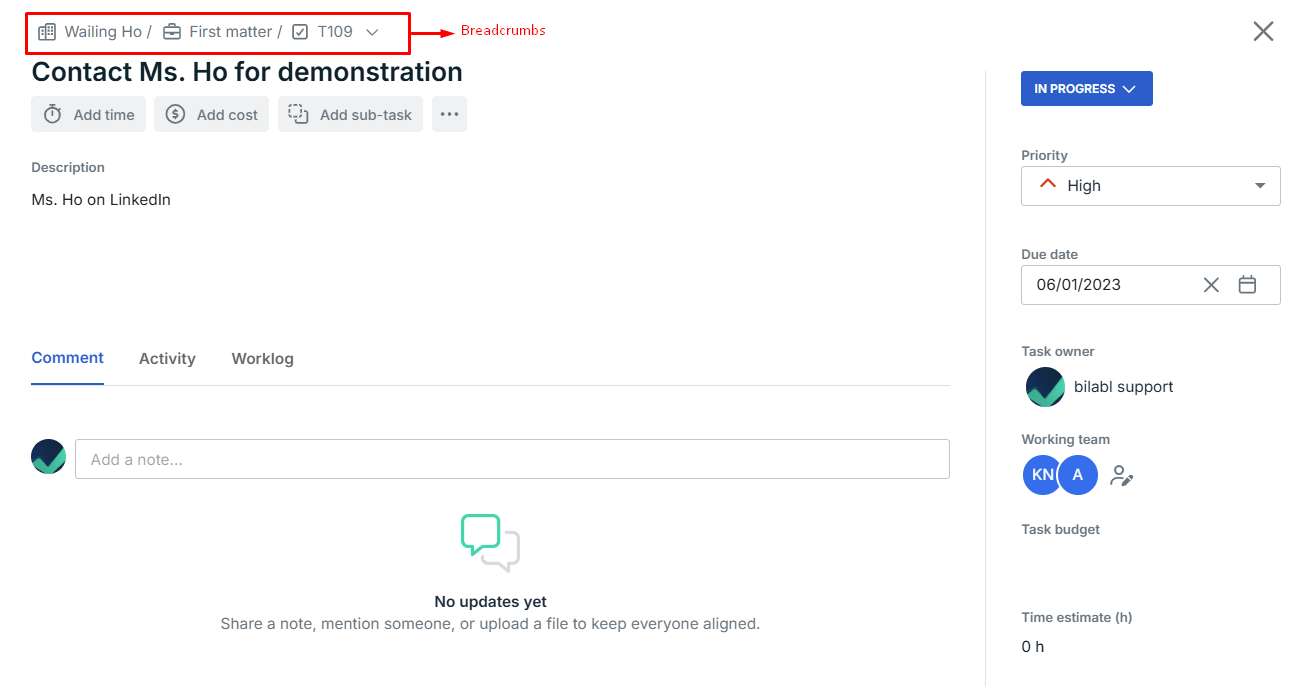
The breadcrumb at the top of each page helps you quickly see where you are, navigate to related records, and manage how Tasks are linked to Clients and Matters - all without leaving the current page.
You can use the breadcrumb to:
- See details: hover over a name to see key information immediately.
- Switch and add: jump to a different Matter or Task or create a new one directly from the dropdown.
- Move, reassign, or unlink: change how a Task is linked to a Client or Matter, or remove the link entirely.
Some actions may require specific permission. For details, refer to User Role and Entity Permission.
How to use the breadcrumb
See details by hovering
Hover over any Client or Matter name in the breadcrumb to see a pop-up with key details such as the code and display name (e.g., M00030 – The first matter).

Switch to a different Matter or Task
Instead of going back to the list page, you can switch directly from the breadcrumb.
To switch to a different Matter:
- Click the small arrow (▼) next to the Matter name in the breadcrumb.
- A list of other Matters under the same Client will appear.
- Click the Matter you want to open.
To switch to a different Task:
- Click the small arrow (▼) next to the Task name (e.g., T102).
- A list of other Tasks within the same Matter will appear.
- Click the Task you want to open.
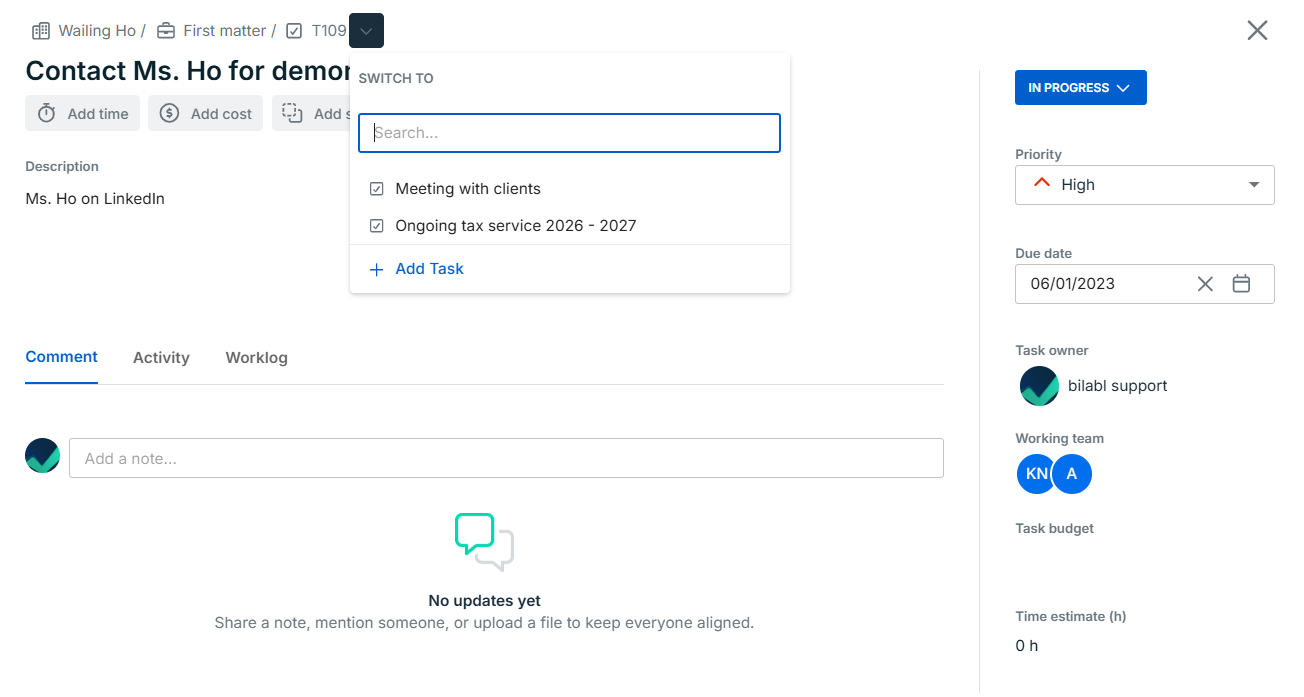
You can also create a new Matter or Task directly from the dropdown: click the arrow (▼), then select Add Matter or Add Task at the bottom of the list.
Move, reassign, or unlink a Task
If a Task was linked to the wrong Client or Matter, you can change it from the breadcrumb.
To change the linked Matter:
- Click the Matter name in the breadcrumb.
- Select a different Matter from the list. Only Matters under the current Client are shown.
To change the linked Client:
- Click the Client name in the breadcrumb.
- Select a different Client.
- The Matter field will be cleared. Choose a new Matter under the new Client.
Restriction
If the Task has any Timesheets recorded, you cannot change its linked Client or Matter. You will need to remove or move the Timesheets first.
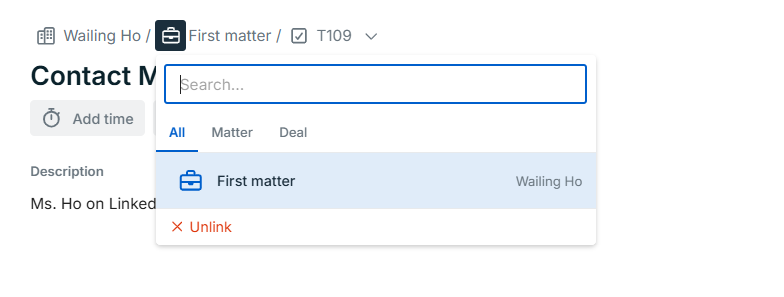
To unlink a Task:
- Click the Client or Matter name in the breadcrumb.
- Click Unlink. The Task will become standalone and no longer connected to any Client or Matter.
Frequently asked questions
Why can’t I change the linked Client or Matter on my Task?
If the Task has Timesheets recorded against it, the system prevents changes to the linked Client or Matter. You need to remove or reassign those Timesheets before you can make changes.
Why don’t I see the dropdown arrow on the breadcrumb?
The dropdown arrow only appears if you have the required permission. Check with your administrator to make sure you are assigned as an Owner or Assistant on that Client or Matter.
What happens to a Task after I unlink it?
The Task becomes standalone. It still exists in bilabl with all its data (description, Timesheets, comments, etc.), but it is no longer connected to any Client or Matter.
Can I re-link a Task after unlinking it?
Yes. Use the breadcrumb to select a new Client and Matter, the same way you would reassign a Task (see the "Move a Task to a different Client or Matter" section above).


