
Add and Manage Matter
In this article
Matters
In bilabl, matters represent your legal cases or projects, encompassing case-specific details. They include custom fields, related contacts, billing preferences, and matter budgets.
Watch our training video here
Add matters
A matter must always be attached to a client. When initiating a new matter, you must either associate it with an existing client or create a new contact before saving the matter. The option to create a new matter is available in three different locations within bilabl.
On Matter tab
- Go to matter and click on "add matter".
- Fill in the atter details.
- Opt to either "save and continue" for additional information or choose "save and close".

Quick add button
- Click on "add" and choose "add matter".
- Fill in the matter details.
- Opt to either "save and continue" for additional information or choose "save and close".
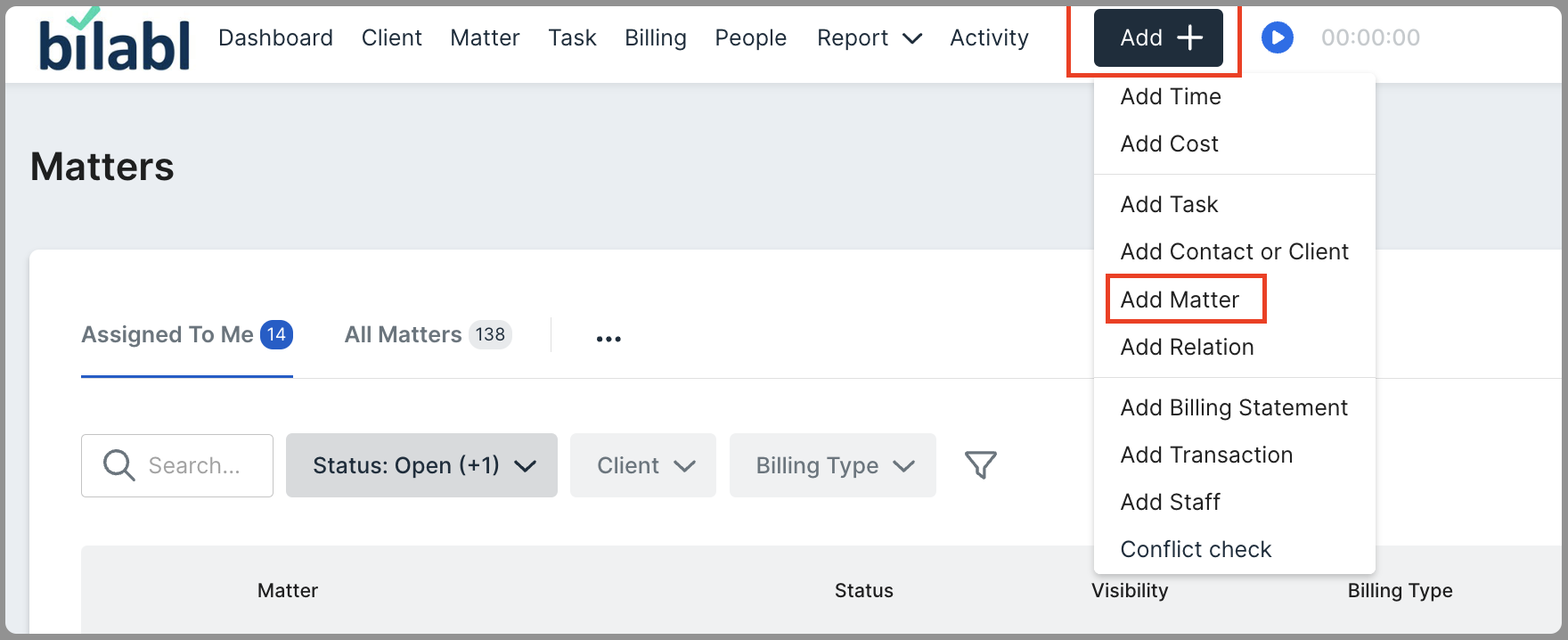
On client
- Go to client and open a specific client. You can also use the search bar to locate the client.
- Click on "add matter."
- Fill in the matter details.
- Choose either "save and continue" for additional information or "save and close."

Understand the meaning of fields
1. Team section
In this section, you can choose the team to which this matter is related.
2. Billing preference
This section is where you set up the matter for future billing and invoice generation.
The Billing Type selected here can still be changed later before generating the invoice. If you are unsure which billing type to use, it is best to check with your Manager, or select an Hourly Rate option for now and update it later.
Billing type applies to professional fees only. Any disbursements or expenses will be added or calculated separately in the total bill.
Billing types
- Non-billable
No professional fees will be charged to the client for this matter. Time can still be recorded for reporting or internal cost tracking. - Hourly Rate
Fees are based on actual time worked, using each employee’s own hourly rate. Senior lawyers may charge more than junior staff.
Example: Partner = $400/hour, Associate = $200/hour. - Blended Hourly Rate
Fees are based on actual time worked, but all timekeepers use one shared hourly rate for this matter, regardless of seniority.
Example: All time billed at $250/hour. - Capped Fee
Fees are based on actual time worked, up to a maximum agreed amount. If time value is lower than the cap, bill the lower amount. If higher, bill only the capped amount.
Example:- Actual fees = $8,000, cap = $10,000 → bill $8,000;
- Actual fees = $12,000, cap = $10,000 → bill $10,000.
- Fixed Fee
The client is charged one fixed agreed amount, regardless of time spent.
Example: Incorporation matter billed at $3,000. - Minimum Fee
The client is charged at least a minimum agreed amount, even if actual hourly fees would be lower. If actual fees exceed the minimum, charge the higher amount.
Example:- Minimum fee = $2,000. Actual fees = $1,200 → bill $2,000.
- Minimum fee = $2,000. Actual fees = $3,000 → bill $3,000.
- Retainer
The client pays a fixed fee or prepaid hours in advance for a set period. The retainer resets or renews each billing period based on the agreement.
Example: $5,000 per month or 20 prepaid hours monthly.
3. Matter Budget
Matter budgets enable you to establish a budget for a matter and create time estimations, but they do not include disbursement or expenses.
When you check “Get budget information from the billing preference”, the budget will be inherited from the billing preference before. However, it’s only applied if the billing type is Capped Fee, Fixed Fee, Hourly Retainer, Fixed Fee Retainer

Notes
- Matter budget allows users to create the budget for the matters and time estimation.
- Matter budget does not include the disbursement fee or expense.
- Estimated time will be used to compare the actual time and the actual time spent for the matters (billable or non-billable).
4. Visibility
Visibility or Entity Permission in this context refers to determining who has access to view or is involved in a particular matter.
Learn more about visibility here
Notes
If any matters need to be public for all members to work on it, please grant access for All Users as Assistant, Owner, or Can’t Access.

5. Contact personnel
"Contact personnel" refers to the individual designated as the point of contact for a specific matter. You will communicate with this person regarding the details and progress of the matter.
To add contact personnel, you have two options:
Add an existing contact: Click on the button and choose the contact you want to select.
Create new contact personnel: Click on the button and fill in the details for the new contact. Select "add as the new contact". Complete the necessary information.
6. Revenue distribution
When selecting a revenue distribution method, you have the following options:
Distribute revenue by percentage of billed amount: This is the default option, automatically selected if you don't specify another preference. The system allocates revenue to users based on their billed time and hourly rate for the Matter.
For example: If a legal matter generates $10,000 and lawyer A contributed 60% of the billed time at an hourly rate of $150, $6,000 (60% of $10,000) would be allocated to lawyer A.
Distribute revenue by percentage of billed time: The system allocates revenue to users based on their billed time and hourly rate for the matter.
For example: If a matter accumulates 100 billable hours and lawyer B worked 30 billable hours, representing 30% of the total, and the total revenue is $8,000, $2,400 (30% of $8,000) would be allocated to lawyer B.
Distribute revenue manually: Admin or Manager manually allocates revenue as needed.
Example: The Manager manually reviews the team's contributions to a project and decides to allocate $5,000 in revenue. They may distribute $2,500 to Employee X and $2,500 to Employee Y based on their individual contributions.
7. "Save and continue" button and "save and close" button
When you use the "save and continue" button, you can provide additional information for the matter, such as date of opening the matter, date of closing the matter, originated by, tags, contact personnel, matter budget, and revenue distribution.
Clicking the "save and close" button indicates that you do not have any further actions to perform at that moment; the information provided is saved, and you exit the current process without proceeding to the next step.
Edit and delete matter
You can edit and delete matters. Once a contact is deleted, it can not be recovered
Edit matter
- Go to matter.
- Select the matter you want to edit.
- Click on the ellipsis (…), and choose "edit". Alternatively, use the search bar to find the matter, click on the ellipsis (…), and choose "edit" in the matter's dashboard.
- Make the necessary changes.
- Click "save and exit".


Delete matter
When you delete a matter, all associated contact notes and information will be permanently lost. Follow these steps:
- Go to matter.
- Select the matter you want to delete.
- Click on the (…) and choose "delete". Alternatively, use the search bar to find the matter and click on the (…) to delete.
- Click "delete".
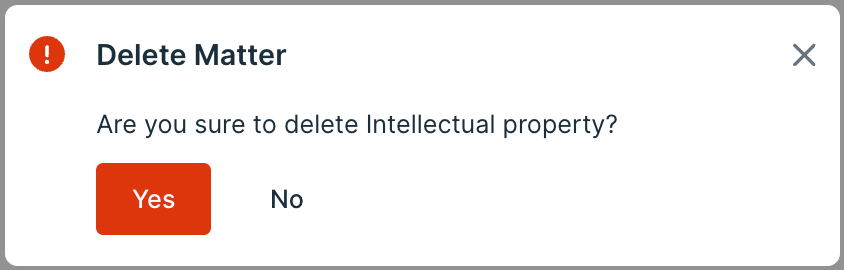
- In the warning prompt, confirm the action by checking the box and click "yes" to delete the matter.


For further assistance, visit the bilabl Help Center or email support@bilabl.io.


